

1
Go to the Security Center
Enter 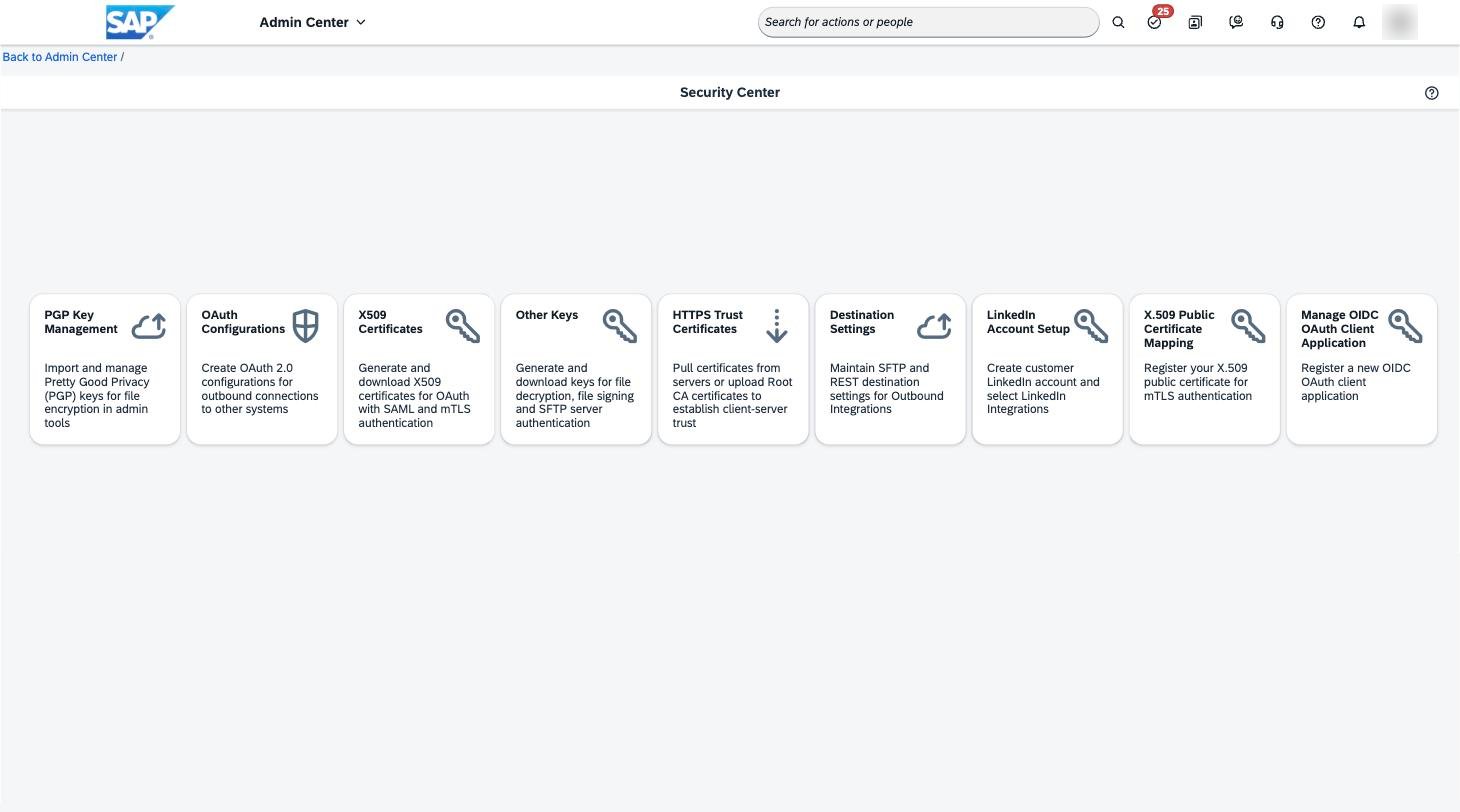
Security Center in the search bar at the top of the screen and
open it. Click the Other Keys tile.2
Generate the key
Click 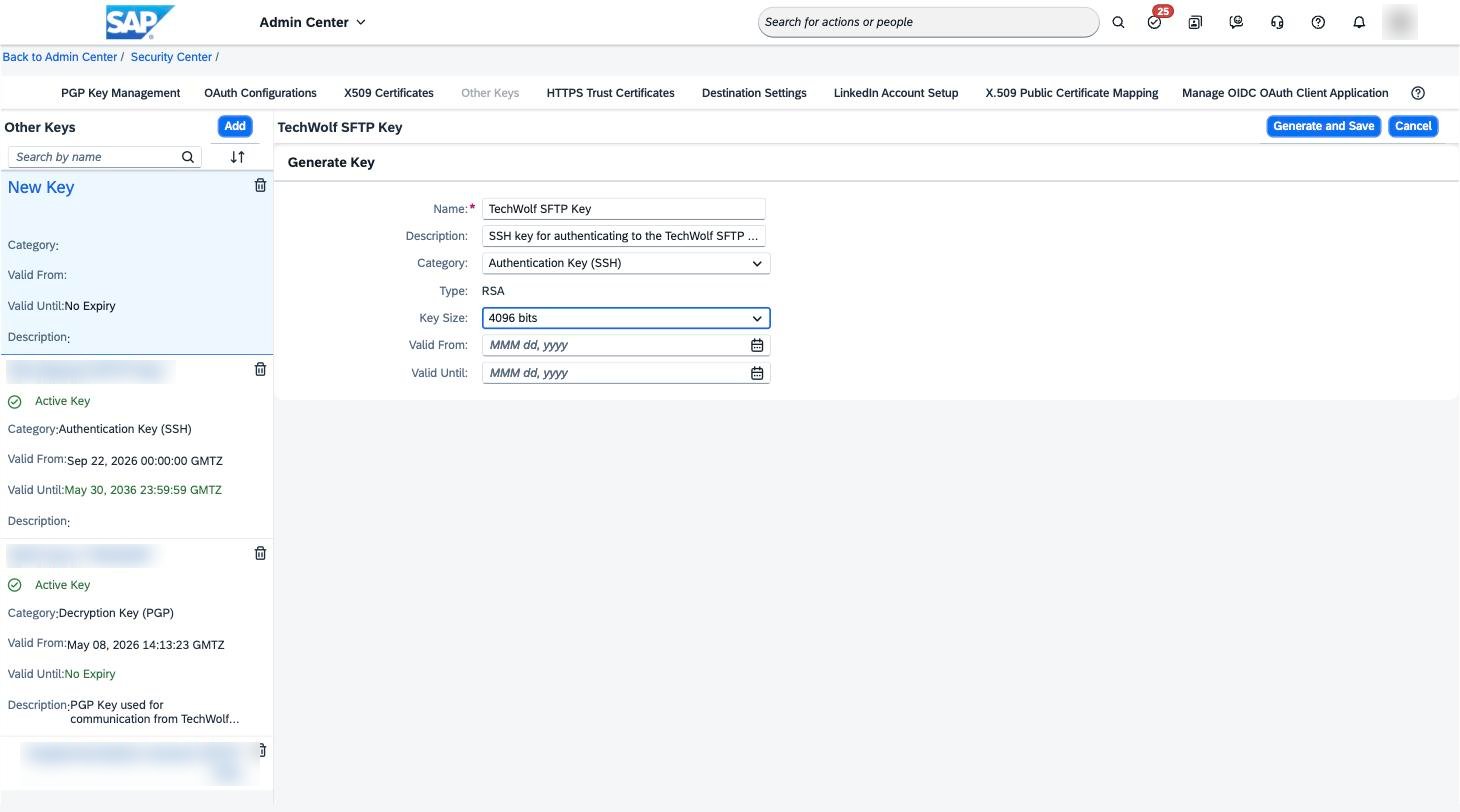
Add at the top left of the key list and fill in the form:- Name: a recognisable name, e.g.
TechWolf SFTP Key - Category:
Authentication Key (SSH) - Key Size:
4096 bits - Valid From and Valid Until: optional. When set, the schedules stop
working after the
Valid Untildate, so set a reminder to rotate the key before it expires.
Generate and Save.3
Download the public key
Select the new key in the list and click 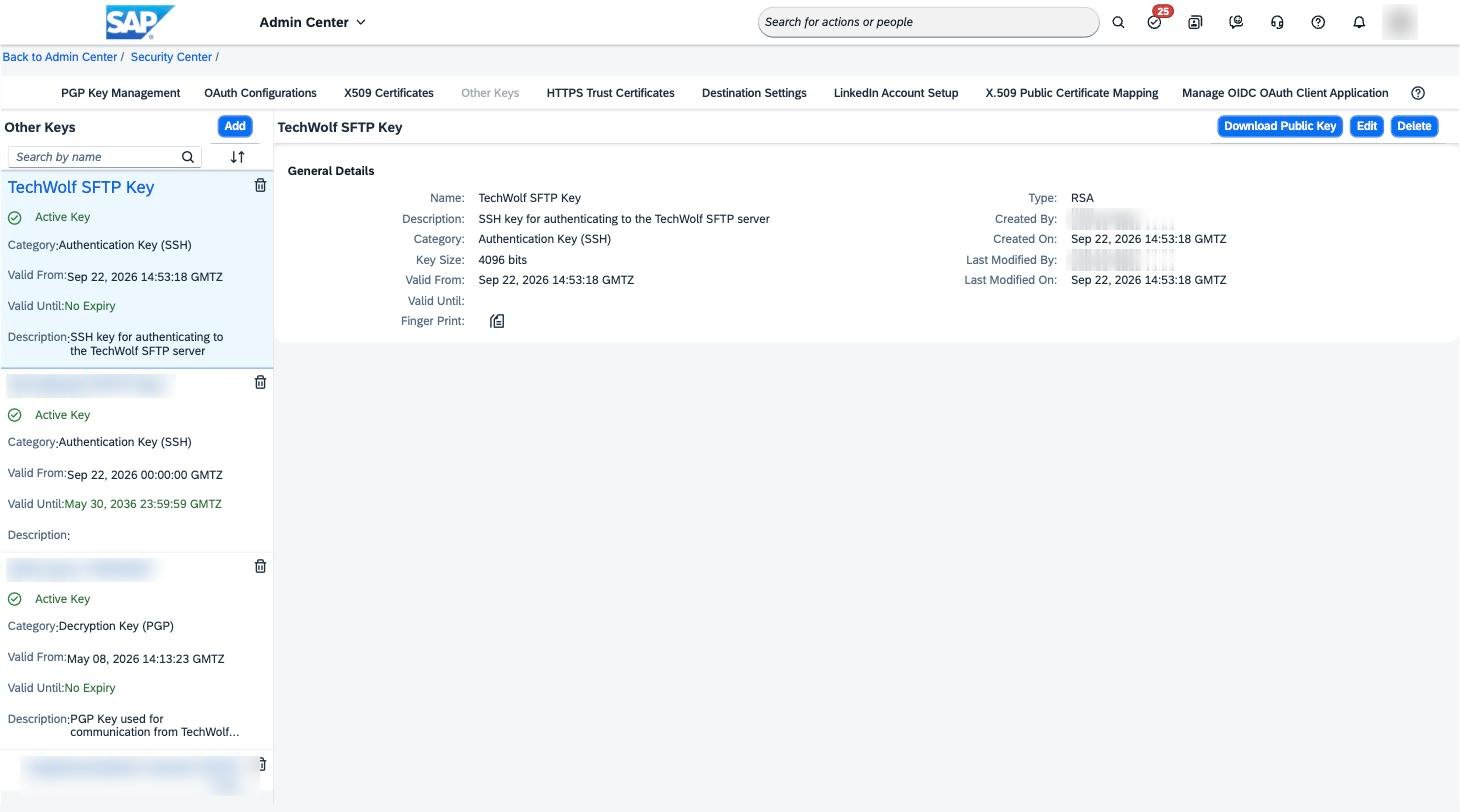
Download Public Key at the
top right. This downloads a .pub file.4
Share the public key with TechWolf
Send the
.pub file to your TechWolf representative. TechWolf
registers the key on the SFTP server and sends back the SFTP user name
linked to it.5
Use the key in the Integration Center
When loading the
export
or
import
integration definitions, fill in the Destination Settings (exports) or
Source Settings (imports) page as follows: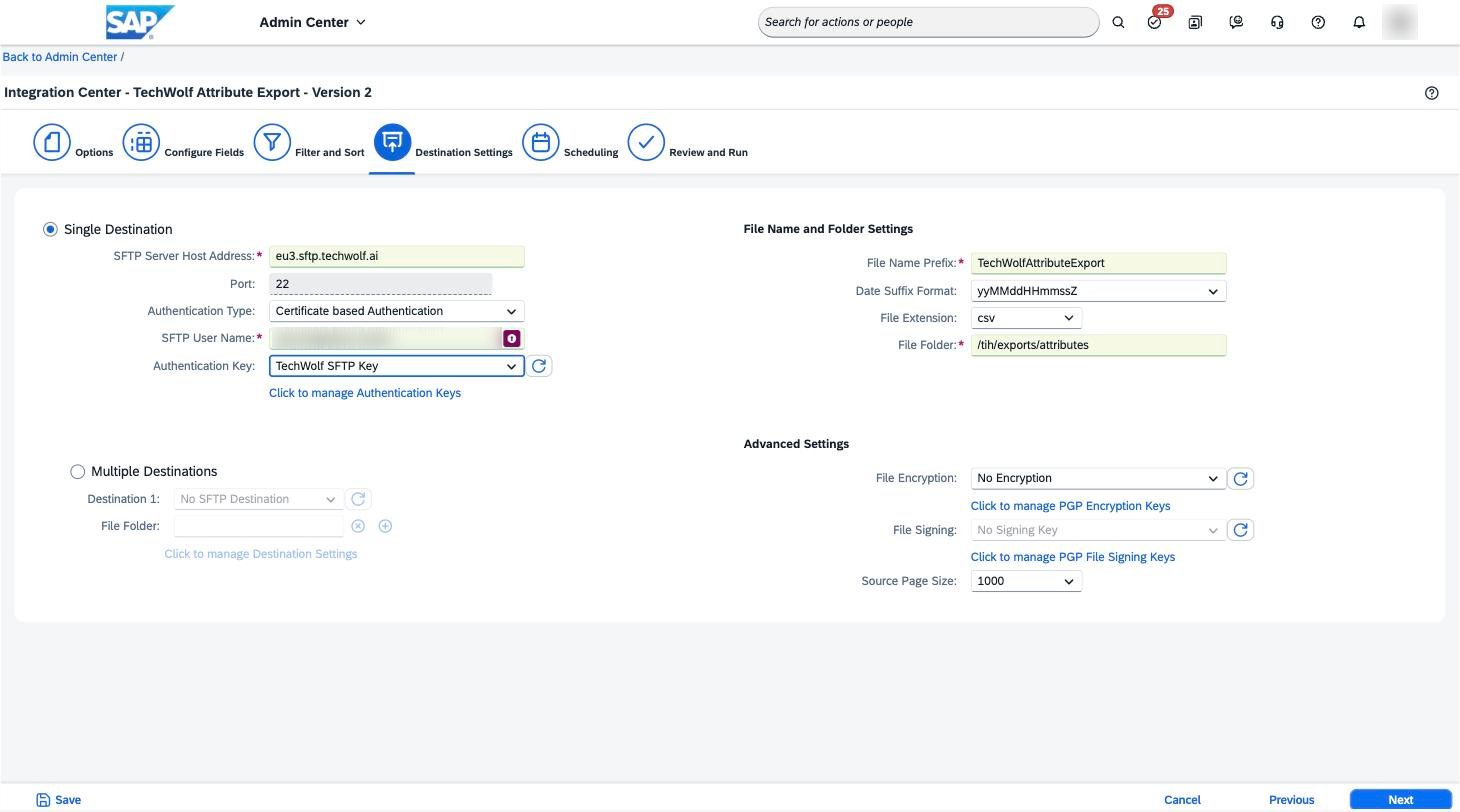
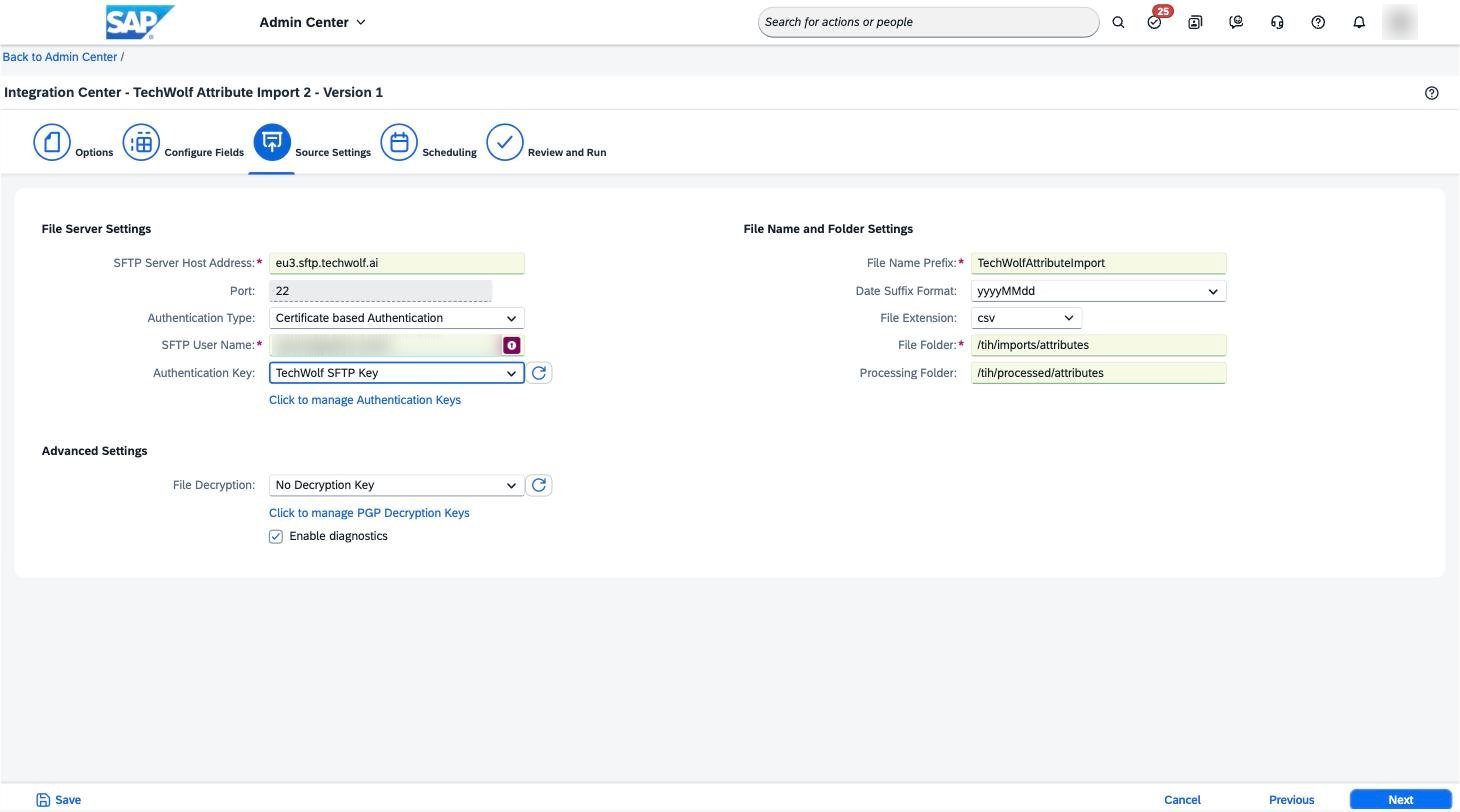
- Authentication Type:
Certificate based Authentication - SFTP User Name: the user name TechWolf sent back
- Authentication Key: the key generated above, e.g.
TechWolf SFTP Key. The dropdown only lists keys present in the Security Center.