Suggestions
Example: Flat list of Skills
In this example, the card displays a flat list of Skill Suggestions without any grouping. The maximum number of suggested skills shown in the card is 10.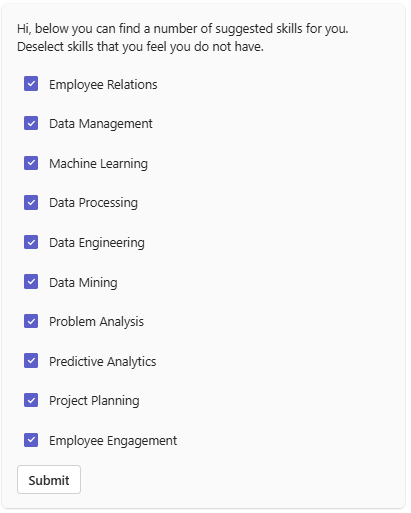
Example: Skills Grouped by Skill Cluster
In this example, the card displays Skill Suggestions grouped by Skill Cluster. Each Skill Cluster appears as a separate section within the card, clearly labeled by its Skill Cluster name. Within each Skill Cluster, a maximum of 4 skills are shown.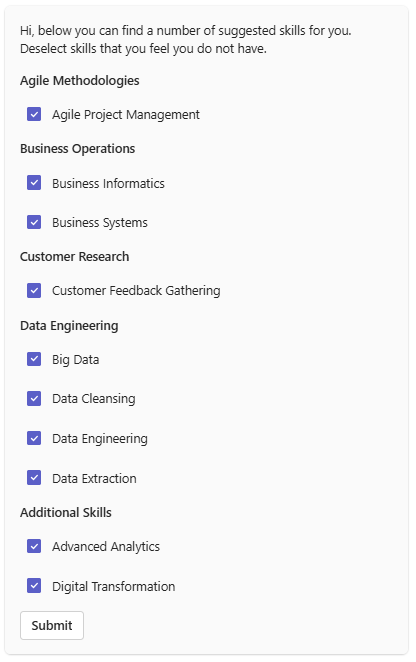
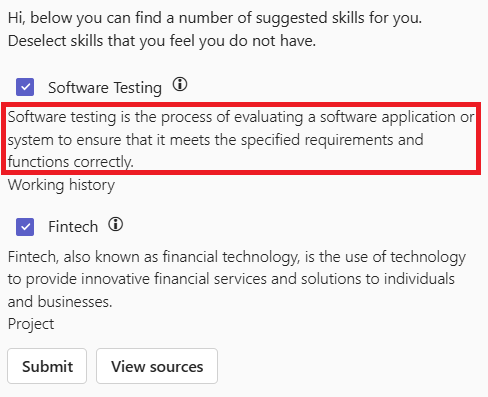
Example: Skill Suggestions with “View Sources” Button
In this example, the card includes a “View Sources” button that allows users to view the underlying sources for the suggested skills. The button has been clicked, revealing the sources used to generate the Skill Suggestions.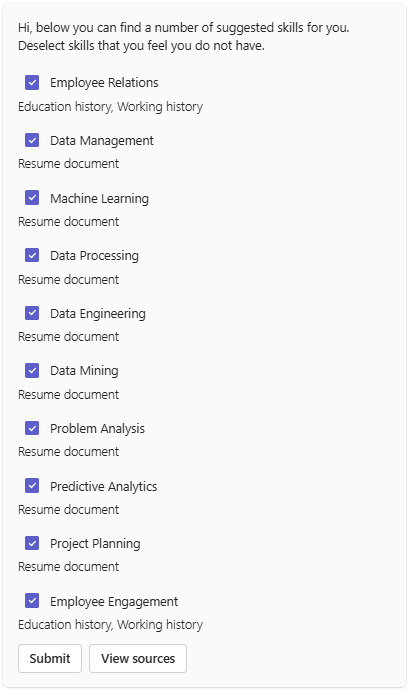
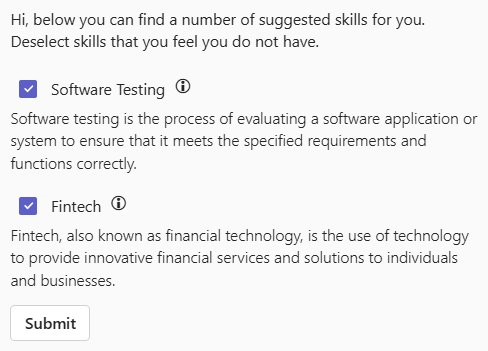
Example: Skill Suggestions with English Descriptions
In this example, the card includes the English skill descriptions of the suggested skills. By default, skill descriptions are hidden. An info icon is displayed, which users can click to reveal the skill descriptions.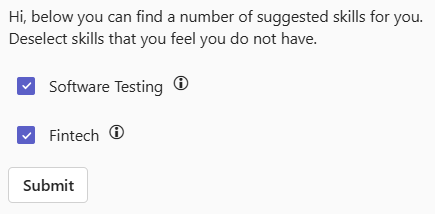
Validated Suggestions
In this example, the card displays a list of validated Skill Suggestions.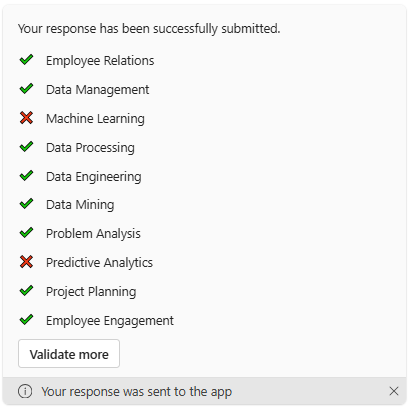
Outdated Message
When a new reminder or new skill suggestions are sent while previous suggestions are still unsubmitted, the previous message is replaced with the outdated message. There is no time-based trigger — this only happens when the next reminder or new skill suggestions are sent.
Skill Management Tab
Example: Normal Skill Profile Management
In this example, the Employee can manage their Skill Profile by simply adding or deleting Skills.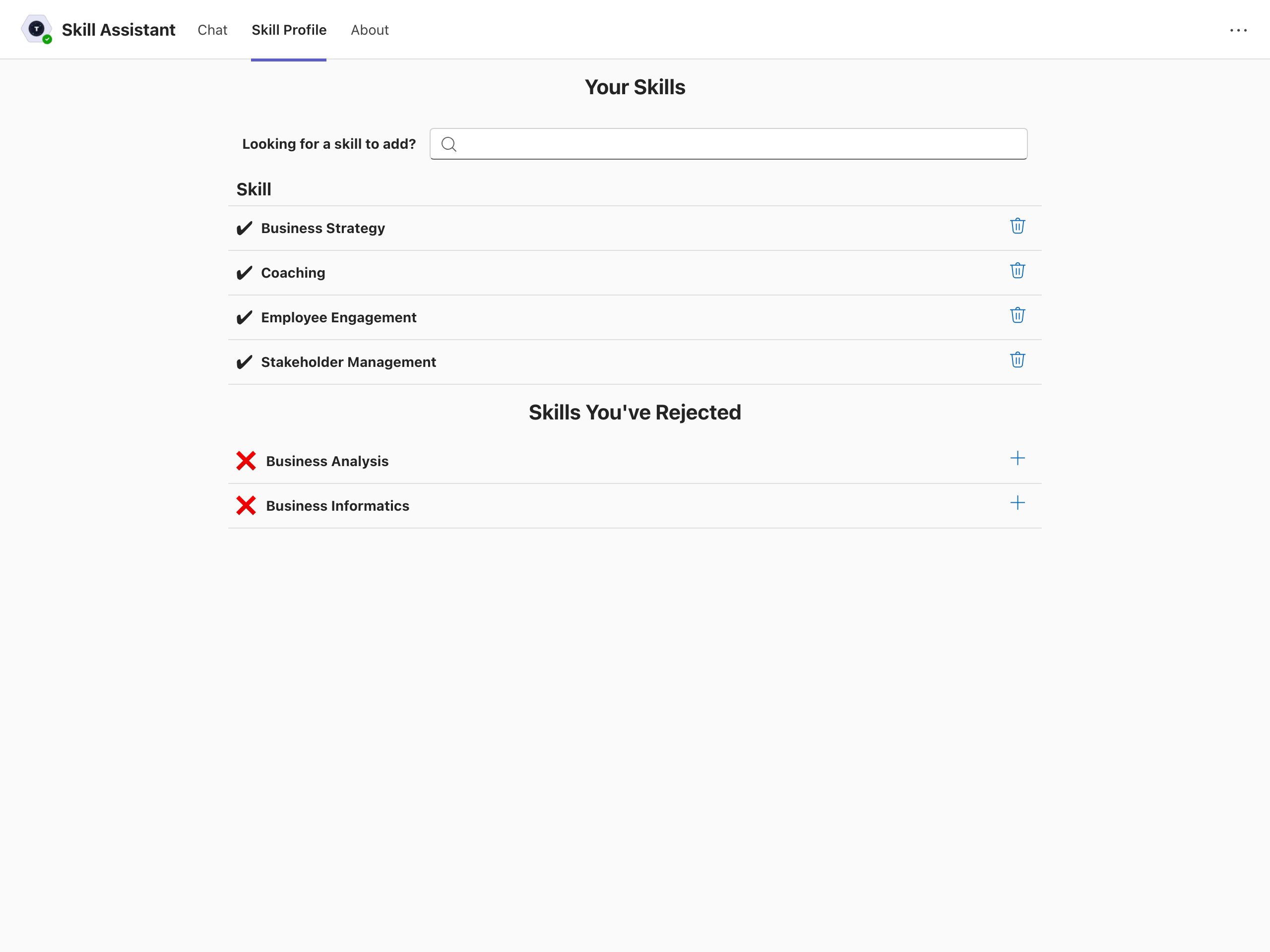
Example: Skill Profile Management including suggested and self-rated proficiency levels
The functionality can be extended to let the user govern their proficiency level for each skill. Each level has a descriptive label so that the Employee knows what each level means. When available, a suggested proficiency level per skill is shown. When Skill descriptions or proficiency level descriptions are enabled, each Skill also has a Show details button, described below.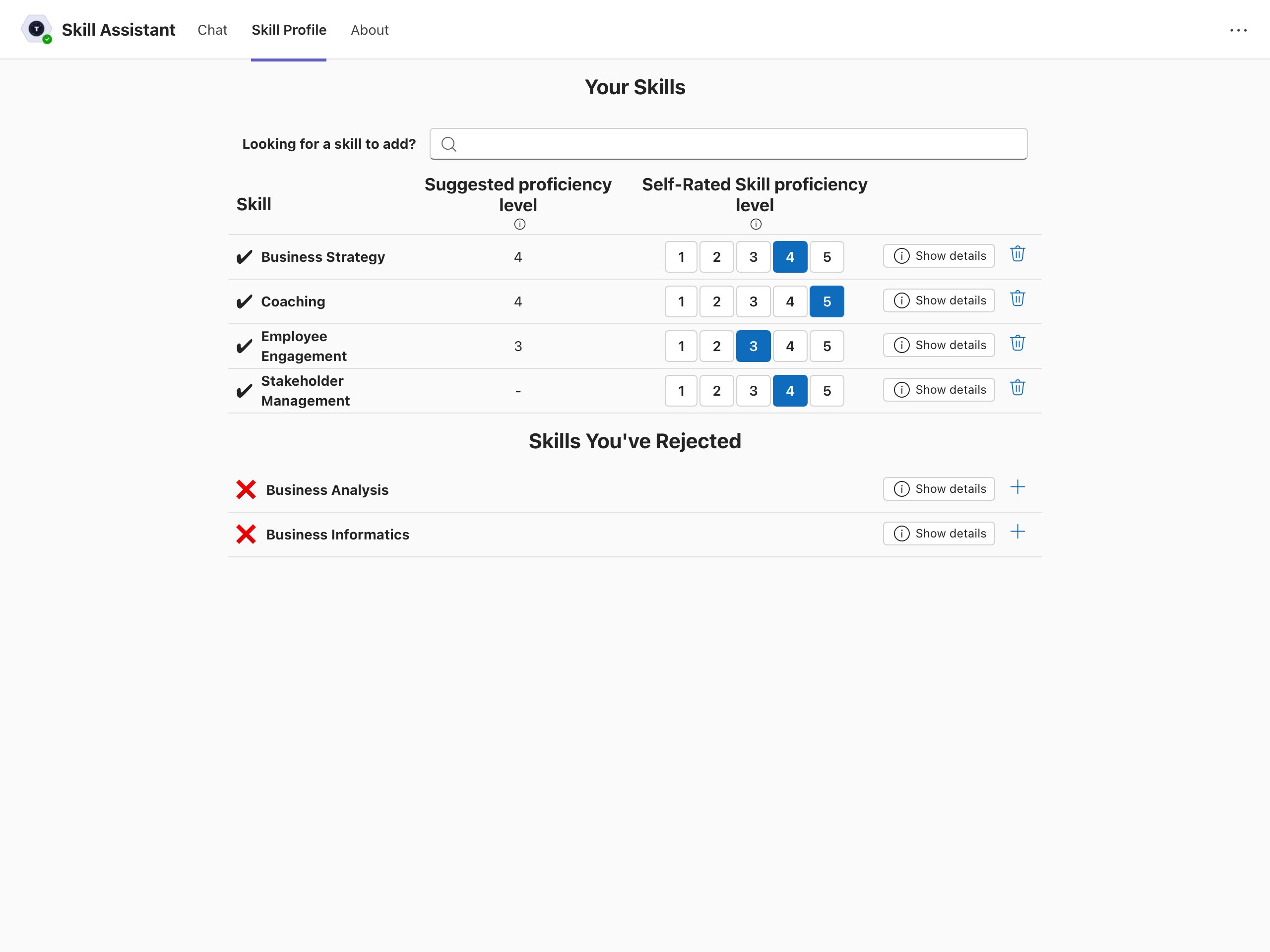
Example: Skill details
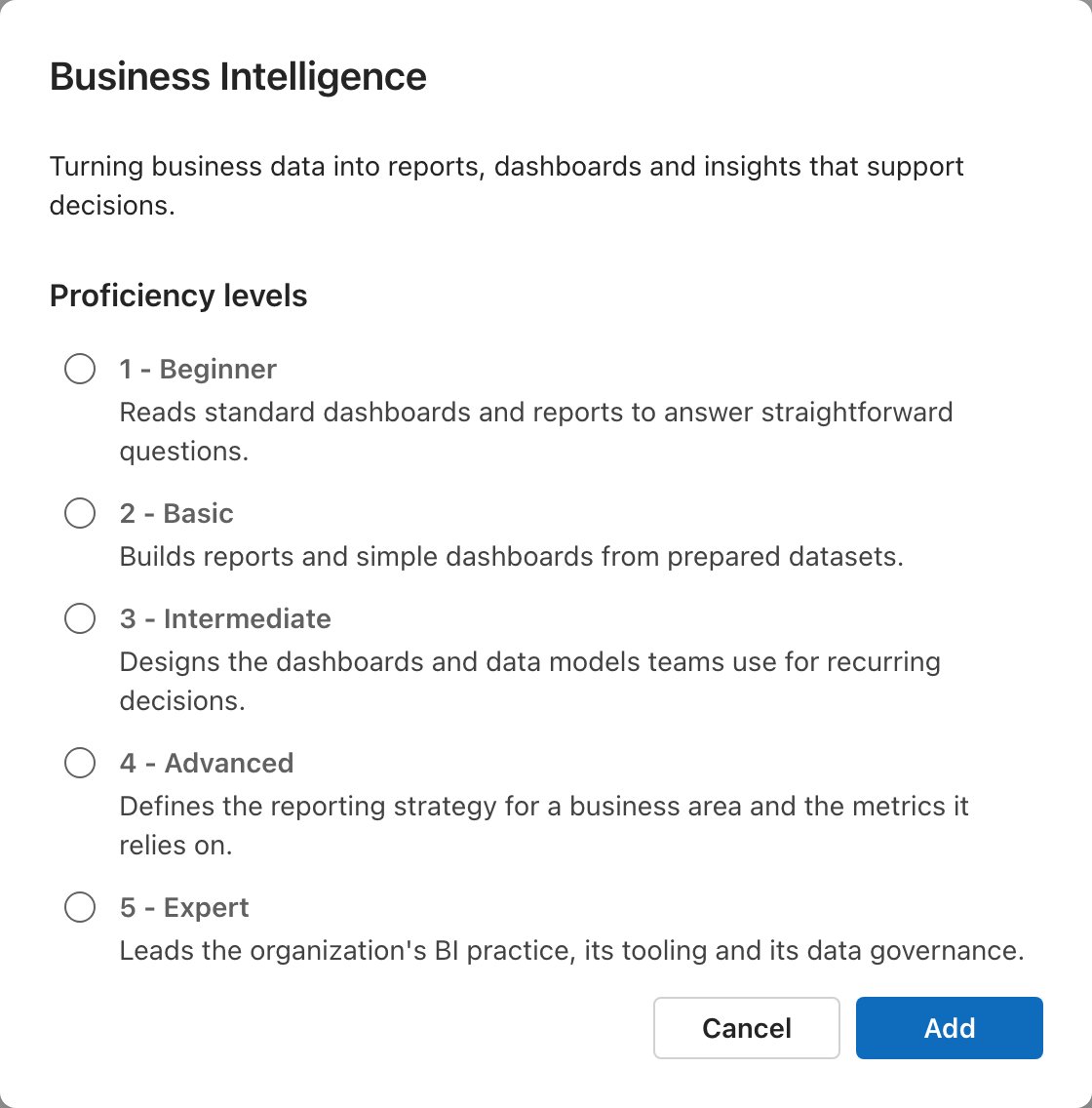
With proficiency levels and Skill descriptions or proficiency level descriptions enabled, the Show details button opens a dialog about that Skill. It shows the Skill’s description and, for each proficiency level, what that level means for this Skill. The suggested level carries a Suggested tag and the Employee’s current level is selected. Which parts are shown follows which descriptions are enabled.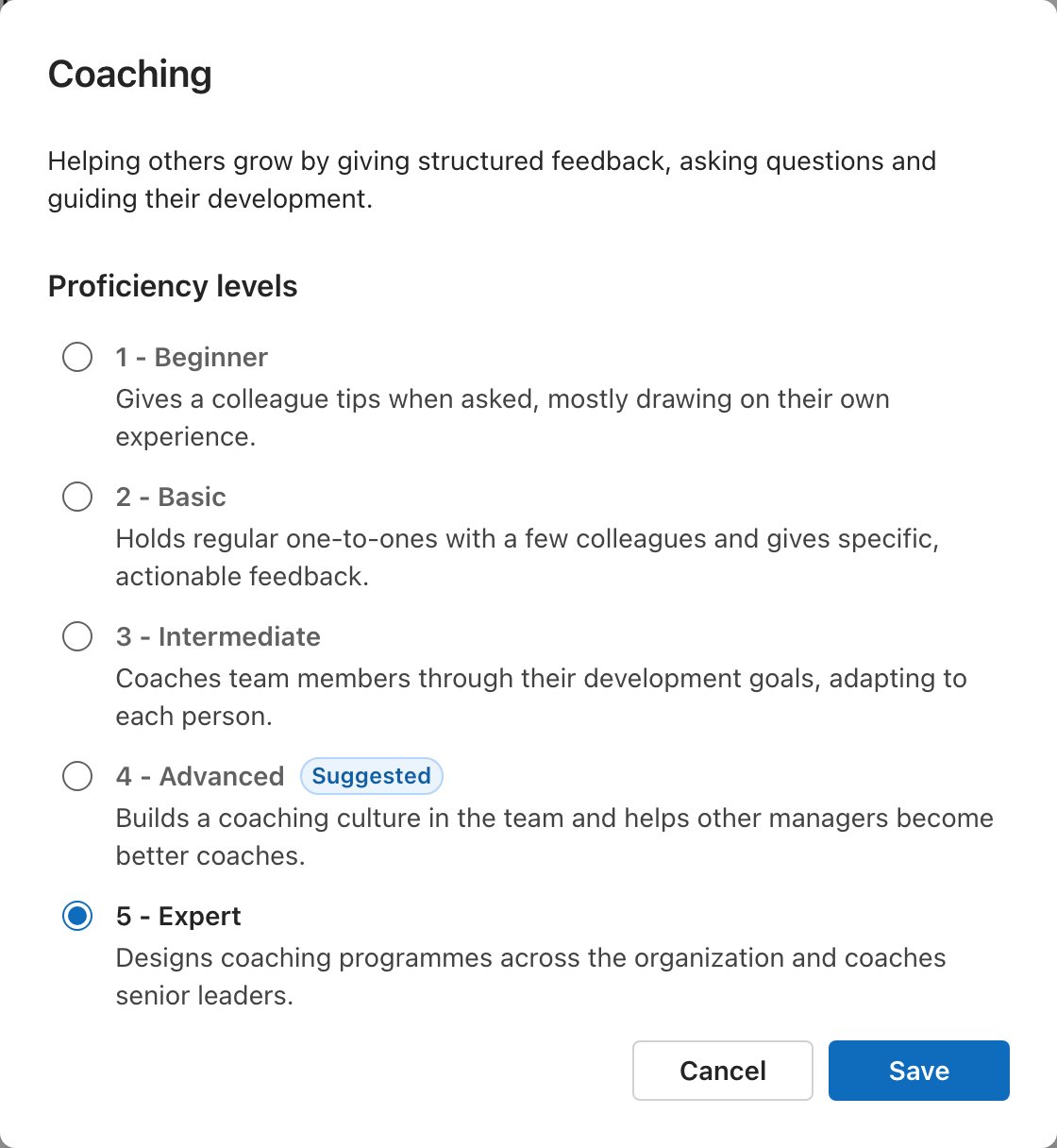
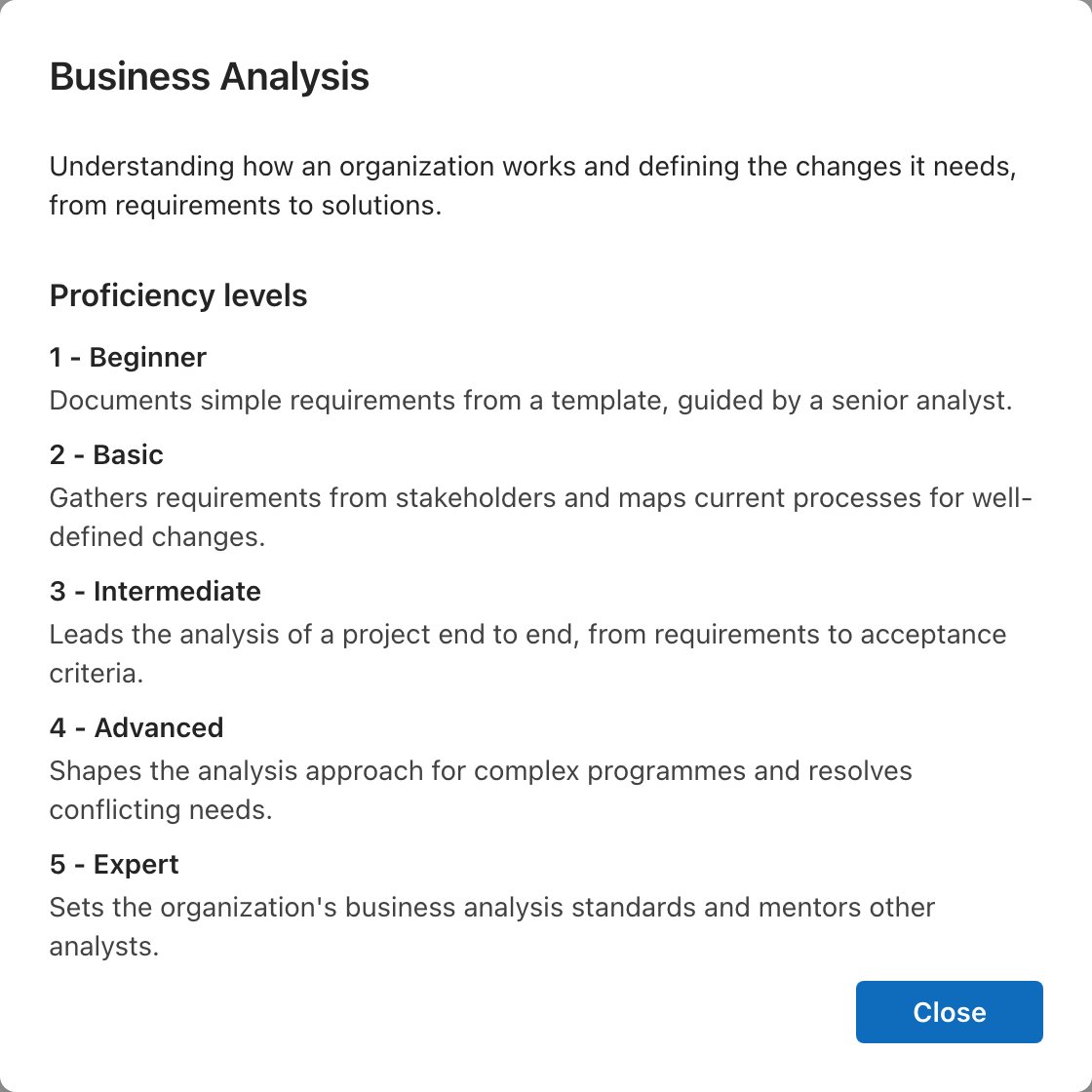
Adding a Skill with its details
When the Show details button is offered, clicking a Skill in the search results does not add it right away. Otherwise the Skill is added at once.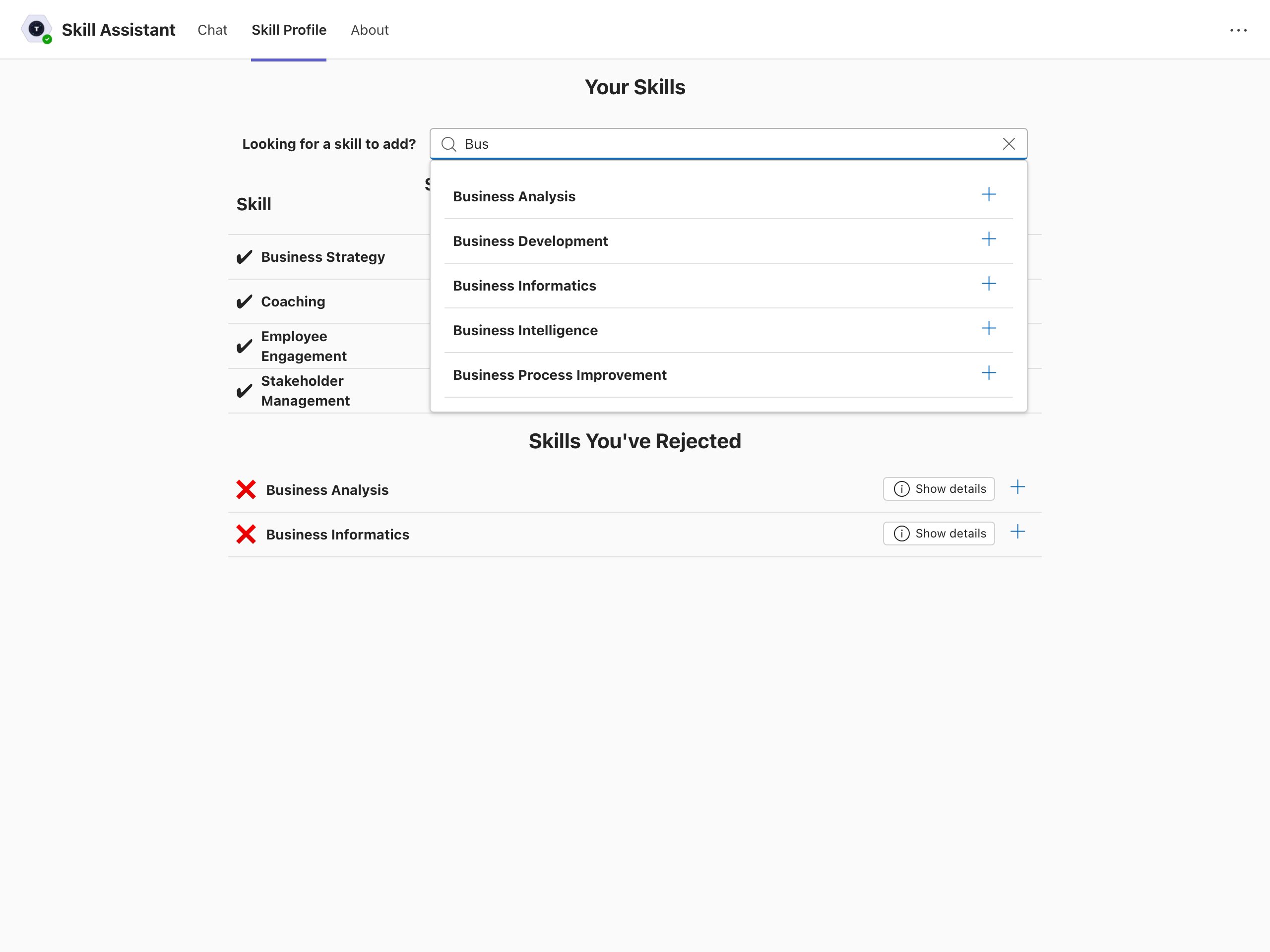
Example: Skill Profile Management including job-critical skills
The functionality can be extended to show which Skills are critical to the Employee’s current Job. A Job Skill column marks each Skill, and the job-critical Skills are listed first, so the Employee knows which Skills matter most and which to rate first. Employees can still delete any Skill.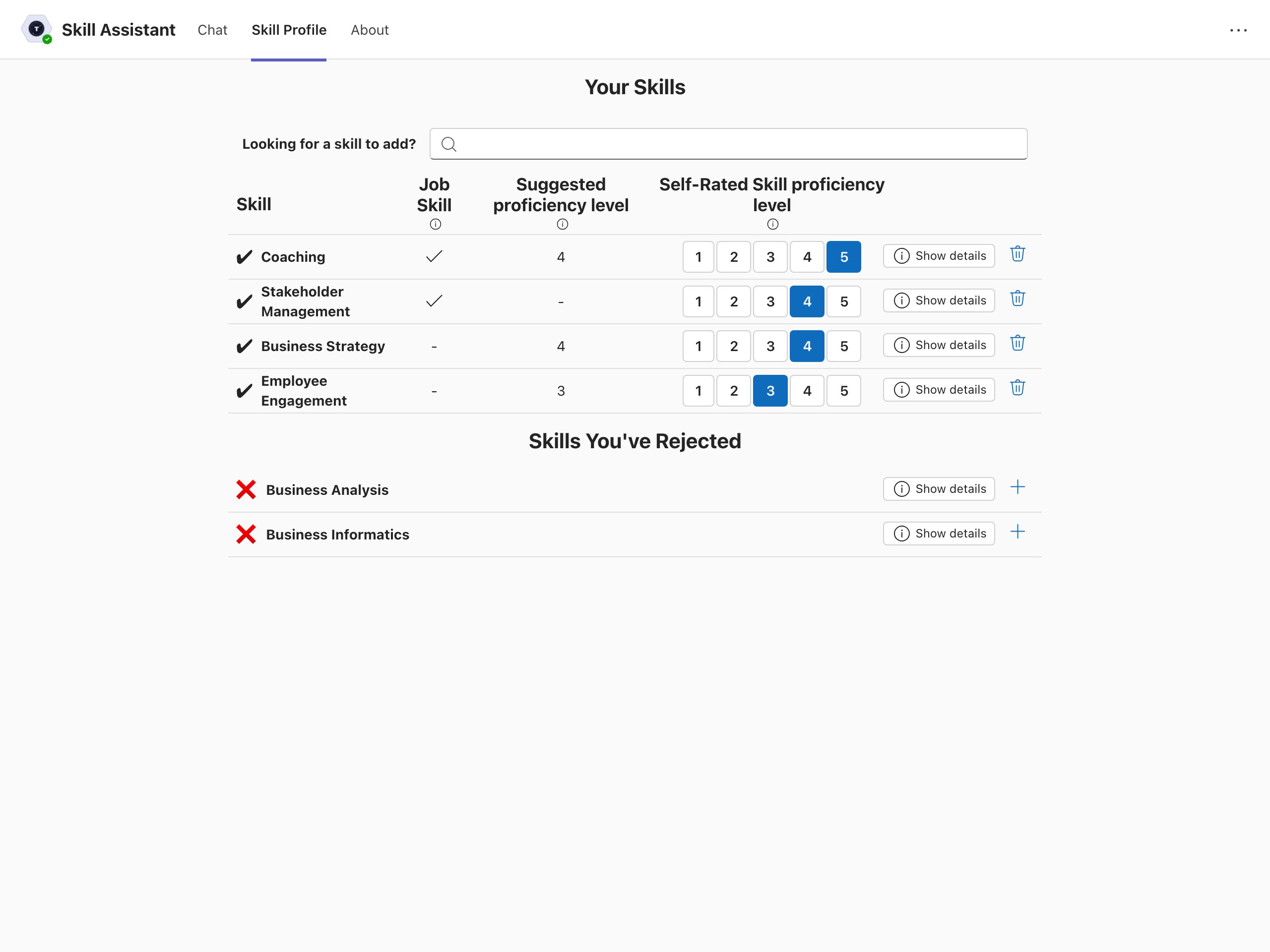
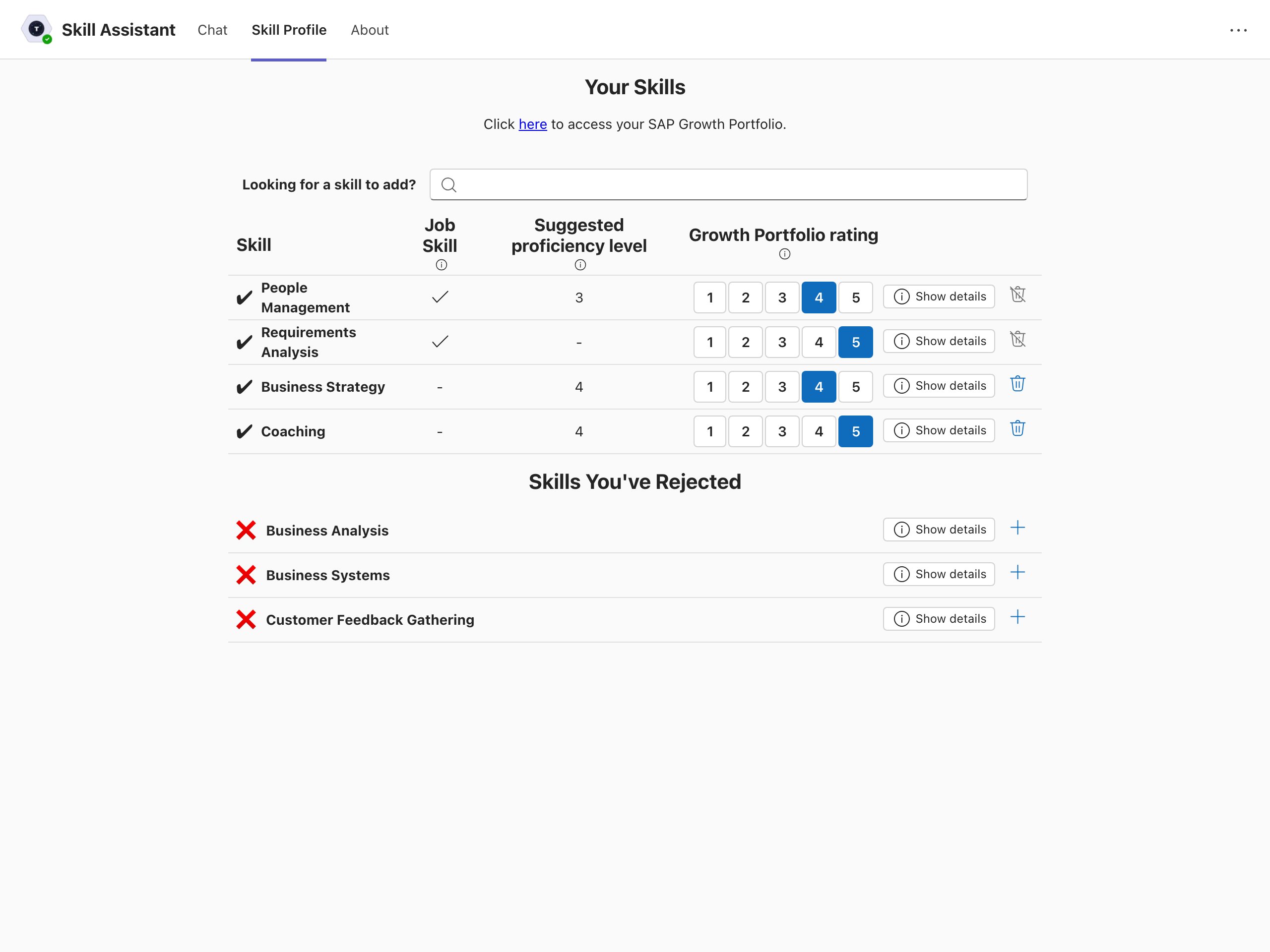
Example: Skill Profile Management for SAP customers
For SAP customers, the UI is updated to reflect the same wording that is used in the SAP Growth Portfolio. A custom message can be configured with a link to the Employee’s SAP Growth Portfolio. Additionaly, the Skills that are already part of the Skill Profile of the Employee through their Job are shown. Employee has this Skill because their Job requires it. Employees cannot delete Job Skills from their Skill Profile.