

Prerequisites
Before continuing, ensure you have the following:- A valid TechWolf contract and access to a live TechWolf tenant.
- This tenant must contain Jobs corresponding to the Job Roles present in
SAP SuccessFactors. This can be achieved by either:
- Using the Standard Job Data Input Integration .
- Writing custom input integrations. When doing this, ensure the
TechWolf SkillEngine API Jobs are linked with their SAP SuccessFactors
Job Role counterparts by using the SAP Job Role ID (
Role_GUID) as the TechWolf Job ID (external_id).
- This tenant must contain Jobs corresponding to the Job Roles present in
SAP SuccessFactors. This can be achieved by either:
- A working SAP SuccessFactors environment with Talent Intelligence Hub and Job Profile Builder enabled.
- An SAP SuccessFactors administrator user with permission to Manage OAuth 2 Client Applications and to import employee data.
- A working SAP BTP tenant with SAP Integration Suite provisioned,
including the Build Integration Scenarios capability. Your user must have
the
PI_AdministratorandPI_Integration_Developerroles. For more information on setting up Integration Suite, refer to the SAP community guide . - An AIR key, provided by your TechWolf representative.
- The Integration Suite Content Package zip file, provided by your TechWolf representative.
The AIR key (Application Interface Register key) is an identifier SAP issues
to certified PartnerEdge partners. The iFlows pass it in the header of every
SuccessFactors API call so SAP can attribute traffic to the TechWolf Skill
Sync partner solution. It is an identifier, not a secret credential.
If you already configured the
SAP BTP Employee Skill Sync
in the same BTP tenant, the shared BTP/SuccessFactors setup (Steps 1-3 and
Steps 5-9) is already in place. You can skip to Step 4 to add the
Job-specific permissions, and then Step 10 to configure the Job iFlows.
SAP BTP and SuccessFactors Configuration
TechWolf has already pre-configured some parts of the integration. The following ZIP archive contains the necessary files that will be used in the subsequent steps to configure the integration in SAP BTP and SAP SuccessFactors.Required files
Required files for the SAP BTP Job Skill Sync Integration
1. Create a Certificate for authenticating to SuccessFactors
- In SAP Integration Suite, go to Monitor > Integrations and APIs > Manage Security > Keystore, then click Create > Key Pair.
- Set Alias to a value you will remember for Step 5 (e.g.
techwolf_skillsync_successfactors). - Set Common Name to
TechWolf_TIH_GP(hardcoded, see the warning above). - Set Country to the two-letter ISO 3166-1 alpha-2 code for your country
(e.g.
BEfor Belgium,USfor the United States). List of ISO 3166-1 alpha-2 codes . - (Optional) Change Valid Until to a date of your choice.
- Leave all other fields on their default values.
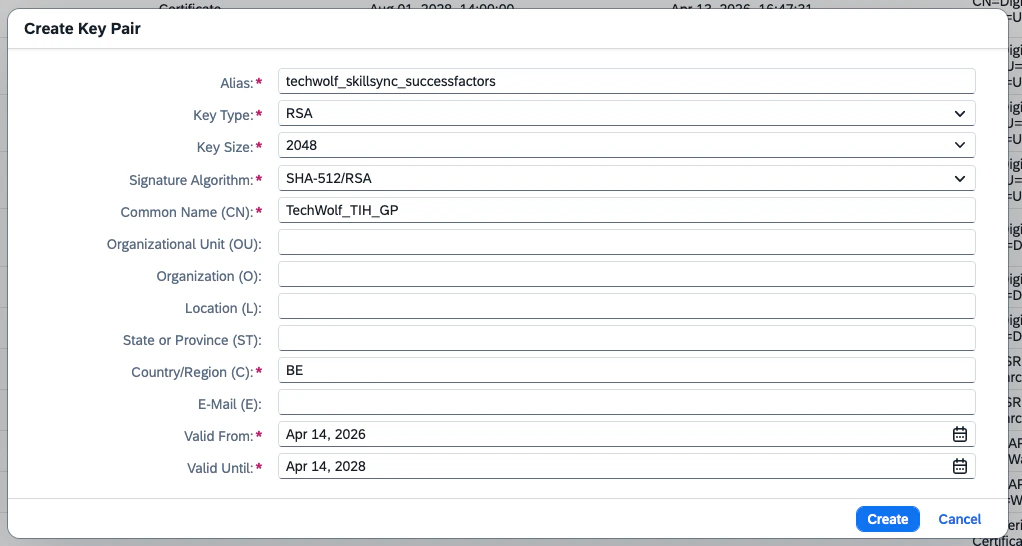
- Click Create. The new key pair appears in the Keystore overview.
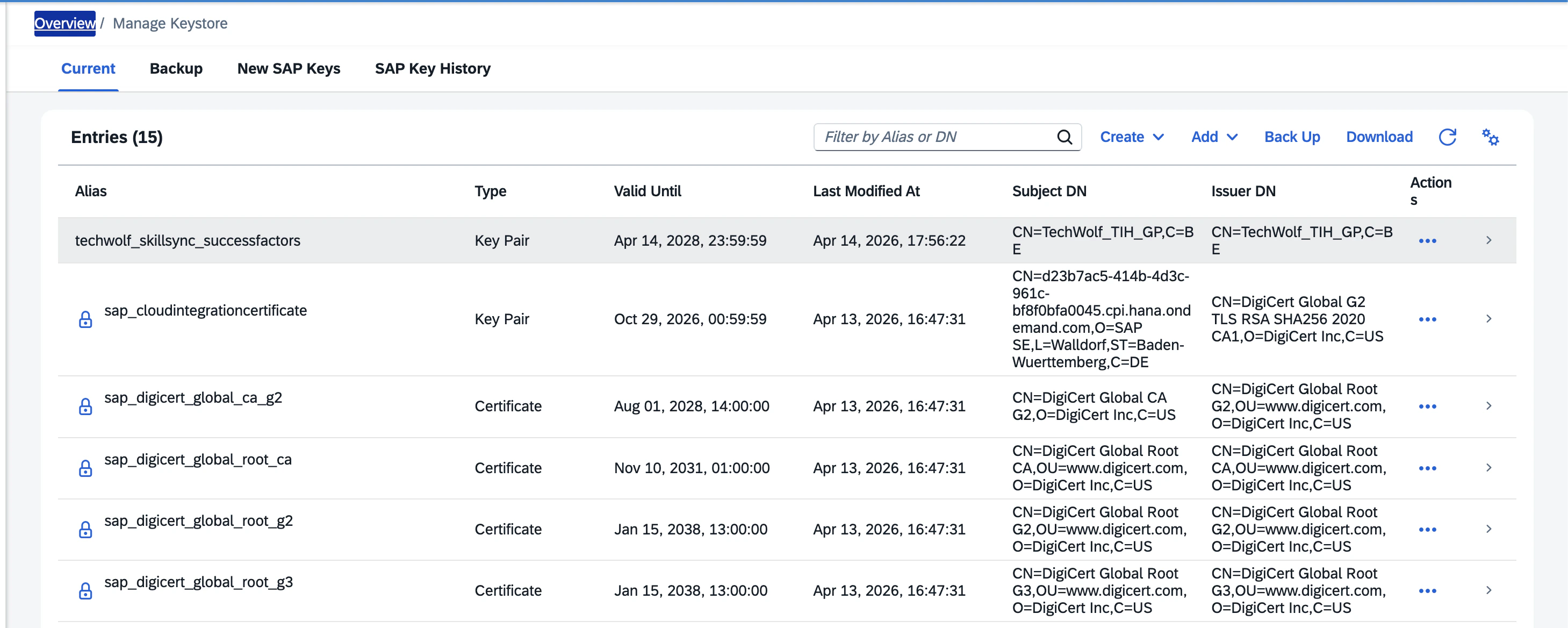
- Click the new key pair, then click Download > Certificate. Keep the downloaded certificate file available; you will paste its contents into SuccessFactors in Step 3.
2. Create the TechWolf integration user in SuccessFactors
- In the search bar at the top right of SAP SuccessFactors, enter
Import Employee Data. - In the resulting window, under the
Select an entitydropdown, choose “Basic Import”. In theChoose Filefield, upload thetechwolf_api_user_definition.csvfile from the required-files zip downloaded above.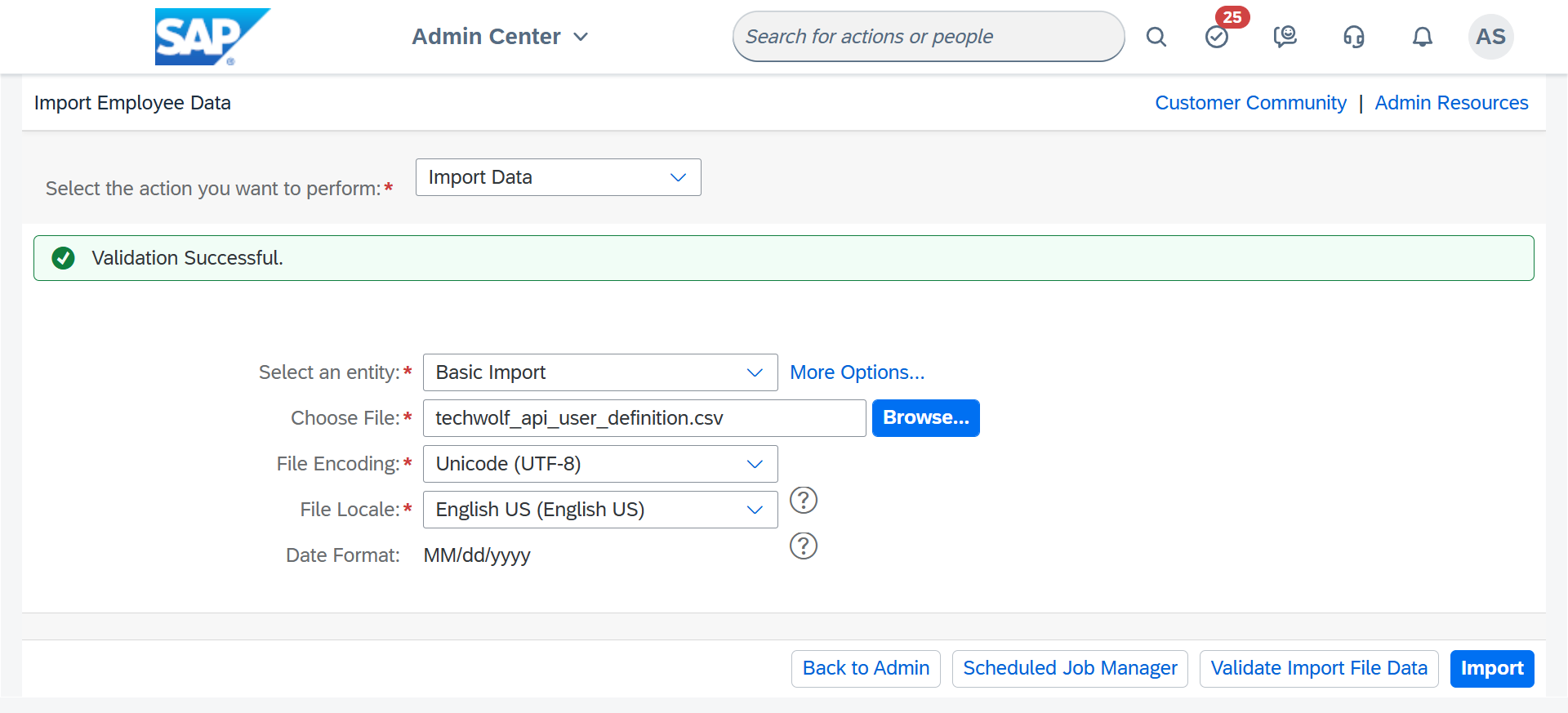
- Leave the other fields unchanged and click
Validate Import File Data. If the validation is successful, clickImport.
If you already created a TechWolf User for another TechWolf - SAP
SuccessFactors integration, this step can be skipped.
3. Configure the permissions for the TechWolf user
TheTechWolf_TIH_GP user needs a Permission Group and a Permission Role to run
the Skill Sync.
If another TechWolf - SAP SuccessFactors integration using the
TechWolf_TIH_GP user has already been configured in this tenant, the
Permission Group and Permission Role already exist. Skip the group creation
and role assignment steps below and only add the missing permissions from
the table to the existing Permission Role.-
Create a Permission Group
- In the search bar at the top, enter
Manage Permission Groupsand open it. - Click
Create New. - Name the group
TechWolf_TIH_GP. - Pick the
Usernamefilter and set it equal toTechWolf_TIH_GP. - Click
Done.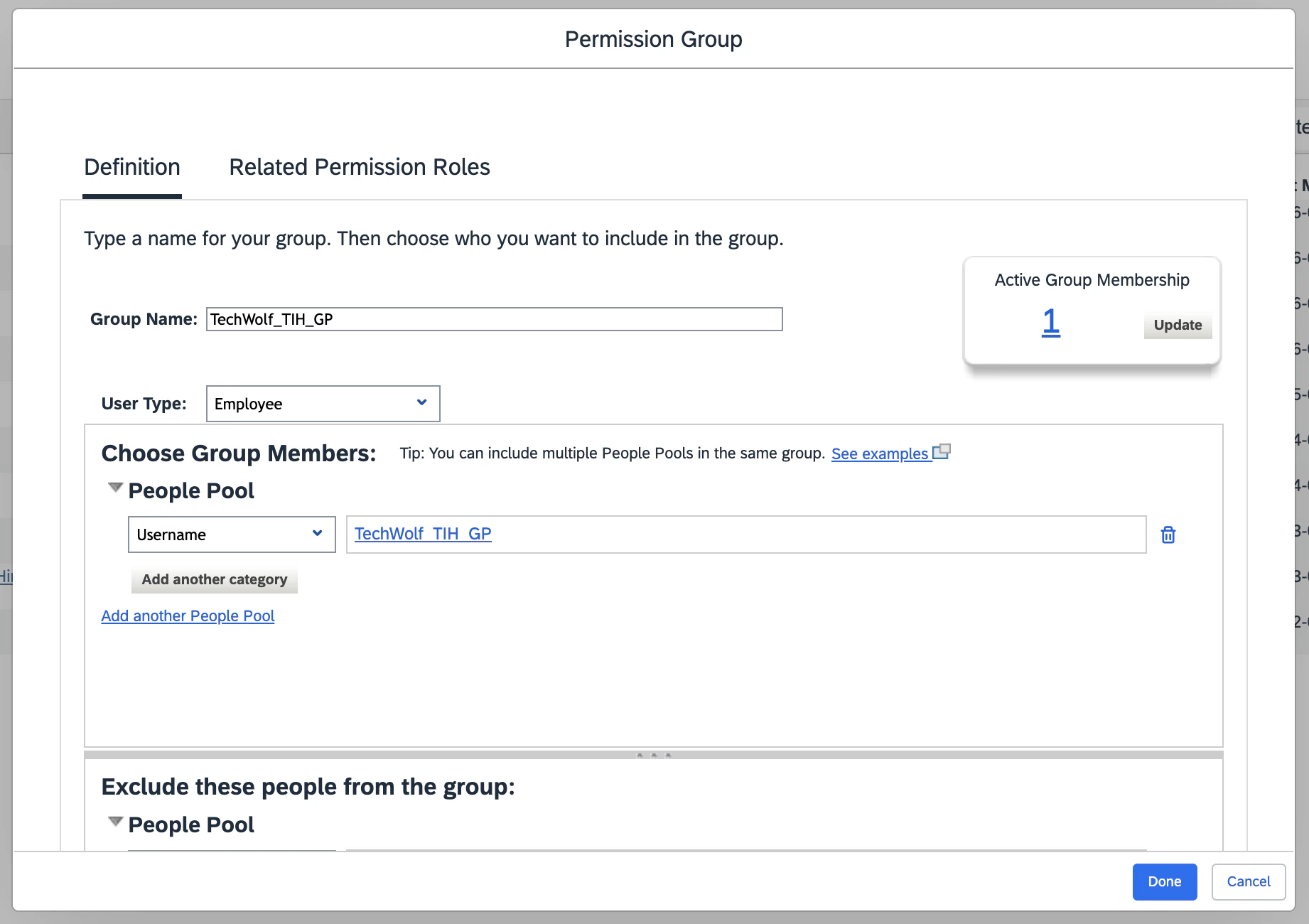
- In the search bar at the top, enter
-
Create a Permission Role
-
In the search bar at the top, enter
Manage Permission Rolesand open it. -
Create a new Role with user type
Employee. -
Under
Administrator Permissions→Manage Job & Skill Profile Visibility, grant the following:
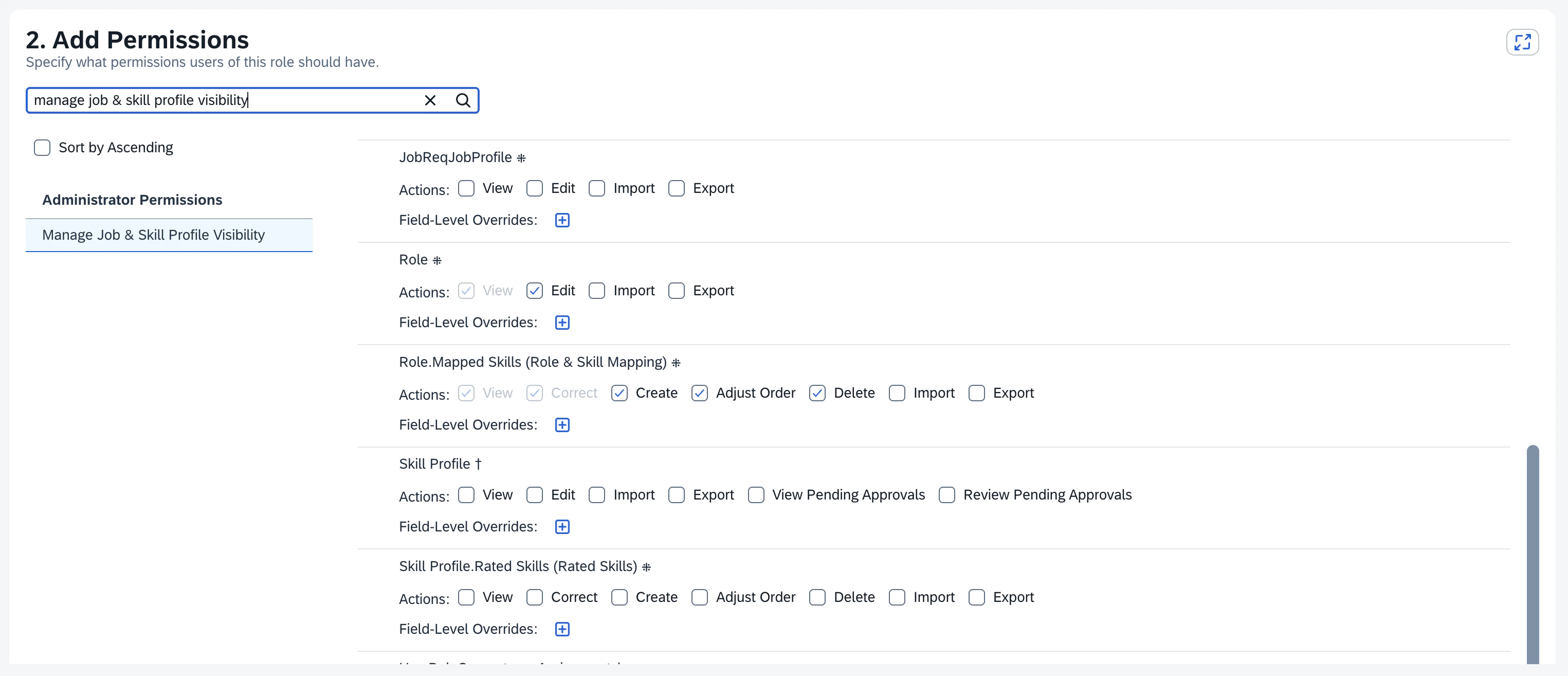
- Save the Permission Role.
-
In the search bar at the top, enter
-
Assign the Permission Role to the Permission Group
- On the saved Permission Role, click
Add Role Assignments. - Click
Next. - On the
Grant Access Topage, selectFrom Groups. - Click
Select Groupsand pick theTechWolf_TIH_GPgroup created above. - Click
Next, thenNextagain, and save the Role Assignment.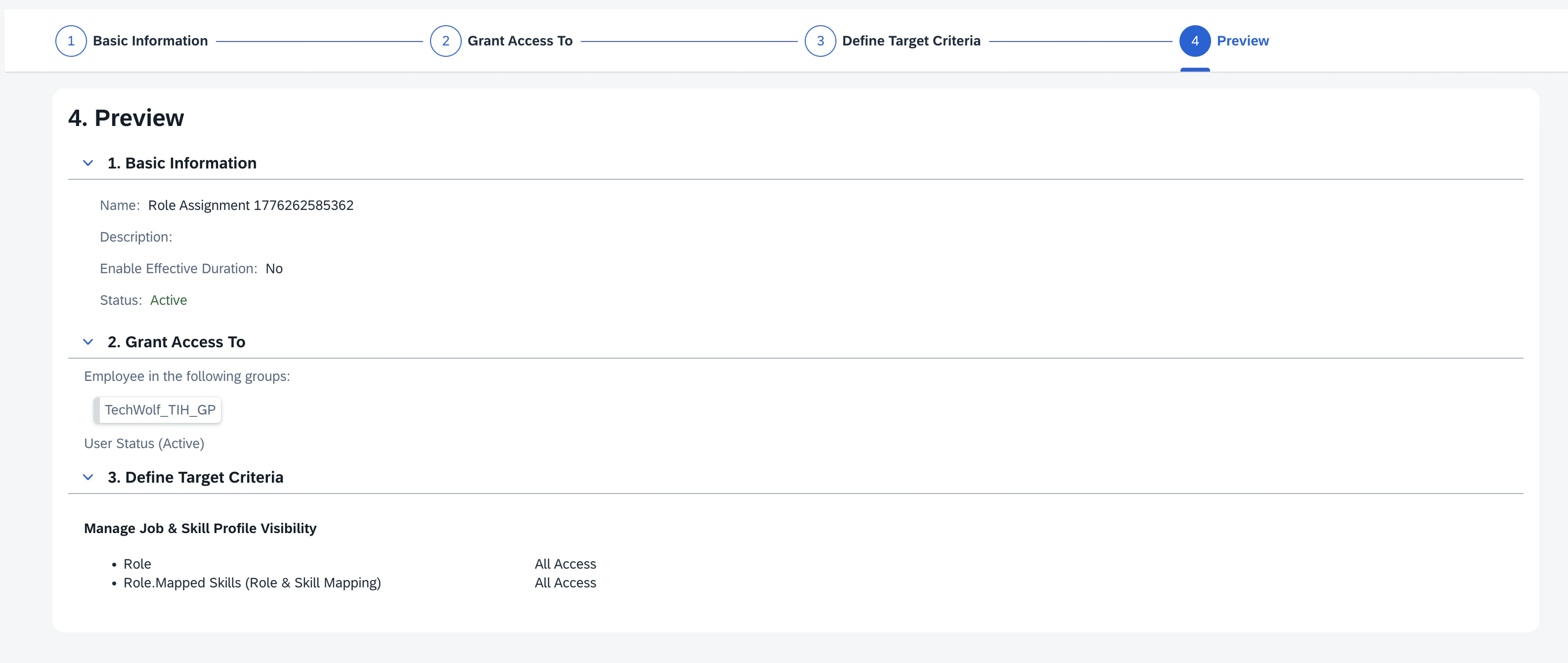
- On the saved Permission Role, click
If the 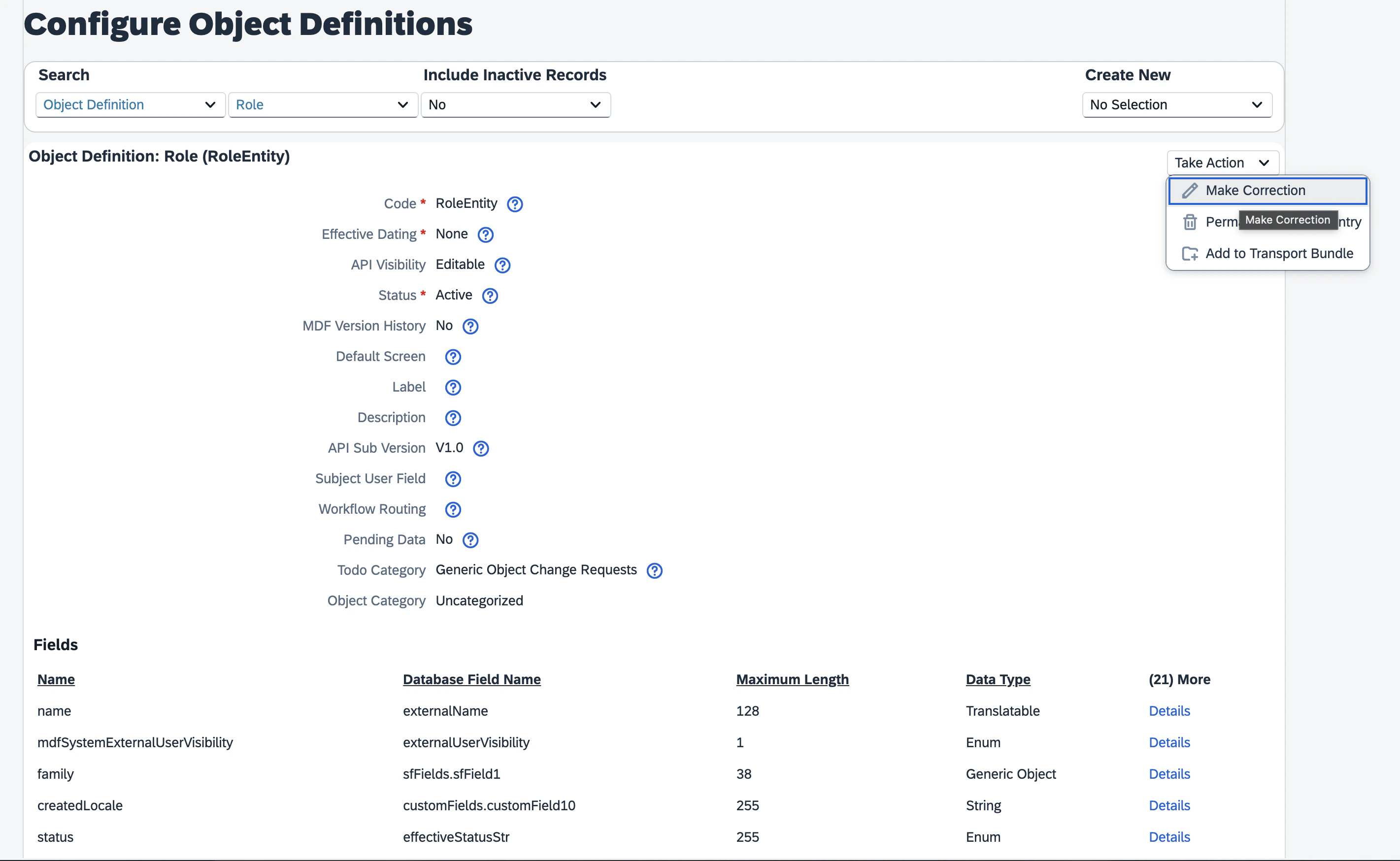

Role or Role & Skill Mapping permissions are not visible in
your tenant, enable separate security permissions for the RoleEntity
and RoleSkillMappingEntity object definitions:- In the search bar at the top, enter
Configure Object Definitionsand open it. - Search for
Object Definition→Role. - Use
Take Action→Make Correction.
- Configure the
Securitysection according to the following screenshot. Click the ”+” button in case the fields are missing.
- Scroll to the bottom of the page and click
Save. - Repeat the above steps for
Object Definition→Role & Skill Mapping.
On recent SAP SuccessFactors releases, the Talent Intelligence Hub adds data
source governance for external skill providers. If your tenant exposes the
Manage Data Sources task or a Manage Skills Governance section under
Manage Talent Intelligence Hub, complete
How To: Register TechWolf as a Trusted Data Source
so Job Role skill updates from TechWolf flow through without additional
manual review.
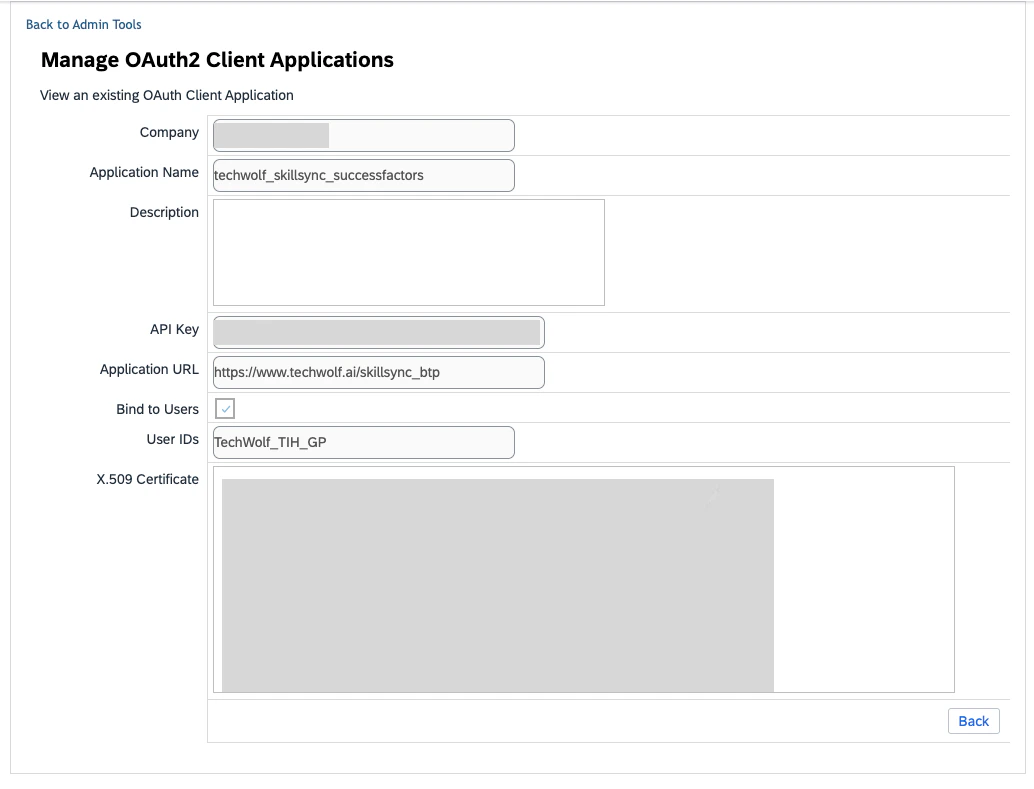
4. Set up an OAuth 2 Client Application in SuccessFactors
- In SuccessFactors, in the search bar at the top right, enter
Manage OAuth 2 Client Applicationsand press enter. - Click Register Client Application.
- Fill in the following fields:
- Application Name: any value (e.g.
techwolf_skillsync_successfactors). - Application URL: any valid URL (e.g.
https://www.techwolf.ai). - Bind to Users: check the checkbox.
- User IDs:
TechWolf_TIH_GP. - X.509 Certificate: paste the contents of the certificate downloaded in
Step 1. Remove the
-----BEGIN CERTIFICATE-----and-----END CERTIFICATE-----guards if present, and strip any line breaks so the value is a single continuous string.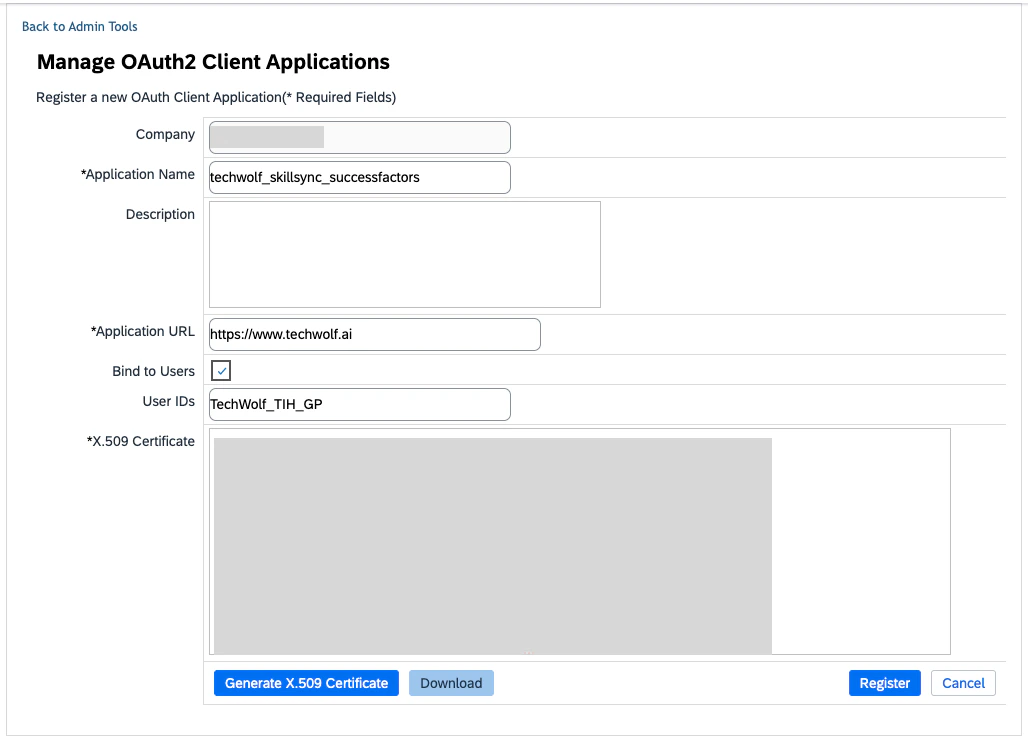
- Application Name: any value (e.g.
- Click Register. The Client Application appears in the overview.

- Click View on the new Client Application and copy the API Key. You
will need it in Step 5.
5. Configure the API credentials in SAP Integration Suite
- In SAP Integration Suite, go to Monitor > Integrations and APIs > Manage Security > Security Material and click Create > OAuth 2 SAML Bearer Assertion.
- Set Name to a value you will remember for Step 10 (e.g.
techwolf_skillsync_successfactors). - Set Audience to
www.successfactors.com. - Set Client Key to the API Key copied in Step 3.
- Set Token Service URL to the base URL of your SuccessFactors tenant,
appended with
oauth/token. See How To: Find the SAP SuccessFactors Company ID and API URL for how to look up the base URL. - Set User ID to Key pair Common Name (CN).
- Set Key Pair Alias to the alias of the key pair created in Step 1 (e.g.
techwolf_skillsync_successfactors).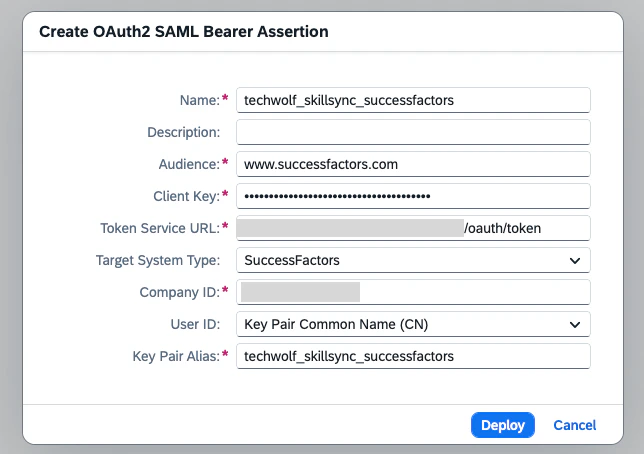
- Click Deploy.
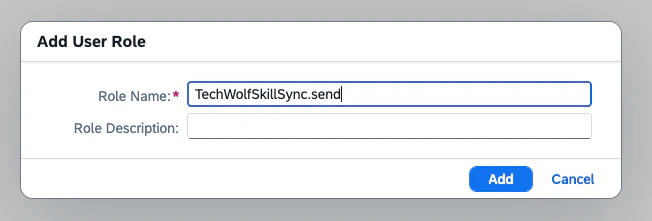
6. Create a User Role for the integration
In SAP Integration Suite, go to Monitor > Integrations and APIs > Manage Security > User Roles, then click Add. Enter a Name that you will remember for Step 7 and Step 10 (e.g.TechWolfSkillSync.send) and click
Add.
7. Create a Process Integration Runtime instance
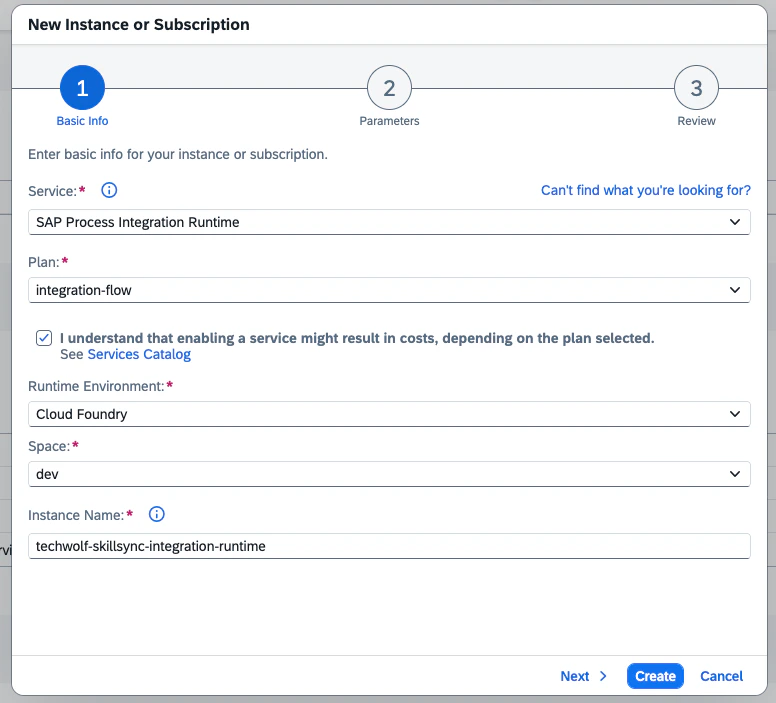
In SAP BTP, create a new instance of the Process Integration Runtime service with theintegration-flow plan.
- Check “I understand that enabling a service might result in costs, depending on the plan selected.”
- Runtime Environment: Cloud Foundry.
- Space: the Cloud Foundry space you’re deploying in.
- Instance Name: a CLI-friendly name (e.g.
techwolf-skillsync-integration-runtime).
- Click Next to continue to the Parameters step.
- In Parameters, set the role to the one created in Step 6 (e.g.
TechWolfSkillSync.send). - Grant-types:
Client Credentials. - Leave all other fields on their default values.
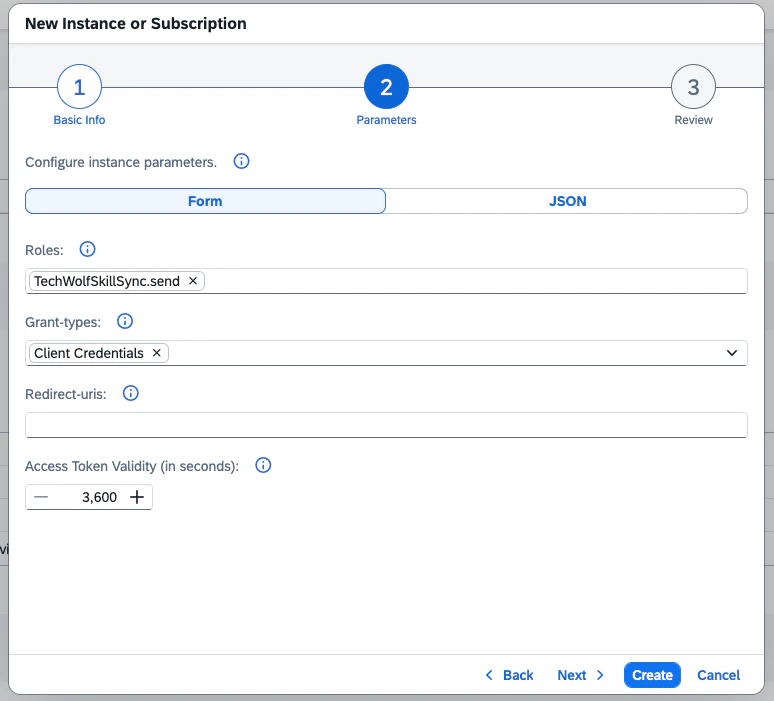
8. Create a Service Key on the instance
Find the newly created Process Integration Runtime instance. Click the three dots on the right, then click Create Service Key.- Service Key Name: any value (e.g.
TechWolfSkillSync). - Key Type:
ClientId/Secret. - Leave all other fields on their default values.
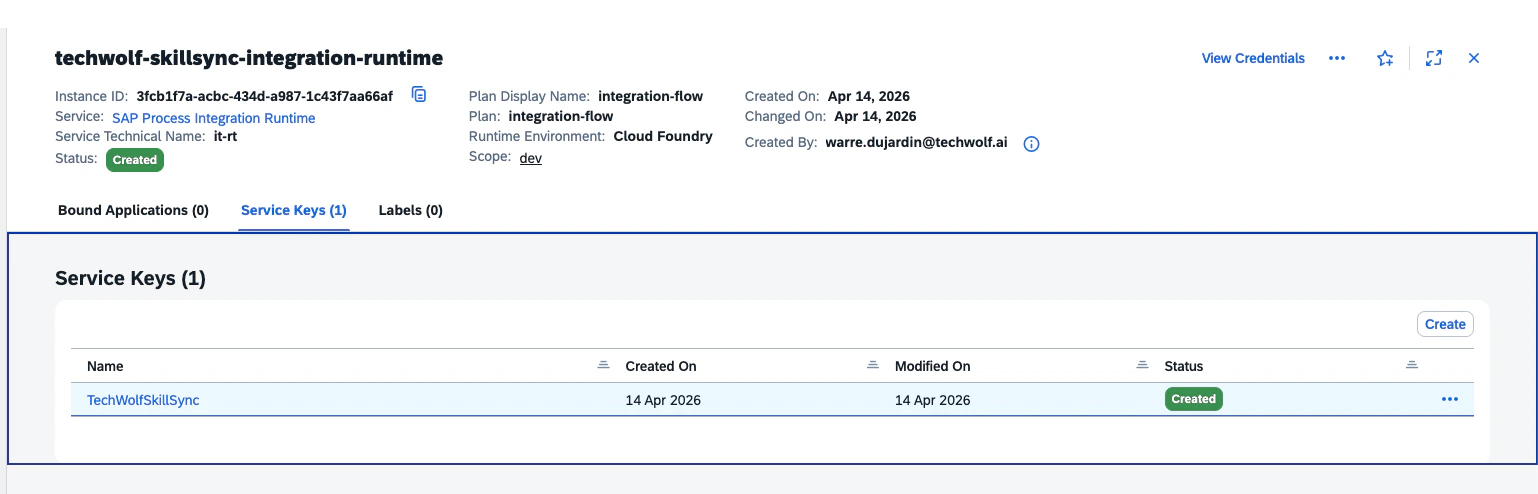
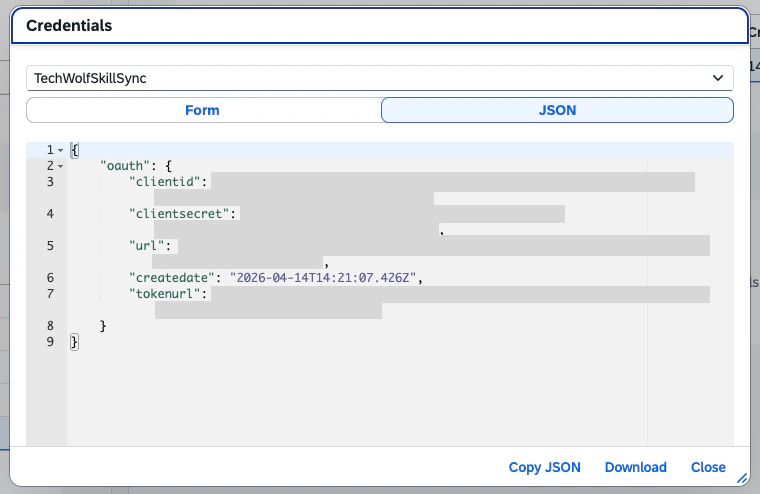
9. Import the Content Package
In SAP Integration Suite, go to Design > Integrations and APIs and click Import.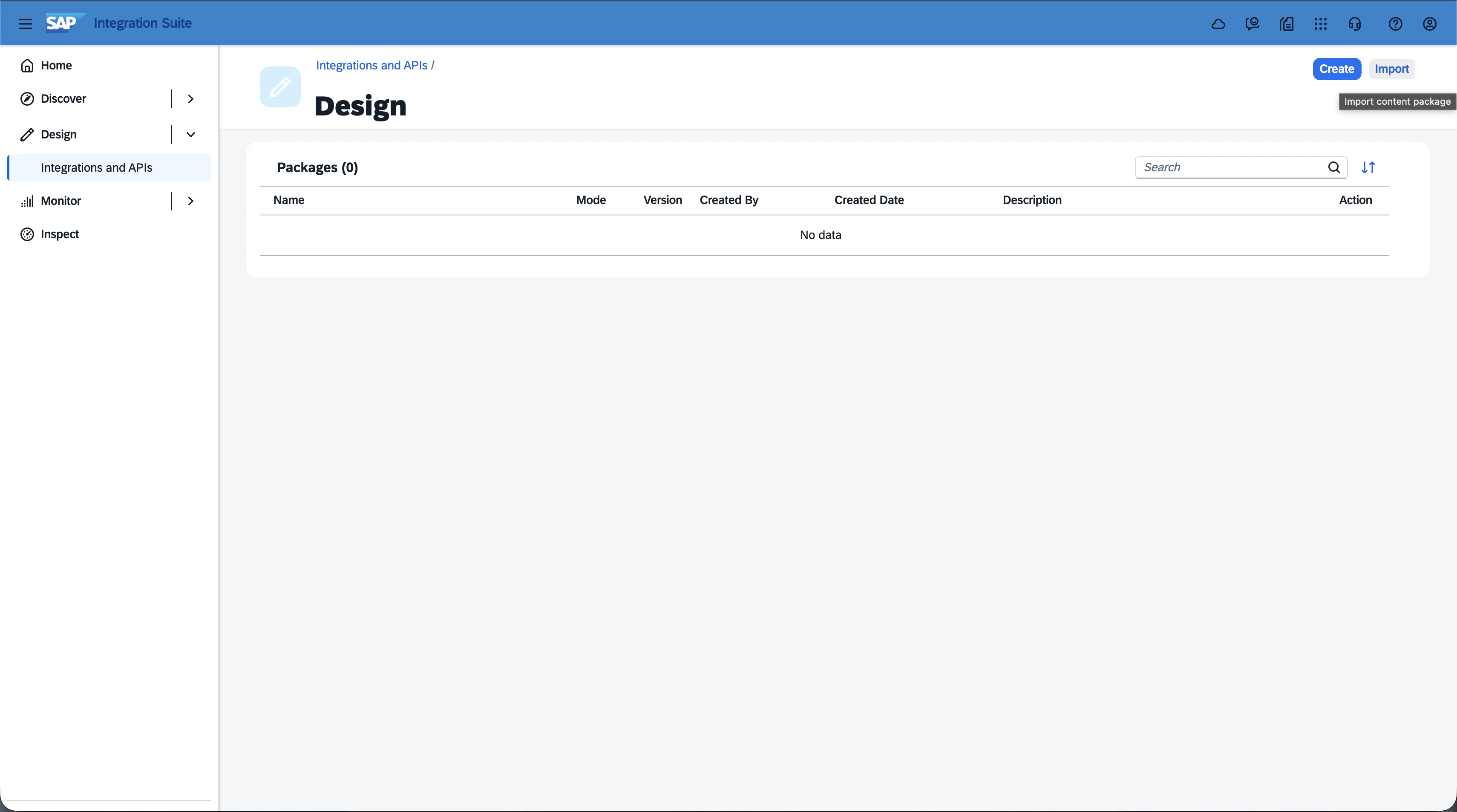
10. Configure the externalized parameters on each iFlow
Open the imported package and go to Artifacts.
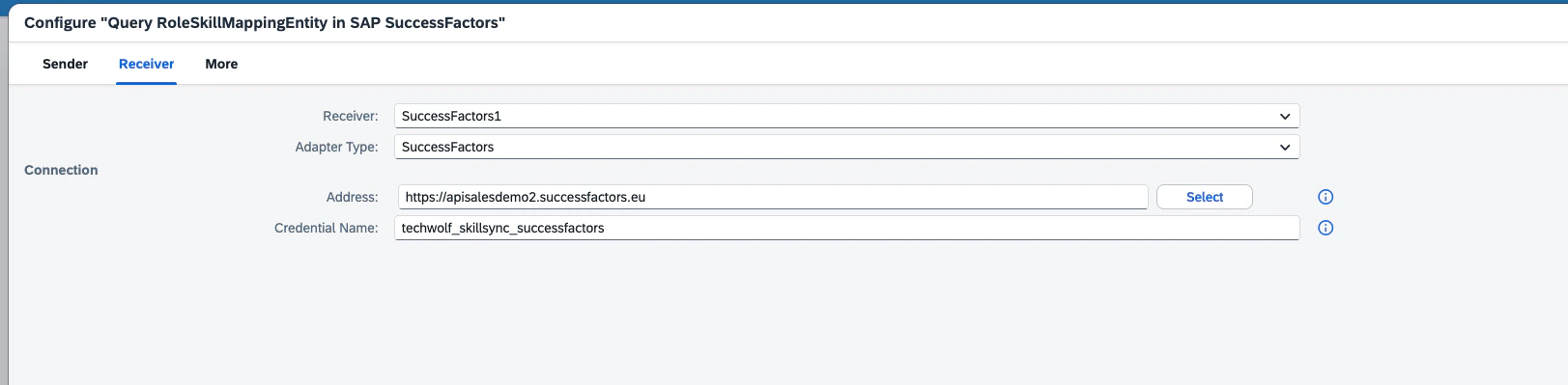
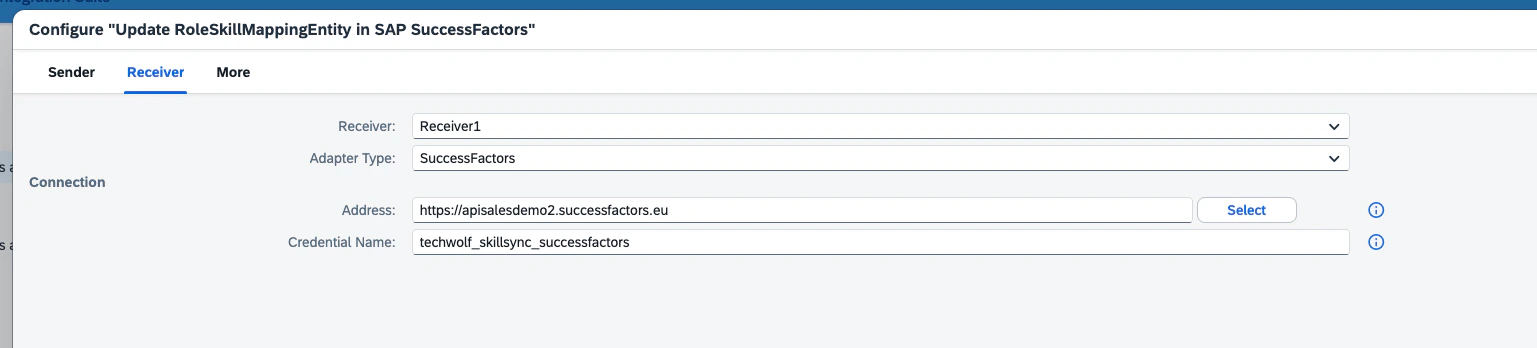
Finding the SuccessFactors datacenter URL: in the Address field,
click Select to see the list of valid SAP SuccessFactors data centers
and pick the one matching your tenant (e.g.
https://apisalesdemo2.successfactors.eu). See
How To: Find the SAP SuccessFactors Company ID and API URL
for how to look up this URL.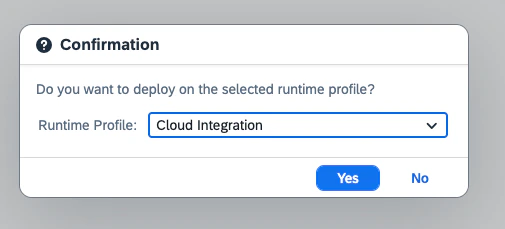
Query RoleSkillMappingEntity in SAP SuccessFactors
- Tab Sender: set User Role to the role created in Step 6 (e.g.
TechWolfSkillSync.send).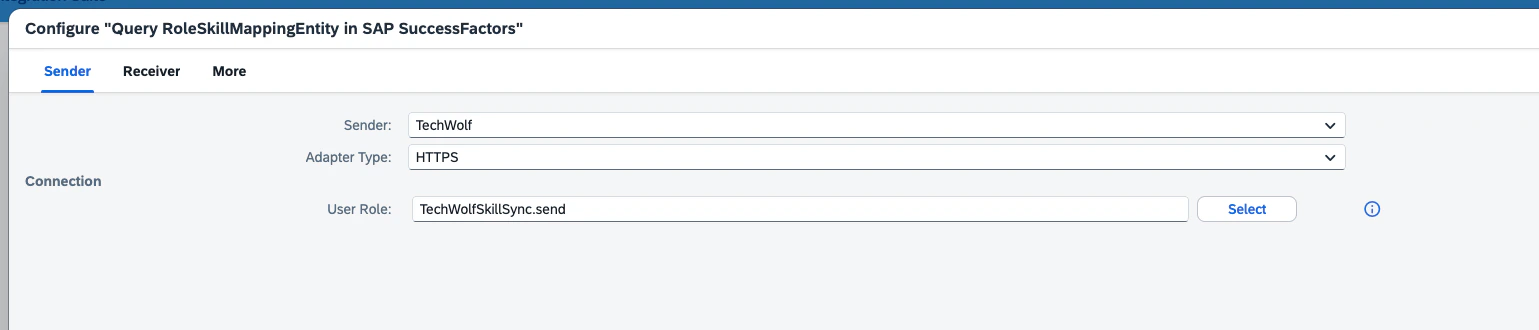
- Tab Receiver: set Address to the URL of your SuccessFactors datacenter
and Credential Name to the OAuth 2 SAML Bearer Assertion created in
Step 5.
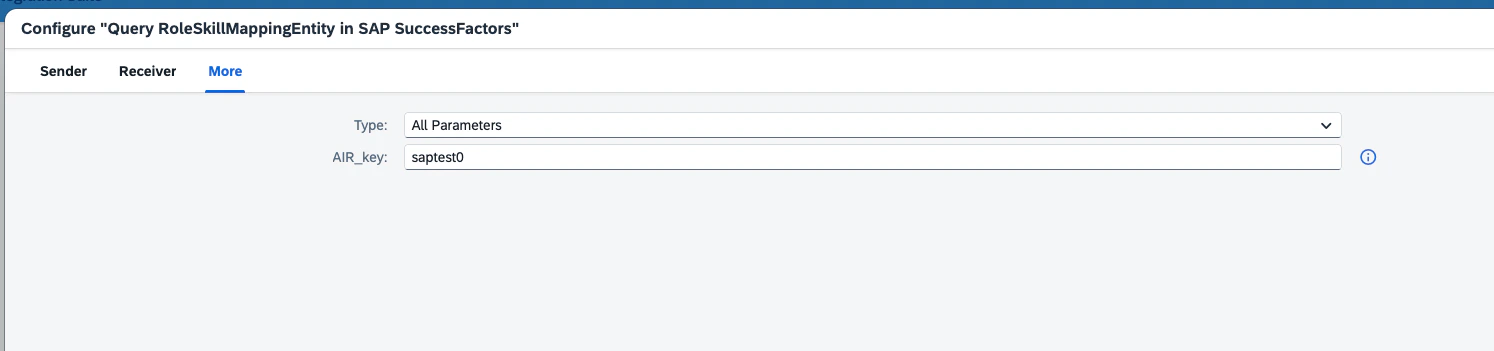
- Tab More: set AIR_key to the AIR key provided by your TechWolf
representative.
Update RoleSkillMappingEntity in SAP SuccessFactors
- Tab Sender: set User Role to the role created in Step 6 (e.g.
TechWolfSkillSync.send).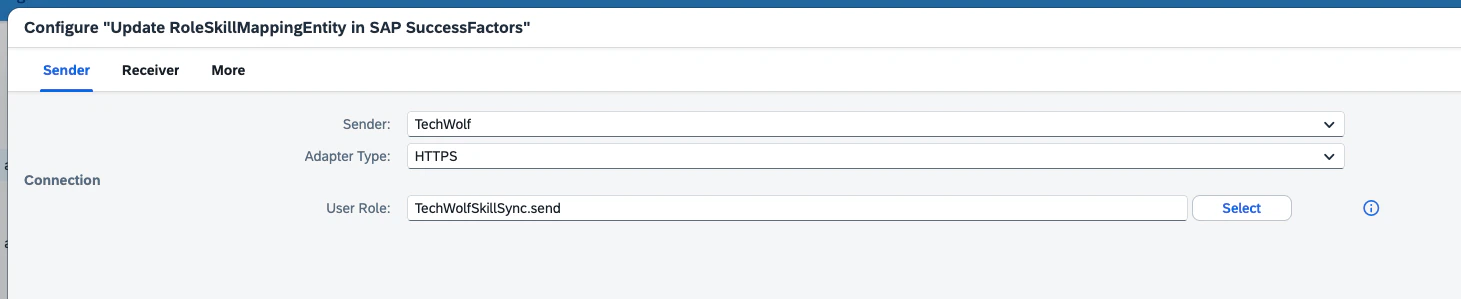
- Tab Receiver: set Address to the URL of your SuccessFactors datacenter
and Credential Name to the OAuth 2 SAML Bearer Assertion created in
Step 5.
- Tab More: set AIR_key to the AIR key provided by your TechWolf
representative.

Verify the deployment
- In SAP Integration Suite, go to Monitor > Integrations and APIs > Manage Integration Content and confirm that all deployed iFlows show the Started status.
- Go to Monitor > Integrations and APIs > Monitor Message Processing to watch messages as TechWolf triggers the iFlows. Failed messages include the HTTP response from SuccessFactors, which is the fastest way to diagnose authentication or permission issues (e.g. expired certificate, missing SuccessFactors permission, incorrect AIR key).
TechWolf Configuration
The TechWolf tenant will be configured by TechWolf itself. To complete the setup, share the following values with your TechWolf representative:- The downloaded service key file from Step 8 (via 1Password or another agreed secure channel).
Routing Through an API Gateway
If your organisation fronts the APIs with an API gateway, the integration can call the gateway instead of the vendor host directly. Two settings are available, both configured by TechWolf together with the credentials:- Custom URL: instead of the vendor API URL, share the gateway URL that proxies it. The integration keeps appending the same vendor API paths to it, so the gateway must forward requests to unchanged.
- Custom headers: any number of extra HTTP headers (for example an API key or a correlation ID required by the gateway) that are sent on every request the integration makes.
Both settings are pass-through only. TechWolf sends the values as configured
and does not perform any gateway-specific authentication, signing, or token
refresh; the gateway is expected to forward the integration’s own
credentials to . Reserved headers (e.g.
Authorization,
Content-Type) are managed by the integration and cannot be set as custom
headers.Configuration Options
Sync Direction Settings
The integration supports three sync direction options:- Bidirectional (default): Two-way sync between TechWolf and SAP SuccessFactors; changes made in TechWolf Job Skill Profiles are synchronized to their corresponding SAP SuccessFactors Job Skill Profiles, and vice versa.
- TechWolf to SAP Only: Skills flow from TechWolf to SAP SuccessFactors only; changes made in TechWolf Job Skill Profiles are copied to their corresponding SAP SuccessFactors Job Skill Profiles, while changes made in SAP SuccessFactors are discarded and overwritten with the state of the TechWolf Job Skill Profiles.
- SAP to TechWolf Only: Skills flow from SAP SuccessFactors to TechWolf only; changes made in SAP SuccessFactors Job Skill Profiles are copied to their corresponding TechWolf Job Skill Profiles, while changes made in TechWolf are discarded and overwritten with the state of the SAP SuccessFactors Job Skill Profiles.
Merge Strategy Options
For the correct functioning of the normal operation of the integration, the Job Skill Profiles in both systems should be initially aligned. The integration will do this initial alignment itself automatically when the integration is first enabled, or when it is re-enabled after having been paused, or when it encounters a Job it had no knowledge about yet. The initial alignment can happen in different ways; the integration supports three such merge strategy options:- Merge Systems: Combines Skills from both systems. In case of metadata conflicts for Skills present in both systems (e.g. conflicting proficiency levels), the values from TechWolf will be used.
- Push TechWolf: Uses the TechWolf Job Skill Profile as the initial source of truth, and will align the SAP SuccessFactors Job Skill Profile with it. Any Skills initially present in the SAP SuccessFactors Job Skill Profile but not in the TechWolf Job Skill Profile will be removed from the SAP SuccessFactors Job Skill Profile.
- Push SAP: Uses the SAP SuccessFactors Job Skill Profile as the initial source of truth, and will align the TechWolf Job Skill Profile with it. Any Skills initially present in the TechWolf Job Skill Profile but not in the SAP SuccessFactors Job Skill Profile will be removed from the TechWolf Job Skill Profile.
Deployment Tasks & Responsibilities
- TechWolf: Setup Skill Sync environment and tenant requirements.
- Customer: Configure SAP BTP and SAP SuccessFactors as described above.
- Customer: Share the necessary values with TechWolf:
- The service key file from Step 8.
- TechWolf: Validate API access by calling each iFlow end-to-end.
- TechWolf: Run the initial sync of Job Skill Profiles with the TechWolf API.
- TechWolf: Setup tenant configuration and start the sync process based on the configured direction.
- Customer: Check end-user test scenarios.