> ## Documentation Index
> Fetch the complete documentation index at: https://developers.techwolf.ai/llms.txt
> Use this file to discover all available pages before exploring further.
# Installation
export const scopes_0 = "'Staffing', 'Worker Profile and Skills'"
## System Requirements
The TechWolf Skill Sync integration will make use of existing Workday
functionality. The customer will need a TechWolf contract with a live TechWolf
tenant.
This TechWolf tenant must be populated with (a subset of) the worker's entities
in Workday.
## Workday Configuration
A Workday integration user must be configured in the Workday tenant with an
implementation security group.
If you already have a Job Skill Sync integration configured, you can either
set up a new, separate configuration or reuse parts of the existing one.
When reusing the existing setup, the same ISU can be kept, with only the
Permissions needing to be updated in step 4. Additionally, when using OAuth,
the API Client scopes also need to be updated in step 6.
## Authentication
The integration supports both OAuth and Basic Authentication. For enhanced
security, we recommend using OAuth authentication.
To set up the integration using **Basic Authentication**, complete steps 1
through 5.
To set up the integration using **OAuth Authentication**, complete steps 1
through 7.
If you already have Basic Authentication configured, or prefer to continue using
it, we will continue to support this method as well.
**What you'll share with TechWolf:**
If you choose Basic Authentication:
* Workday API URL
* Username
* Password
If you choose OAuth Authentication:
* Workday API URL
* Token URL
* Client ID
* Client secret
* Refresh token
### 1. Create Integration System User (ISU)
* `Create Integration System User` business process.
* Do not allow UI sessions as this user will only be used for automations.
* Please securely store the username and password of this user.
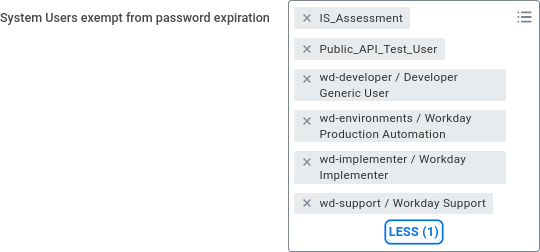
### 2. Update password expiration rules for ISU
* In the `Maintain Password Rules` business process under "System Users exempt
from password expiration" add the newly created ISU to the list.
* **Note:** This ensures the integrations will keep running without
interruptions due to password expiration.
 ### 3. Set up security permissions for the ISU through security policies
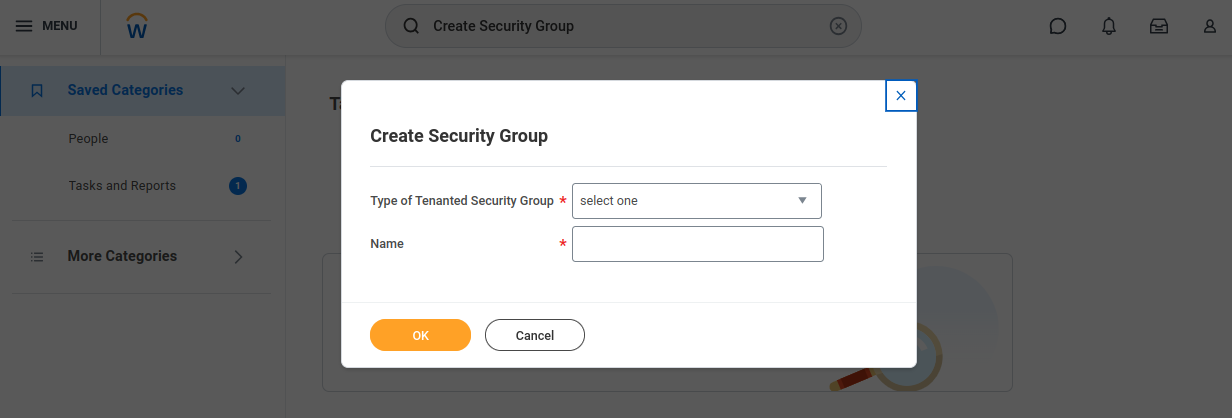
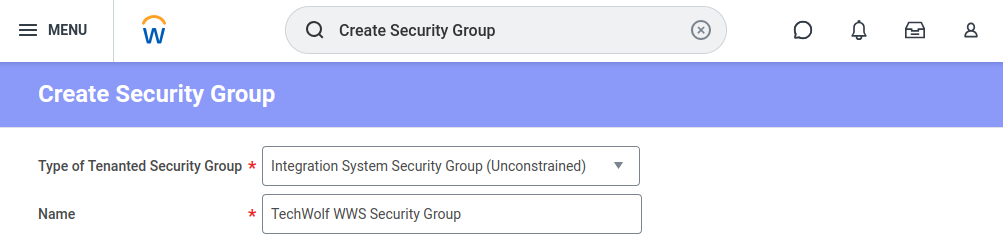
* Go to `Create Security Group`, choose "Integration System Security Group
(Unconstrained)".
* **Note on acceptance testing:** Consider using two different security groups,
one Unconstrained and one Constrained. This way, the test-set is scoped while
the correct permissions are applied for other Web Services.
### 3. Set up security permissions for the ISU through security policies
* Go to `Create Security Group`, choose "Integration System Security Group
(Unconstrained)".
* **Note on acceptance testing:** Consider using two different security groups,
one Unconstrained and one Constrained. This way, the test-set is scoped while
the correct permissions are applied for other Web Services.
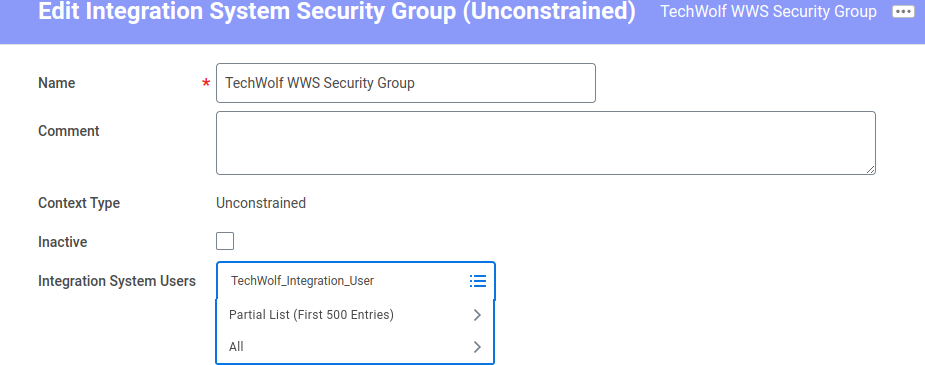
 * The next screen presents you with an Edit form to add additional information.
Add your ISU to the list. This can be changed later too. Do not check
"Inactive".
* The next screen presents you with an Edit form to add additional information.
Add your ISU to the list. This can be changed later too. Do not check
"Inactive".
 ### 4. Edit the Security Group's domain security policies
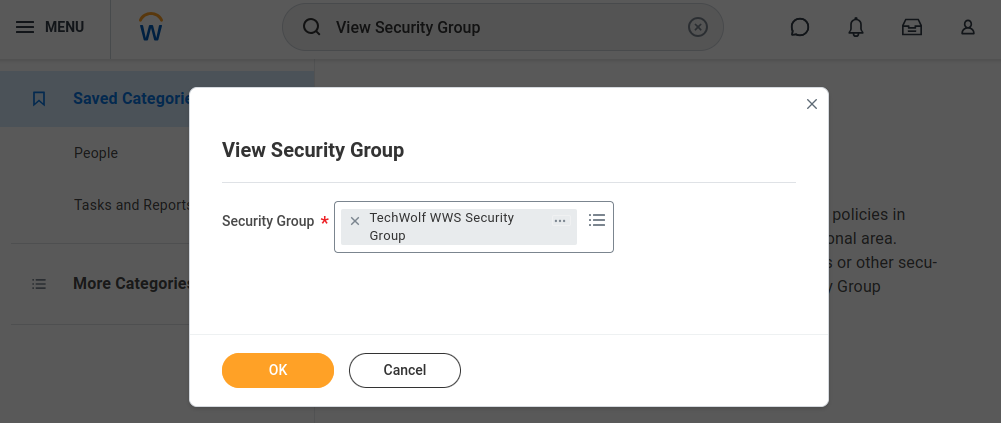
* Search for "View Security Group" and select your created security group.
### 4. Edit the Security Group's domain security policies
* Search for "View Security Group" and select your created security group.
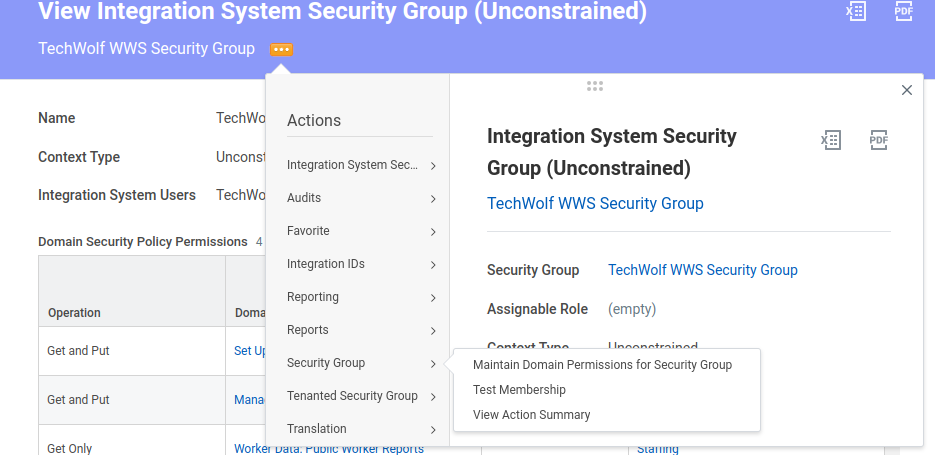
 * Select the option menu next to the Security Group's name, go to "Security
Group" and select "Maintain Domain Permissions for Security Group".
* Select the option menu next to the Security Group's name, go to "Security
Group" and select "Maintain Domain Permissions for Security Group".
 * Under Integration Permissions add the following Domain Security Policies, and
run the `Activate Pending Security Policy Changes` task to apply the changes.
| Domain Security Policy | Access |
| ----------------------------- | :----: |
| Manage: External Skills | Put |
| Person Data: Skills | Put |
| Set up: Skills and Experience | Put |
### 5. Find out the correct Workday API URL
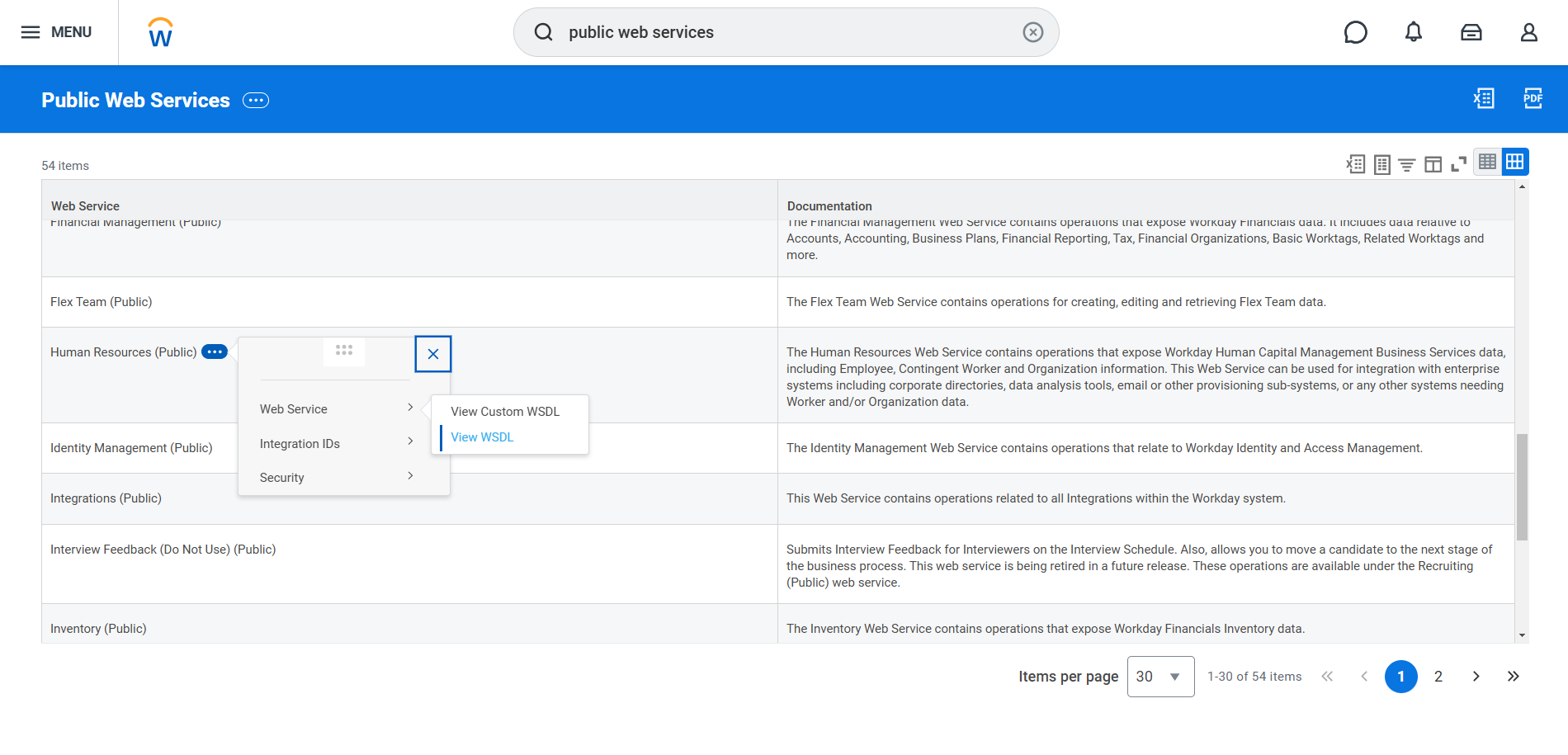
* Search for `Public Web Services` in the search bar at the top of the Workday
home page.
* In the list, click the three dots next to the `Human Resources (public)`
entry. Select `View WSDL` under `Web Service`.
* Under Integration Permissions add the following Domain Security Policies, and
run the `Activate Pending Security Policy Changes` task to apply the changes.
| Domain Security Policy | Access |
| ----------------------------- | :----: |
| Manage: External Skills | Put |
| Person Data: Skills | Put |
| Set up: Skills and Experience | Put |
### 5. Find out the correct Workday API URL
* Search for `Public Web Services` in the search bar at the top of the Workday
home page.
* In the list, click the three dots next to the `Human Resources (public)`
entry. Select `View WSDL` under `Web Service`.
 * The resulting page will take some time to load. Once it is loaded, look for
"soapbind:address location" near the bottom of the page. You will see a
section like this:
```xml theme={null}
```
* Copy the base tenant URL up to and including your tenant name. The service
name and version should be excluded from the URL.
* Note that the API URL can differ between implementation tenants and production
tenants, so the steps described above need to be repeated for each tenant
individually.
If you are using **Basic Authentication**, this is the final configuration step.
Proceed to the [TechWolf Configuration](#techwolf-configuration) section.
If you are using **OAuth Authentication**, continue with the OAuth setup steps
below before proceeding.
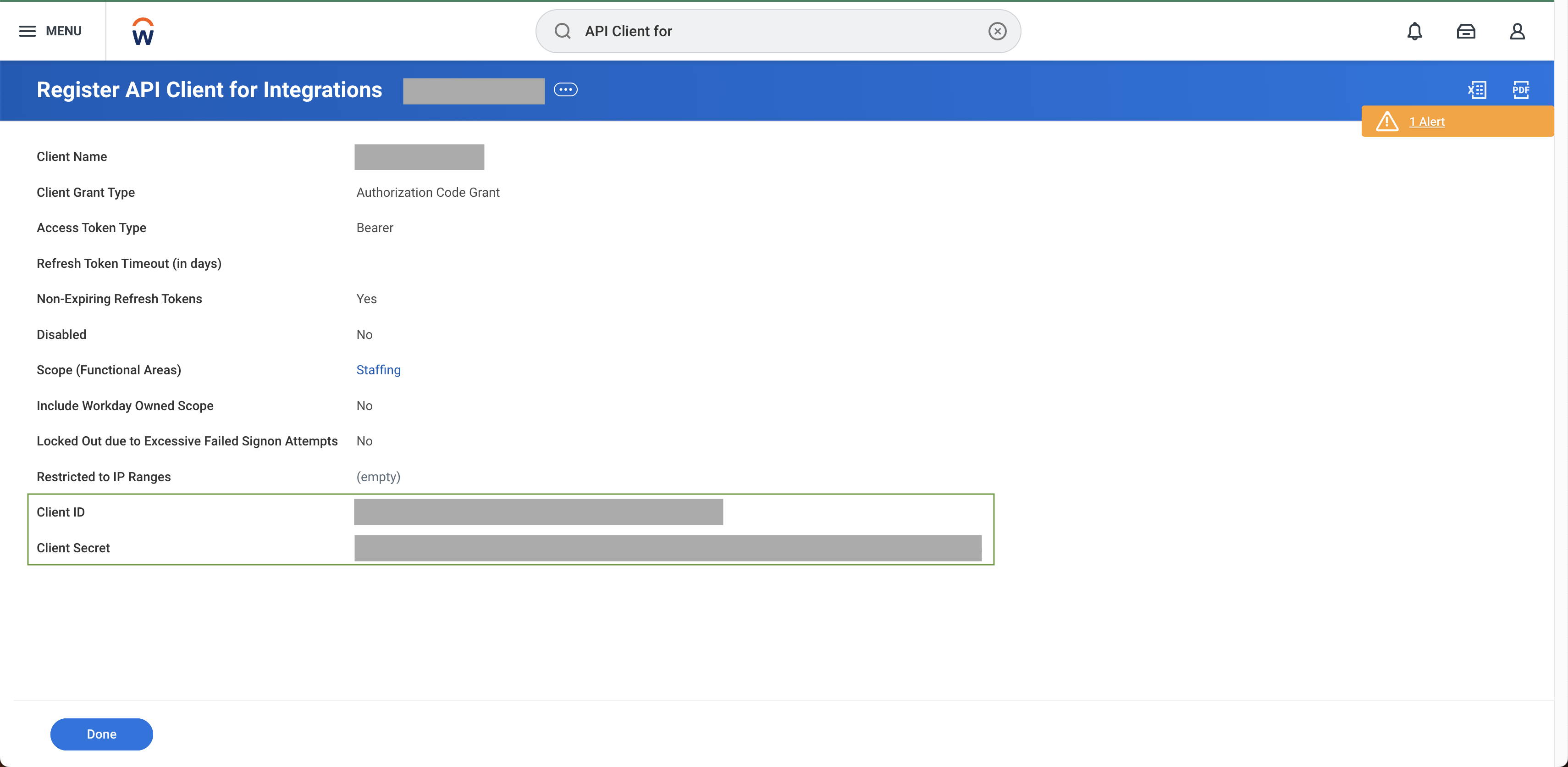
### 6. Create API Client for Integrations
* Search for "Register API Client for Integrations" business process
* Enable non-expiring refresh tokens to ensure continuity of service
* Add the appropriate scopes: {scopes_0}
* The resulting page will take some time to load. Once it is loaded, look for
"soapbind:address location" near the bottom of the page. You will see a
section like this:
```xml theme={null}
```
* Copy the base tenant URL up to and including your tenant name. The service
name and version should be excluded from the URL.
* Note that the API URL can differ between implementation tenants and production
tenants, so the steps described above need to be repeated for each tenant
individually.
If you are using **Basic Authentication**, this is the final configuration step.
Proceed to the [TechWolf Configuration](#techwolf-configuration) section.
If you are using **OAuth Authentication**, continue with the OAuth setup steps
below before proceeding.
### 6. Create API Client for Integrations
* Search for "Register API Client for Integrations" business process
* Enable non-expiring refresh tokens to ensure continuity of service
* Add the appropriate scopes: {scopes_0}
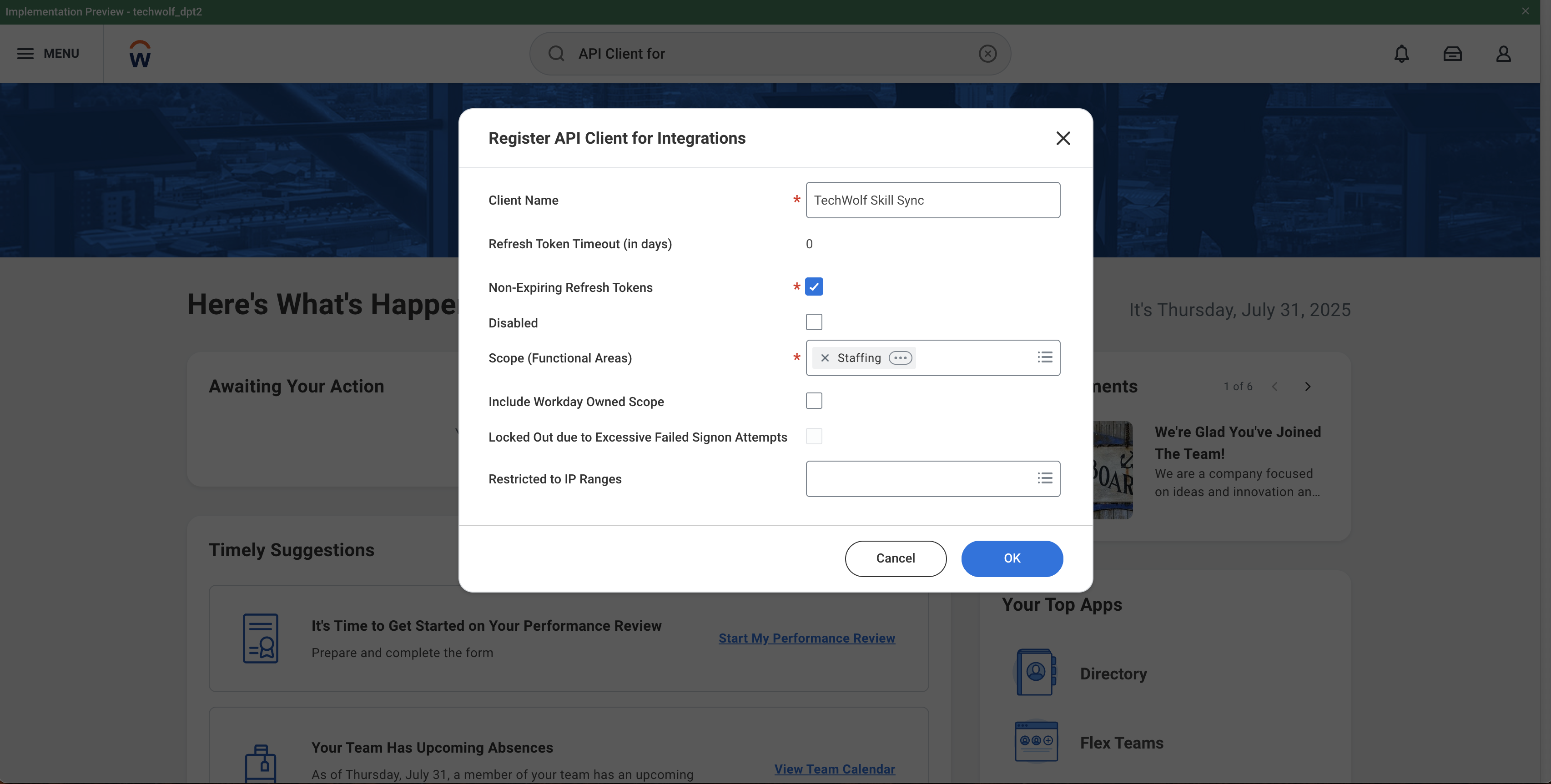 * Optionally, restrict the client to TechWolf's IP ranges by filling in the
"Restricted to IP Ranges" field with the values from the
[IP Addresses ](/integrations/reference/ip-addresses)
page
* Securely store the client ID and client secret
* Optionally, restrict the client to TechWolf's IP ranges by filling in the
"Restricted to IP Ranges" field with the values from the
[IP Addresses ](/integrations/reference/ip-addresses)
page
* Securely store the client ID and client secret
 ### 7. Generate Refresh Token
* Search for "View API Clients" report
* Click "API Clients for Integrations" tab
* Note down the token endpoint. You will need to share this later.
### 7. Generate Refresh Token
* Search for "View API Clients" report
* Click "API Clients for Integrations" tab
* Note down the token endpoint. You will need to share this later.
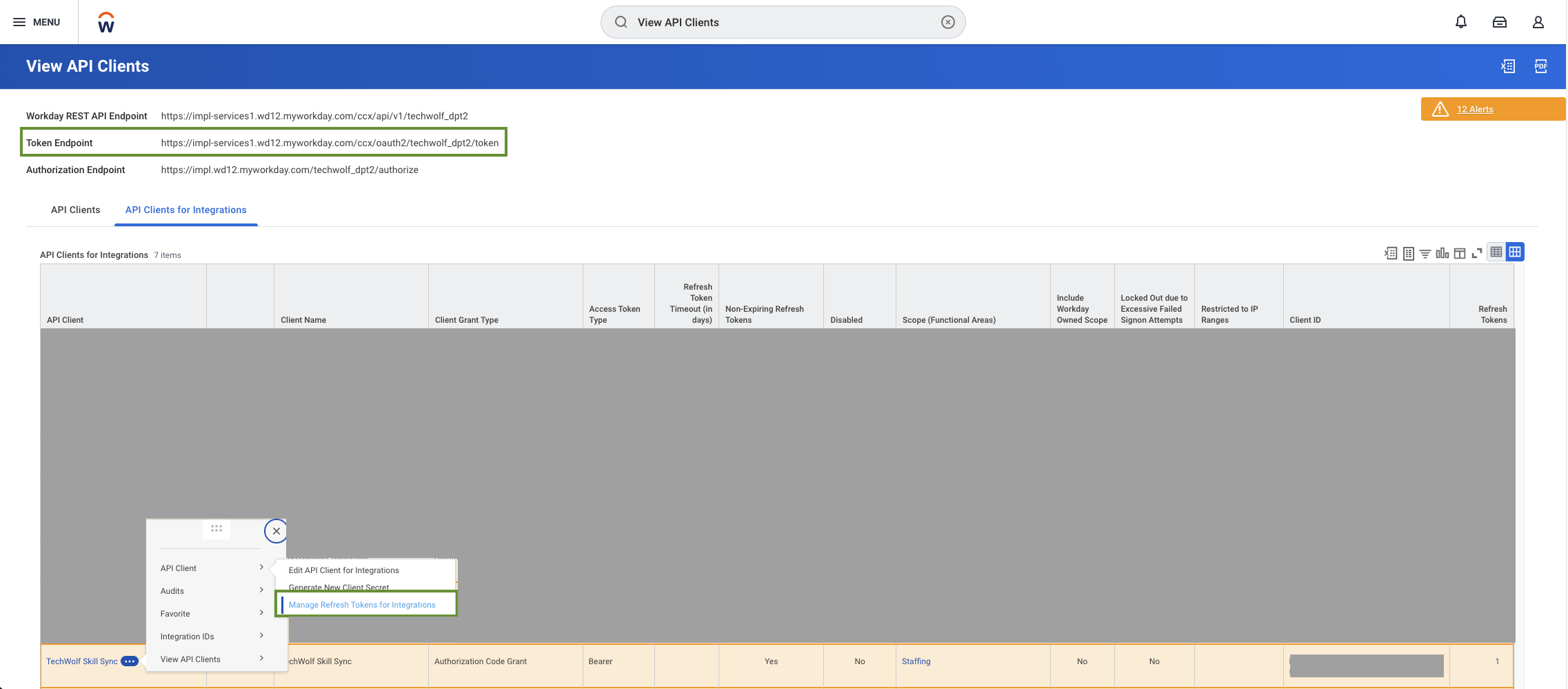 * Find your API client and select "Manage Refresh Tokens for Integrations"
* Under "Workday Account", type in your ISU
* Press OK
* Check the box "Generate new refresh token"
* Press OK
* Securely store the refresh token.
Keep your OAuth credentials secure and share them only with TechWolf through
secure channels.
When the authentication credentials and Workday API URL are shared, the setup is
complete on the customer's Workday tenant. TechWolf will validate that the ISU
has the required permissions and that the API URL is correct.
## TechWolf Configuration
The TechWolf tenant will be configured by TechWolf itself.
1. In the integration service on the TechWolf side, TechWolf adds the
credentials of the customer-created ISU. For this, the customer will need to
share the following values with TechWolf:
* The Workday API URL (see Step 5 of the Workday Configuration section)
* Authentication credentials:
* For Basic Authentication: ISU username and password (see Step 1 of the
Workday Configuration section)
* For OAuth Authentication: client ID, client secret, and refresh token
(see Steps 6–7 of the Workday Configuration section)
2. TechWolf adds TechWolf API credentials with correct scopes to have access to
the TechWolf API and links that TechWolf tenant to the Workday tenant.
3. TechWolf validates that the ISU has the required permissions and that the
Workday API URL is correct.
4. TechWolf runs an initial sync of worker profiles with the TechWolf API and
sets up the tenant configuration to start the bidirectional sync process.
## Linking Workday & TechWolf
This section is only required if the customer is **NOT** using the Workday ID as
the API ID in TechWolf.
### Seamless Matching of Employee IDs
A critical aspect of this process is the seamless coupling of Employee IDs
across both platforms. There are two options for direct ID matching:
1. **Using Employee IDs**: If you want to use Workday Employee IDs as the
identifier field in Workday, then this same ID must also be used as the
Employee `external_id` in TechWolf.
2. **Using Workday IDs (WIDs)**: If you want to use Workday IDs as the
identifier field in Workday, then this same ID must also be used as the
Employee `external_id` in TechWolf.
If neither of these direct matching approaches is possible, then the IDs must be
linked through custom properties.
### Creating Custom Properties
* For each Employee in the TechWolf system, introduce a new custom property such
as `employee_workday_id`. This property will store the corresponding Workday
ID of the Employee.
* Detailed instructions for creating new custom property definitions can be
found
[here ]().
### Setting Custom Property Values
* Once the custom property is defined, assign the Workday ID to each Employee's
TechWolf profile.
* Steps for setting these values are outlined
[here ]().
During a pilot phase, it is possible to manually establish a link between
TechWolf IDs and Workday IDs for each Employee. While this approach is feasible
for a limited scope, it lacks scalability for broader deployment.
## Deployment Methodology
The following tasks and responsibilities assume that:
1. The customer has the appropriate TechWolf API license(s).
2. The TechWolf API contains all Employee information corresponding to Workday
workers and data from other external systems.
3. A Skill Profile validation tool (e.g., MS Teams bot) is set up and configured
(see separate deployment guide).
### Deployment Tasks & Responsibilities
1. **TechWolf**: Setup Skill Sync environment and tenant requirements
2. **Customer**: Create Integration System User (ISU) based on workflow
described above.
3. **Customer**: Choose and configure authentication method (Basic or OAuth).
4. **Customer**: Share authentication credentials with TechWolf:
* For Basic Authentication: ISU username and password
* For OAuth Authentication: client ID, client secret, and refresh token
5. **Customer**: Share Workday API URL with TechWolf.
6. **TechWolf**: Run initial sync of worker profiles with TechWolf API.
7. **TechWolf**: Setup tenant configuration and start bidirectional sync
process.
8. **Customer**: Check end-user test scenarios.
* Find your API client and select "Manage Refresh Tokens for Integrations"
* Under "Workday Account", type in your ISU
* Press OK
* Check the box "Generate new refresh token"
* Press OK
* Securely store the refresh token.
Keep your OAuth credentials secure and share them only with TechWolf through
secure channels.
When the authentication credentials and Workday API URL are shared, the setup is
complete on the customer's Workday tenant. TechWolf will validate that the ISU
has the required permissions and that the API URL is correct.
## TechWolf Configuration
The TechWolf tenant will be configured by TechWolf itself.
1. In the integration service on the TechWolf side, TechWolf adds the
credentials of the customer-created ISU. For this, the customer will need to
share the following values with TechWolf:
* The Workday API URL (see Step 5 of the Workday Configuration section)
* Authentication credentials:
* For Basic Authentication: ISU username and password (see Step 1 of the
Workday Configuration section)
* For OAuth Authentication: client ID, client secret, and refresh token
(see Steps 6–7 of the Workday Configuration section)
2. TechWolf adds TechWolf API credentials with correct scopes to have access to
the TechWolf API and links that TechWolf tenant to the Workday tenant.
3. TechWolf validates that the ISU has the required permissions and that the
Workday API URL is correct.
4. TechWolf runs an initial sync of worker profiles with the TechWolf API and
sets up the tenant configuration to start the bidirectional sync process.
## Linking Workday & TechWolf
This section is only required if the customer is **NOT** using the Workday ID as
the API ID in TechWolf.
### Seamless Matching of Employee IDs
A critical aspect of this process is the seamless coupling of Employee IDs
across both platforms. There are two options for direct ID matching:
1. **Using Employee IDs**: If you want to use Workday Employee IDs as the
identifier field in Workday, then this same ID must also be used as the
Employee `external_id` in TechWolf.
2. **Using Workday IDs (WIDs)**: If you want to use Workday IDs as the
identifier field in Workday, then this same ID must also be used as the
Employee `external_id` in TechWolf.
If neither of these direct matching approaches is possible, then the IDs must be
linked through custom properties.
### Creating Custom Properties
* For each Employee in the TechWolf system, introduce a new custom property such
as `employee_workday_id`. This property will store the corresponding Workday
ID of the Employee.
* Detailed instructions for creating new custom property definitions can be
found
[here ]().
### Setting Custom Property Values
* Once the custom property is defined, assign the Workday ID to each Employee's
TechWolf profile.
* Steps for setting these values are outlined
[here ]().
During a pilot phase, it is possible to manually establish a link between
TechWolf IDs and Workday IDs for each Employee. While this approach is feasible
for a limited scope, it lacks scalability for broader deployment.
## Deployment Methodology
The following tasks and responsibilities assume that:
1. The customer has the appropriate TechWolf API license(s).
2. The TechWolf API contains all Employee information corresponding to Workday
workers and data from other external systems.
3. A Skill Profile validation tool (e.g., MS Teams bot) is set up and configured
(see separate deployment guide).
### Deployment Tasks & Responsibilities
1. **TechWolf**: Setup Skill Sync environment and tenant requirements
2. **Customer**: Create Integration System User (ISU) based on workflow
described above.
3. **Customer**: Choose and configure authentication method (Basic or OAuth).
4. **Customer**: Share authentication credentials with TechWolf:
* For Basic Authentication: ISU username and password
* For OAuth Authentication: client ID, client secret, and refresh token
5. **Customer**: Share Workday API URL with TechWolf.
6. **TechWolf**: Run initial sync of worker profiles with TechWolf API.
7. **TechWolf**: Setup tenant configuration and start bidirectional sync
process.
8. **Customer**: Check end-user test scenarios.