> ## Documentation Index
> Fetch the complete documentation index at: https://developers.techwolf.ai/llms.txt
> Use this file to discover all available pages before exploring further.
# How It Works
export const platform_0 = "teams"
# Suggestions
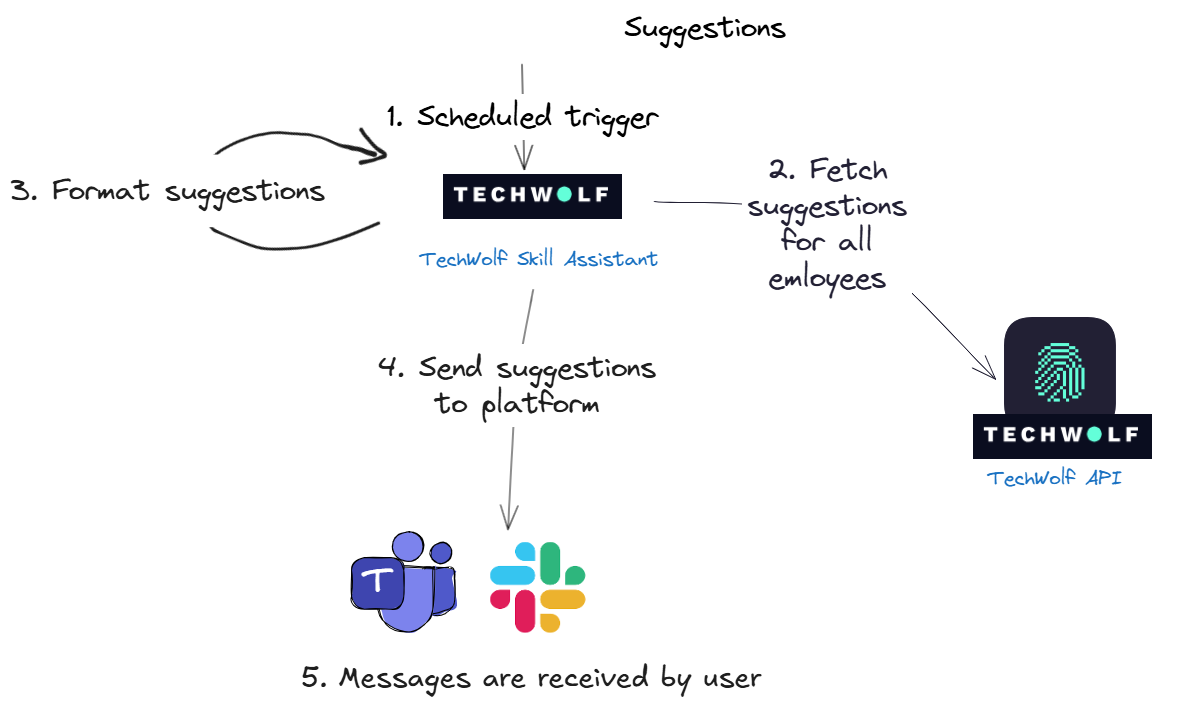 1. **Scheduled trigger**: We send out suggestions at specific time intervals. On
such an interval cycle, we trigger the TechWolf Skill Assistant. The interval
can be changed depending on your needs.
2. **Fetch suggestions**: To get those suggestions, we fetch them from our own
API. More specifically, from the
[Suggestions Skill Profile](/reference/latest/Employees/EmployeeSuggestions/post-employees-suggestions-skills)
endpoint, for all employees.
3. **Format suggestions**:
The Skill Assistant first determines which users should receive suggestions
or reminders. The system determines this by checking when each user last
received a suggestion and comparing it against the configured timing
parameters for suggestions and reminders.
The suggestions are then formatted based on the configurations for the
message content. See how the message looks like in the `How It Looks`
section.
4. **Send suggestions**: We send out the suggestions to the messaging platform.
5. **Users receive the message**: The messaging platform delivers the message to
the correct user.
### How the Skill Engine API max skills setting affects suggestions
The Skill Engine API uses the `max_skills` setting to return the top ranked
Skills for an Employee based on their data. This setting does not directly mean
that an Employee will only ever see that number of suggestions over time.
The ranking is based on the Employee Skill Profile and includes Skills that were
already accepted or rejected. The Skill Engine API then filters out already
validated Skills before suggestions are shown in the Skill Assistant.
#### What happens near the limit
Rejected Skills can still influence the top `max_skills` ranking through an
indirect effect. A rejection acts as feedback for the recommendation model and
can change the confidence scores of related Skills. When an Employee is close to
the limit, this recalculation can reorder the Employee Skill Profile and cause a
different Skill to enter the top `max_skills`.
1. The Skill Engine API returns the top `max_skills` Skills from the Employee
Skill Profile.
2. The Employee validates suggestions (for example, accepts 6 and rejects 4).
3. The recommendation scores are recalculated based on the new feedback,
including the rejection signal, which can change nearby Skill rankings.
4. If this recalculation pulls another Skill into the top `max_skills`, that
Skill can appear as a new suggestion.
#### What happens when data changes
When new Skill Events are added, probabilities can change and different Skills
can enter the top `max_skills` ranking. This can create new suggestions for the
Employee.
1. **Scheduled trigger**: We send out suggestions at specific time intervals. On
such an interval cycle, we trigger the TechWolf Skill Assistant. The interval
can be changed depending on your needs.
2. **Fetch suggestions**: To get those suggestions, we fetch them from our own
API. More specifically, from the
[Suggestions Skill Profile](/reference/latest/Employees/EmployeeSuggestions/post-employees-suggestions-skills)
endpoint, for all employees.
3. **Format suggestions**:
The Skill Assistant first determines which users should receive suggestions
or reminders. The system determines this by checking when each user last
received a suggestion and comparing it against the configured timing
parameters for suggestions and reminders.
The suggestions are then formatted based on the configurations for the
message content. See how the message looks like in the `How It Looks`
section.
4. **Send suggestions**: We send out the suggestions to the messaging platform.
5. **Users receive the message**: The messaging platform delivers the message to
the correct user.
### How the Skill Engine API max skills setting affects suggestions
The Skill Engine API uses the `max_skills` setting to return the top ranked
Skills for an Employee based on their data. This setting does not directly mean
that an Employee will only ever see that number of suggestions over time.
The ranking is based on the Employee Skill Profile and includes Skills that were
already accepted or rejected. The Skill Engine API then filters out already
validated Skills before suggestions are shown in the Skill Assistant.
#### What happens near the limit
Rejected Skills can still influence the top `max_skills` ranking through an
indirect effect. A rejection acts as feedback for the recommendation model and
can change the confidence scores of related Skills. When an Employee is close to
the limit, this recalculation can reorder the Employee Skill Profile and cause a
different Skill to enter the top `max_skills`.
1. The Skill Engine API returns the top `max_skills` Skills from the Employee
Skill Profile.
2. The Employee validates suggestions (for example, accepts 6 and rejects 4).
3. The recommendation scores are recalculated based on the new feedback,
including the rejection signal, which can change nearby Skill rankings.
4. If this recalculation pulls another Skill into the top `max_skills`, that
Skill can appear as a new suggestion.
#### What happens when data changes
When new Skill Events are added, probabilities can change and different Skills
can enter the top `max_skills` ranking. This can create new suggestions for the
Employee.
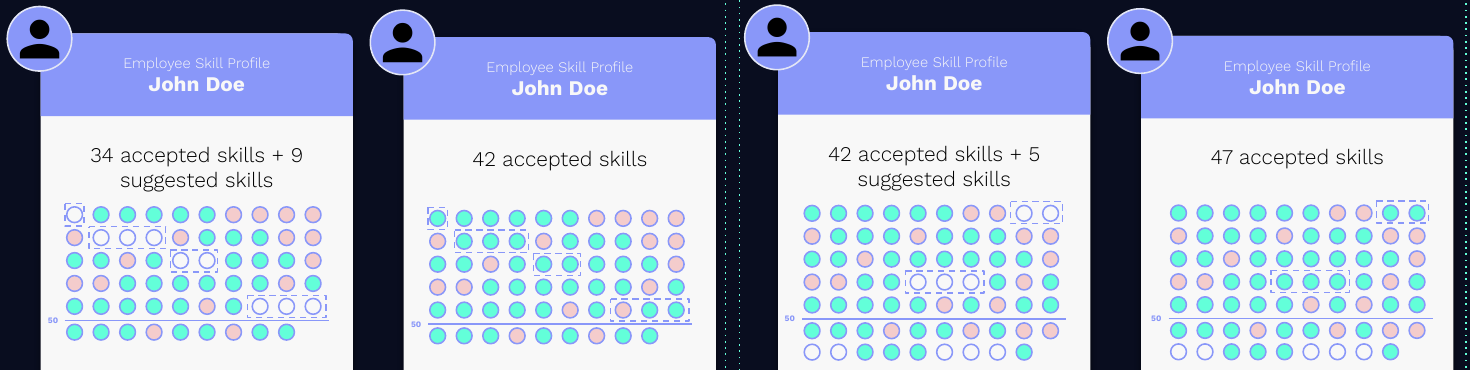 1. New Skill Events are added for the Employee.
2. New inferred Skills are scored and compared against the current top
`max_skills` ranking.
3. Only the new Skills that enter the top `max_skills` become visible
suggestions.
4. Repeating this process over time can lead to more than `max_skills` validated
Skills on an Employee profile.
# Validations
1. New Skill Events are added for the Employee.
2. New inferred Skills are scored and compared against the current top
`max_skills` ranking.
3. Only the new Skills that enter the top `max_skills` become visible
suggestions.
4. Repeating this process over time can lead to more than `max_skills` validated
Skills on an Employee profile.
# Validations
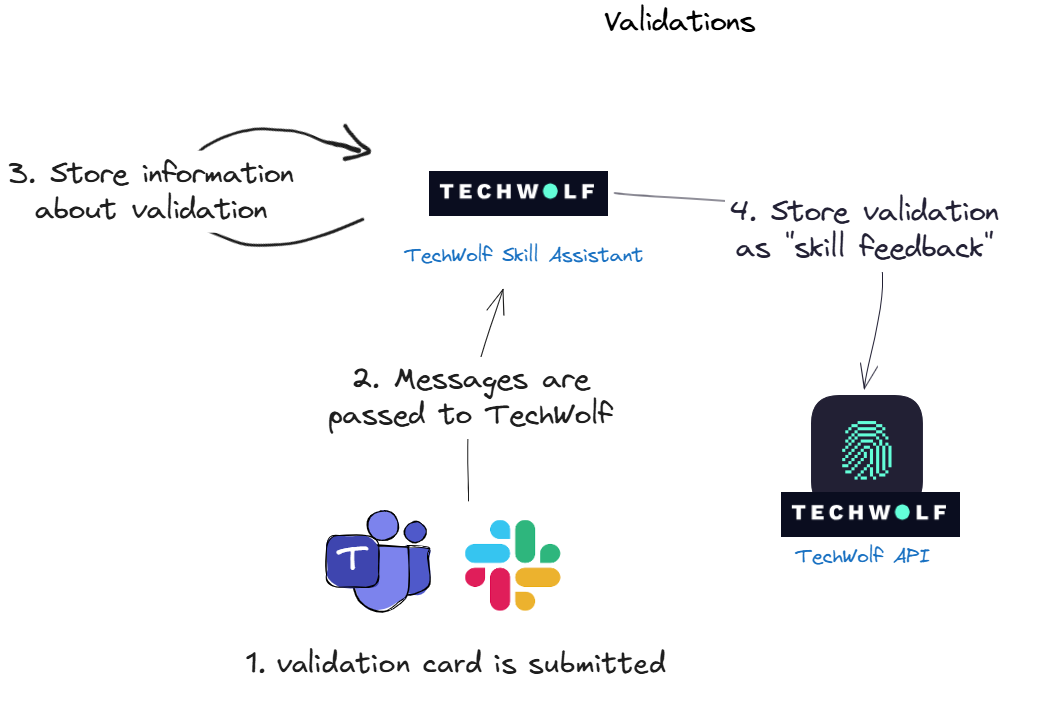 1. The user clicks submit on a card, which informs the messaging platform that
it should send an update to the TechWolf Skill Assistant.
2. The message is received by the Skill Assistant, which receives a list of
confirmed and rejected skills.
3. The TechWolf Skill Assistant stores this information, such as which skills,
but also when and by whom.
4. The feedback is sent to the TechWolf API, using the
[Employee Skill Profile feedback endpoint](/reference/latest/Employees/EmployeeProfile/patch-employees-external-id-skill-profile)
and can be tracked with the `source` field as
1. The user clicks submit on a card, which informs the messaging platform that
it should send an update to the TechWolf Skill Assistant.
2. The message is received by the Skill Assistant, which receives a list of
confirmed and rejected skills.
3. The TechWolf Skill Assistant stores this information, such as which skills,
but also when and by whom.
4. The feedback is sent to the TechWolf API, using the
[Employee Skill Profile feedback endpoint](/reference/latest/Employees/EmployeeProfile/patch-employees-external-id-skill-profile)
and can be tracked with the `source` field as "tw-{platform_0}-bot".
To access feedback provided by an employee through the Skill Assistant, use the
[Employee List Skill Event endpoint](/reference/latest/Employees/SkillEvents/get-employees-employee-external-id-skill-events) with `skill_profile_feedback` as `event_type`.
The resulting Skill Events with `source` field as "tw-{platform_0}-bot" are the feedback events given using the Skill Assistant.
# Employee Skill Management Tab
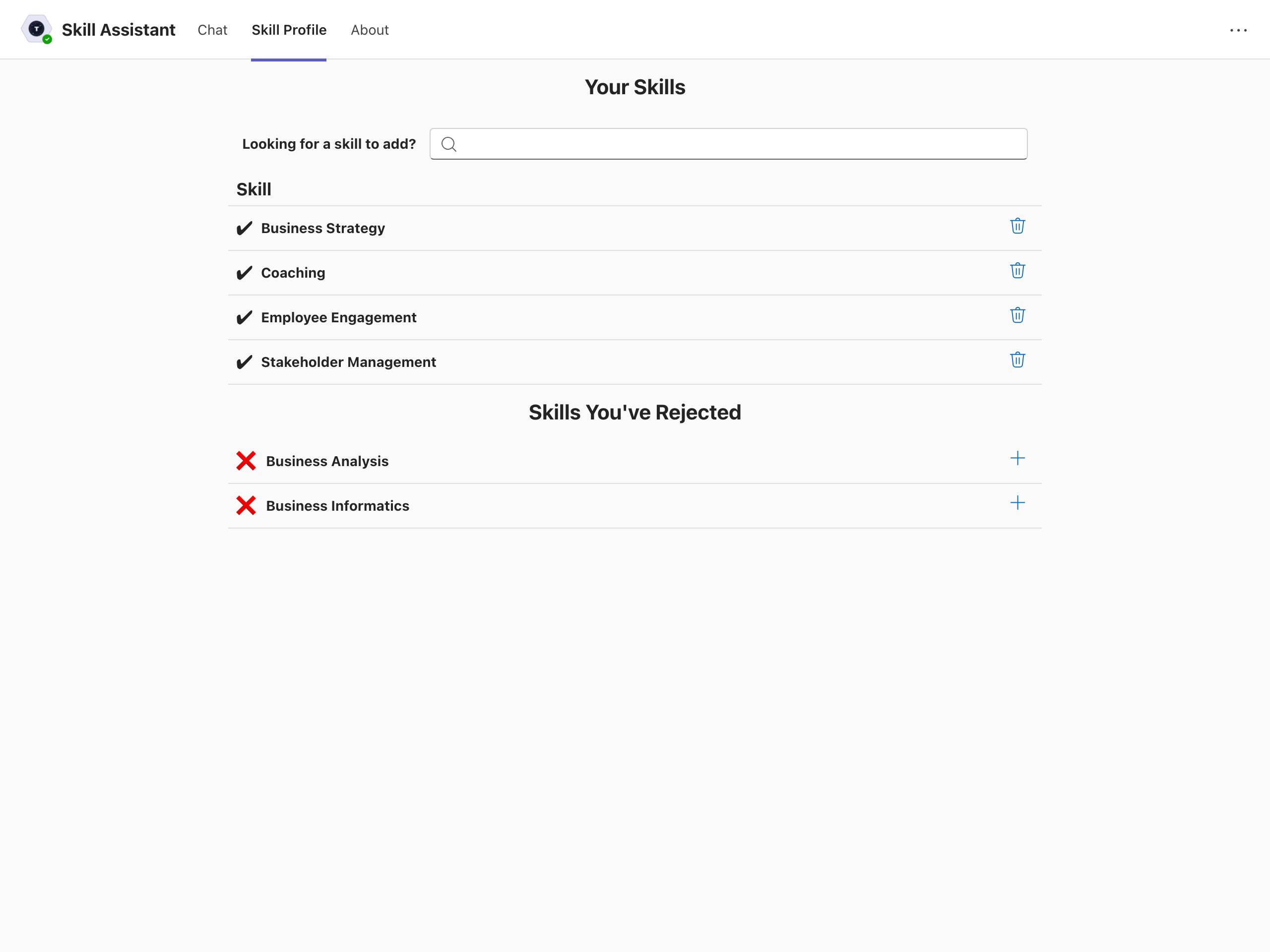
In addition to our Skill Assistant:
We offer an interactive tab that enables employees to efficiently manage and
track their skills. Within this tab, employees can:
* **View and Reevaluate Skills**: Access their validated and rejected skills for
assessment and potential updates.
* **Add Missing Skills**: Identify and add any skills that may be lacking.
* **Self-rate Skill proficiency levels (optional)**: Update the proficiency
level of a Skill.
 # Linking users
### Through Custom Properties
An important step for the Skill Assistant to work is linking employee profiles
in TechWolf to users in the messaging platform.
This can be done by setting a Custom Property on the employee profile in
TechWolf. The Skill Assistant will then use this Custom Property to link the
employee profile to the user in the messaging platform.
### Through Microsoft Graph
Another way to link employee profiles in TechWolf to users in the messaging
platform is to use the Microsoft Graph API.
This is the preferred method, as it is more secure and reliable.
TechWolf reads a configurable user property from the Microsoft Graph API and
matches its value to the employee ID known within TechWolf's SkillEngine API.
By default this is the `Employee ID` (`employeeId`) property, but it can be set
to any other Microsoft Graph user property during onboarding. See
[Linking Microsoft Teams users and employee profiles in TechWolf](./installation/#linking-microsoft-teams-users-and-employee-profiles-in-techwolf)
for the available options.
For example, when the default `employeeId` property is used, TechWolf reads it
through the following endpoint:
```
https://graph.microsoft.com/v1.0/users/?$select=employeeId
```
Notice the `$select` query parameter, which limits the response to the
configured linking property of the given Teams user.
# Data flows
### General overview
# Linking users
### Through Custom Properties
An important step for the Skill Assistant to work is linking employee profiles
in TechWolf to users in the messaging platform.
This can be done by setting a Custom Property on the employee profile in
TechWolf. The Skill Assistant will then use this Custom Property to link the
employee profile to the user in the messaging platform.
### Through Microsoft Graph
Another way to link employee profiles in TechWolf to users in the messaging
platform is to use the Microsoft Graph API.
This is the preferred method, as it is more secure and reliable.
TechWolf reads a configurable user property from the Microsoft Graph API and
matches its value to the employee ID known within TechWolf's SkillEngine API.
By default this is the `Employee ID` (`employeeId`) property, but it can be set
to any other Microsoft Graph user property during onboarding. See
[Linking Microsoft Teams users and employee profiles in TechWolf](./installation/#linking-microsoft-teams-users-and-employee-profiles-in-techwolf)
for the available options.
For example, when the default `employeeId` property is used, TechWolf reads it
through the following endpoint:
```
https://graph.microsoft.com/v1.0/users/?$select=employeeId
```
Notice the `$select` query parameter, which limits the response to the
configured linking property of the given Teams user.
# Data flows
### General overview
 #### Components
**Microsoft Teams**
The Microsoft Teams environment used by the customer.
**Azure infrastructure**
TechWolf utilizes Azure infrastructure to facilitate communication between
Microsoft Teams and the Skill Assistant. This infrastructure comprises:
* **Bot Service**: Required by Microsoft Teams to create a bot. It acts as the
intermediary between Teams and the Skill Assistant, handling message exchanges
and event triggers from Teams users.
* **Entra Application**: Handles authentication and authorization with Microsoft
Teams and the Graph API.
* **Front Door**: Routes incoming requests from the Bot Service or Skill Profile
tab to the appropriate Skill Assistant deployment (EU/US).
**Skill Assistant**
TechWolf's backend system responsible for generating skill suggestions,
processing feedback, and managing data for the Skill Profile tab.
**Skill Engine API**
The main TechWolf product. Handles skill-related data processing and
integration.
#### Data processing
**Types of data that is processed**
* **Skill Suggestions**: Automatically inferred skills for an employee,
retrieved from the Skill Engine API.
* **Skill Feedback**: Employee feedback on their suggested skills. Either
validating that they have the skills, or rejecting the skills.
* **Skill Profile**: A list of validated and rejected skills maintained in the
Skill Engine API.
* **Microsoft User Data**: Employee details retrieved from Microsoft systems,
including name and email.
**Data Processing Overview**
| | **Managed by** | **Suggestions** | **Feedback** | **Skill Profile** | **Microsoft User Data** |
| ---------------------------- | -------------- | --------------- | ------------ | ----------------- | ----------------------- |
| **Microsoft Teams** | Customer | X | X | X | X |
| **Azure: Entra Application** | TechWolf | | | | |
| **Azure: Bot Service** | TechWolf | X | X | | X |
| **Azure: Front Door** | TechWolf | X | X | X | X |
| **Skill Assistant** | TechWolf | X | X | X | X |
#### Data storage
**Overview of Data Storage Locations**
| | **Managed by** | **Suggestions** | **Feedback** | **Skill Profile** | **Microsoft User Data** |
| ------------------- | -------------- | --------------- | ------------ | ----------------- | ------------------------------------------------- |
| **Microsoft Teams** | Customer | X | X | | X |
| **Azure** | TechWolf | | | | |
| **Skill Assistant** | TechWolf | X | X | | X *(No personal identifiable information stored)* |
#### **Communication Protocols**
All data exchanges occur over REST APIs secured by **TLS 1.2** or higher.
### Suggesting Skills
#### Components
**Microsoft Teams**
The Microsoft Teams environment used by the customer.
**Azure infrastructure**
TechWolf utilizes Azure infrastructure to facilitate communication between
Microsoft Teams and the Skill Assistant. This infrastructure comprises:
* **Bot Service**: Required by Microsoft Teams to create a bot. It acts as the
intermediary between Teams and the Skill Assistant, handling message exchanges
and event triggers from Teams users.
* **Entra Application**: Handles authentication and authorization with Microsoft
Teams and the Graph API.
* **Front Door**: Routes incoming requests from the Bot Service or Skill Profile
tab to the appropriate Skill Assistant deployment (EU/US).
**Skill Assistant**
TechWolf's backend system responsible for generating skill suggestions,
processing feedback, and managing data for the Skill Profile tab.
**Skill Engine API**
The main TechWolf product. Handles skill-related data processing and
integration.
#### Data processing
**Types of data that is processed**
* **Skill Suggestions**: Automatically inferred skills for an employee,
retrieved from the Skill Engine API.
* **Skill Feedback**: Employee feedback on their suggested skills. Either
validating that they have the skills, or rejecting the skills.
* **Skill Profile**: A list of validated and rejected skills maintained in the
Skill Engine API.
* **Microsoft User Data**: Employee details retrieved from Microsoft systems,
including name and email.
**Data Processing Overview**
| | **Managed by** | **Suggestions** | **Feedback** | **Skill Profile** | **Microsoft User Data** |
| ---------------------------- | -------------- | --------------- | ------------ | ----------------- | ----------------------- |
| **Microsoft Teams** | Customer | X | X | X | X |
| **Azure: Entra Application** | TechWolf | | | | |
| **Azure: Bot Service** | TechWolf | X | X | | X |
| **Azure: Front Door** | TechWolf | X | X | X | X |
| **Skill Assistant** | TechWolf | X | X | X | X |
#### Data storage
**Overview of Data Storage Locations**
| | **Managed by** | **Suggestions** | **Feedback** | **Skill Profile** | **Microsoft User Data** |
| ------------------- | -------------- | --------------- | ------------ | ----------------- | ------------------------------------------------- |
| **Microsoft Teams** | Customer | X | X | | X |
| **Azure** | TechWolf | | | | |
| **Skill Assistant** | TechWolf | X | X | | X *(No personal identifiable information stored)* |
#### **Communication Protocols**
All data exchanges occur over REST APIs secured by **TLS 1.2** or higher.
### Suggesting Skills
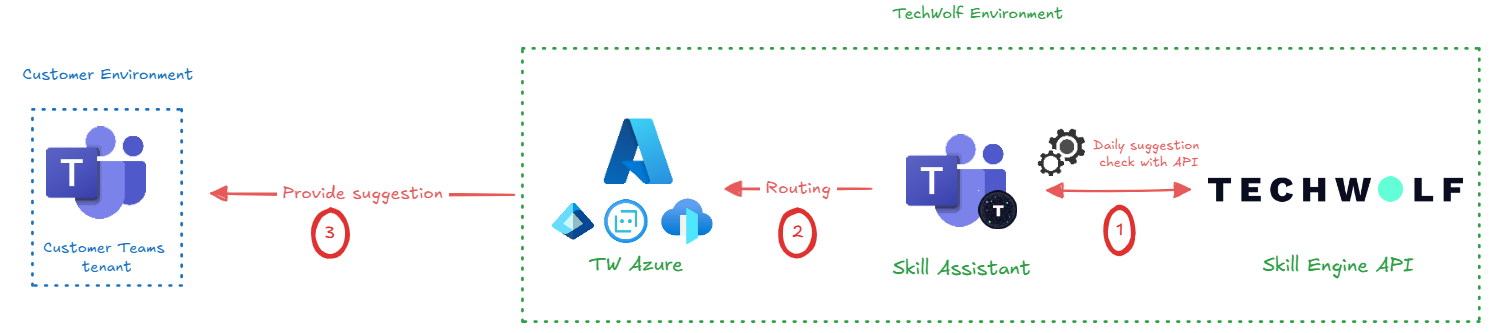 **Process**
1. **Fetch suggestions**: On a regular basis, the Skill Assistant will fetch
suggestions generated by the API.
2. **Routing the suggestion**: The suggestion is sent to the Azure Tenant, where
it is routed to the concerning employee.
3. **Sending the suggestion**: The suggestion is sent through the 'adaptive
card' format by the Bot Service to the customer Teams tenant.
**Data Involved**
1. Teams ID, Internal ID, Suggestion
2. Teams ID, Suggestion
3. Teams ID, Suggestion
### User Input
User input entails button clicks, messages and installation events.
**Process**
1. **Fetch suggestions**: On a regular basis, the Skill Assistant will fetch
suggestions generated by the API.
2. **Routing the suggestion**: The suggestion is sent to the Azure Tenant, where
it is routed to the concerning employee.
3. **Sending the suggestion**: The suggestion is sent through the 'adaptive
card' format by the Bot Service to the customer Teams tenant.
**Data Involved**
1. Teams ID, Internal ID, Suggestion
2. Teams ID, Suggestion
3. Teams ID, Suggestion
### User Input
User input entails button clicks, messages and installation events.
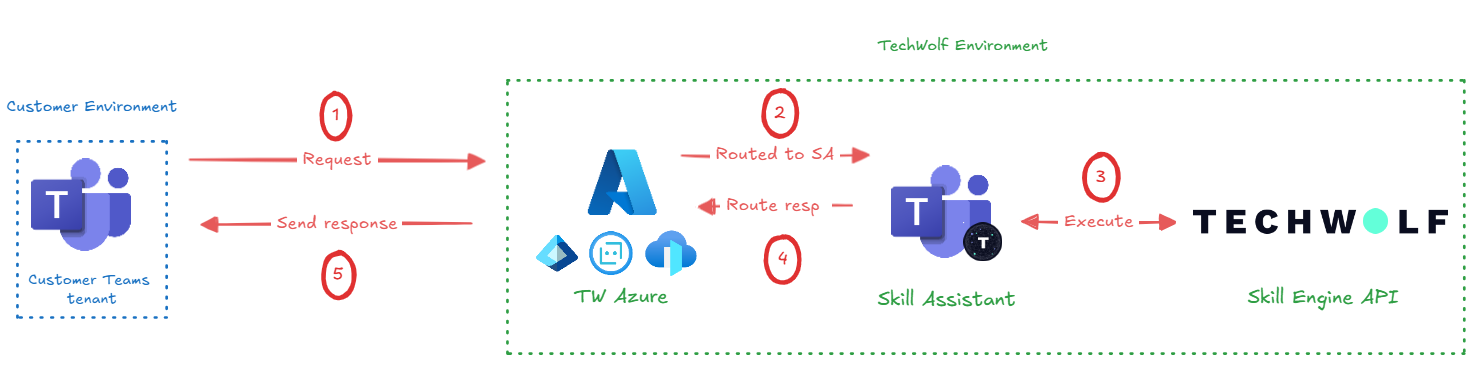 1. **User input request**: When a user interacts with a suggestion, it is sent
to the Bot service in the TechWolf Azure instance.
2. **Routing to Skill Assistant**: The request is processed and routed by the
Bot Service to the Skill Assistant. Only necessary information is retained,
and names and email addresses are dropped.
3. **Execution of request**: The Skill Assistant directs the request in proper
format to the API, where the request is executed on the customer's data.
4. **Response to user**: A response, based on the request's proper execution, is
sent back to the Bot Service to route it back to the concerning user.
5. **Sending the response**: The response is sent to the user by the Bot
Service.
**Data Involved**
1. [Event Data](https://learn.microsoft.com/en-us/azure/bot-service/rest-api/bot-framework-rest-connector-api-reference?view=azure-bot-service-4.0#activity-object),
Feedback, MS User Data (Contains first name, last name and email address
which cannot be dropped from the request.
[ref](https://learn.microsoft.com/en-us/azure/bot-service/rest-api/bot-framework-rest-connector-api-reference?view=azure-bot-service-4.0#channelaccount-object))
2. [Event Data](https://learn.microsoft.com/en-us/azure/bot-service/rest-api/bot-framework-rest-connector-api-reference?view=azure-bot-service-4.0#activity-object),
Feedback, MS User Data (Contains first name, last name and email address
which cannot be dropped from the request.
[ref](https://learn.microsoft.com/en-us/azure/bot-service/rest-api/bot-framework-rest-connector-api-reference?view=azure-bot-service-4.0#channelaccount-object))
3. Internal ID, Teams ID, Depending on the event: Feedback, Request suggestions
or Skill Profile
4. Teams ID, Custom response, Depending on the event: Suggestion or Skill
Profile
5. Teams ID, Custom response, Depending on the event: Suggestion or Skill
Profile
1. **User input request**: When a user interacts with a suggestion, it is sent
to the Bot service in the TechWolf Azure instance.
2. **Routing to Skill Assistant**: The request is processed and routed by the
Bot Service to the Skill Assistant. Only necessary information is retained,
and names and email addresses are dropped.
3. **Execution of request**: The Skill Assistant directs the request in proper
format to the API, where the request is executed on the customer's data.
4. **Response to user**: A response, based on the request's proper execution, is
sent back to the Bot Service to route it back to the concerning user.
5. **Sending the response**: The response is sent to the user by the Bot
Service.
**Data Involved**
1. [Event Data](https://learn.microsoft.com/en-us/azure/bot-service/rest-api/bot-framework-rest-connector-api-reference?view=azure-bot-service-4.0#activity-object),
Feedback, MS User Data (Contains first name, last name and email address
which cannot be dropped from the request.
[ref](https://learn.microsoft.com/en-us/azure/bot-service/rest-api/bot-framework-rest-connector-api-reference?view=azure-bot-service-4.0#channelaccount-object))
2. [Event Data](https://learn.microsoft.com/en-us/azure/bot-service/rest-api/bot-framework-rest-connector-api-reference?view=azure-bot-service-4.0#activity-object),
Feedback, MS User Data (Contains first name, last name and email address
which cannot be dropped from the request.
[ref](https://learn.microsoft.com/en-us/azure/bot-service/rest-api/bot-framework-rest-connector-api-reference?view=azure-bot-service-4.0#channelaccount-object))
3. Internal ID, Teams ID, Depending on the event: Feedback, Request suggestions
or Skill Profile
4. Teams ID, Custom response, Depending on the event: Suggestion or Skill
Profile
5. Teams ID, Custom response, Depending on the event: Suggestion or Skill
Profile