> ## Documentation Index
> Fetch the complete documentation index at: https://developers.techwolf.ai/llms.txt
> Use this file to discover all available pages before exploring further.
# Customizations
export const timezoneType_0 = "country"
export const platform_0 = undefined
# Branding
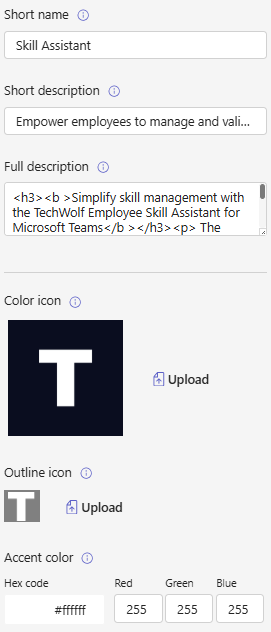
## What can be customized?
The TechWolf Skill Assistant can be customized in a number of ways to better fit
your company's needs. The following is a list of customizations that can be
made:
* The name of the application
* The short description of the application
* The full description of the application
* The icon of the application
* The outline icon of the application
* The accent color of the application
Additionaly, the following is a list of customizations that can be made in the Skill Profile tab:
* The labels of the self-rated Skill proficiency levels
 ## How to customize the application in Teams?
You can customize the branding of the application in Teams by following
[this Microsoft guide](https://learn.microsoft.com/en-us/microsoftteams/customize-apps#create-a-default-customization-for-an-app).
# Customize the content of messages
The content of the messages that are sent by the TechWolf Skill Assistant can be
customized to better fit your company's needs. The following attributes can be
customized:
* The wording of the messages can be changed to better fit your company's
culture. More information can be found in the
[wording section](#customize-the-wording-of-messages).
* The language of the messages. More information can be found in the
[language section](#customize-the-language-of-messages).
* The skill vocabulary used to display the skills. This can be TechWolf skills
or Workday skills.
* The amount of skills that are suggested per message.{platform_0 === 'slack' && ' For Slack, the maximum is 10.'}
* The grouping of the skills in the suggestions. Skills can be grouped by
Skill Cluster or have no grouping. For skills grouped by Skill Cluster, the
maximum number of skills per cluster can be set.
* The option to show the sources of the skills in the suggestions. This can be
set to show the source of the skills or not.
* The option to show the skill descriptions of the suggestions. This can
only be used when using the TechWolf or Workday skill vocabulary.
These customizations are configured by TechWolf. Let us know what you would like
to change and we will make the necessary adjustments.
### Customize the language of messages
The TechWolf Skill Assistant sends messages to users in the language that is set
by the user in their app. This is only the case if the language
is one of the allowed languages, otherwise English is used.
You can customize in which languages your employees are allowed to use. If one
of your employees uses a language we support, but that is not allowed, they will
also default to English.
The allowed languages of the messages can be set to a subset of the following
languages: English, French, German and Dutch.
The allowed languages of skills in TechWolf vocabulary are: English, French,
German and Dutch. The allowed languages of skills in other vocabularies are:
English.
### Customize the wording of messages
Messages can also be changed from their default messaging. Those messages can
contain:
* The name of the person the message was sent to (only if the name is stored
in the TechWolf system).
* A link that is not personalized.
* Any text of course.
The following lists all possible messages and their default text. We highly
recommend customizing these messages to your company to greatly improve user
experience
* **Installation message**: The first message the user receives.
## How to customize the application in Teams?
You can customize the branding of the application in Teams by following
[this Microsoft guide](https://learn.microsoft.com/en-us/microsoftteams/customize-apps#create-a-default-customization-for-an-app).
# Customize the content of messages
The content of the messages that are sent by the TechWolf Skill Assistant can be
customized to better fit your company's needs. The following attributes can be
customized:
* The wording of the messages can be changed to better fit your company's
culture. More information can be found in the
[wording section](#customize-the-wording-of-messages).
* The language of the messages. More information can be found in the
[language section](#customize-the-language-of-messages).
* The skill vocabulary used to display the skills. This can be TechWolf skills
or Workday skills.
* The amount of skills that are suggested per message.{platform_0 === 'slack' && ' For Slack, the maximum is 10.'}
* The grouping of the skills in the suggestions. Skills can be grouped by
Skill Cluster or have no grouping. For skills grouped by Skill Cluster, the
maximum number of skills per cluster can be set.
* The option to show the sources of the skills in the suggestions. This can be
set to show the source of the skills or not.
* The option to show the skill descriptions of the suggestions. This can
only be used when using the TechWolf or Workday skill vocabulary.
These customizations are configured by TechWolf. Let us know what you would like
to change and we will make the necessary adjustments.
### Customize the language of messages
The TechWolf Skill Assistant sends messages to users in the language that is set
by the user in their app. This is only the case if the language
is one of the allowed languages, otherwise English is used.
You can customize in which languages your employees are allowed to use. If one
of your employees uses a language we support, but that is not allowed, they will
also default to English.
The allowed languages of the messages can be set to a subset of the following
languages: English, French, German and Dutch.
The allowed languages of skills in TechWolf vocabulary are: English, French,
German and Dutch. The allowed languages of skills in other vocabularies are:
English.
### Customize the wording of messages
Messages can also be changed from their default messaging. Those messages can
contain:
* The name of the person the message was sent to (only if the name is stored
in the TechWolf system).
* A link that is not personalized.
* Any text of course.
The following lists all possible messages and their default text. We highly
recommend customizing these messages to your company to greatly improve user
experience
* **Installation message**: The first message the user receives.
Hello!
I'm the Skill Assistant, here to help you keep your skills profile accurate and
up to date. Here's how I can assist you:
- I'll send you skill suggestions that you can review and validate.
- You can manage your skill profile in the Skill Profile tab.
If you have any questions or need assistance, contact us at [support@techwolf.com](mailto:support@techwolf.com).
* **Hello message**: The Skill Assistant's answer to a message containing
`hello` or a similar word in other languages.
Hello! I'm the Skill Assistant, here to help you keep your skills profile
accurate and up to date. I'll send you skill suggestions that you can review
and validate to ensure your profile reflects your expertise. You can manage
your own skill profile in the Skill Profile tab.
* **Help message**: The Skill Assistant's answer to a message containing
`Help`.
Hello! I'm the Skill Assistant, here to help you keep your skills profile
accurate and up to date. I'll send you skill suggestions that you can review
and validate to ensure your profile reflects your expertise. You can manage
your own skill profile in the Skill Profile tab.
* **Hello/Help message for unlinked users**: The Skill Assistant's answer to a
message containing `hello` or `help` or a similar word in other languages
when the user is not linked to an Employee in the TechWolf system.
Hello! I'm the Skill Assistant, here to help you keep your skills
profile accurate and up to date.
You currently do not have access. Contact your HR department to get
access.
* **Timed suggestion message**: The text above a suggestion message that is
sent on the configured interval. There were no open suggestions before this
one.
Hi, below you can find a number of suggested skills for you. Deselect skills
that you feel you do not have.
* **Validate more message**: The text above new suggestions when the user
requested more suggestions on the previous set.
Hi, below you can find a number of additional suggested skills for you.
Deselect skills that you feel you do not have.
* **Reminder message**: The text above a suggestion message that is sent on
the configured interval. There were open suggestions before this one.
Hi, this is a reminder. Below you can find a number of suggested skills for
you. Deselect skills that you feel you do not have.
* **No more skills message**: When the user wants to validate more, but there
are no more suggestions for now.
There are no more skills to validate at this time!
Good work 🥳
* **Submitted message**: When the user submits their suggestions, the text on
that card changes.
Your response has been successfully submitted.
* **Outdated message**: Previous unsubmitted suggestions are closed, and new
suggestions are sent. This is the text that is shown on the old suggestions.
This only happens when the next reminder or new skill suggestions are sent
— there is no time-based trigger that marks a message outdated on its own.
This request no longer exists. A more recent reminder has been sent with a
list of skills for you to validate.
* **SAP Growth Profile link**: The message on top of the Skill Profile tab
that contains the link to the Employee's SAP Growth Portfolio. By default,
no message is displayed.
# Customize the scheduling of messages
The TechWolf Skill Assistant sends messages to users on a regular basis. This
scheduling of the messages can be customized to fit your company's needs. The
following attributes can be customized:
* How often suggestions are sent. The options are daily, weekly, monthly,
quarterly (every 3 months), biannually (every 6 months), or yearly. By
default, daily sends every weekday, weekly sends every Monday, and monthly,
quarterly, biannually, and yearly send on the first Monday of the relevant
month.
* For weekly and longer frequencies, the day on which suggestions are sent
can be customized in one of two ways:
* By weekday: pick a specific weekday (Monday–Friday). For monthly,
quarterly, biannually, and yearly frequencies, you also pick which
occurrence of that weekday within the month (first, second, third, or
fourth — for example, the third Wednesday).
* By date: pick a fixed day of the month (1–28). If that date falls on a
weekend, sending shifts to the next Monday. This option applies to
monthly and longer frequencies.
* For quarterly, biannually, and yearly frequencies, the starting month can
be configured. For example, quarterly starting in February sends in
February, May, August, and November.
* The time when messages begin sending. This process may take some time. You
can set it to a specific time of day, either on the hour or the half-hour.
* The amount of time to wait before sending a reminder message to users with
open suggestions. This can be set to a specific number of days. For example,
if the reminder window is set to 3 days and the user has not validated the
skill suggestions received on Monday, they will receive a reminder on
Thursday. If the user validates the suggestions on Tuesday and chooses to
validate more suggestions, but then leaves the new suggestions open, the
reminder window is reset and a new reminder will be sent on Friday. Reminder
messages are only sent on weekdays, so if the reminder window expires during
the weekend, the reminder will be sent on Monday. Reminders can also follow
the suggestion frequency; in that case, on each send day, employees who
still have open suggestions from a previous send day receive a reminder,
and employees without any open suggestions receive new suggestions if any
are available.
* Whether all messages are sent at the same time or based on each user's
{timezoneType_0 === 'country' ? 'country median time zone.' : 'time zone.'}
* A minimum number of Skills that must be available before suggestions are
sent to an Employee.
These customizations are configured by TechWolf. Let us know what you would like
to change and we will make the necessary adjustments.