> ## Documentation Index
> Fetch the complete documentation index at: https://developers.techwolf.ai/llms.txt
> Use this file to discover all available pages before exploring further.
# Installation
# Required Roles for Slack Installation
The required roles for the Slack installation are:
* **Slack (Enterprise Grid) Admin**: A user with administrative privileges who
can manage app installations, approve app requests, and configure app settings
across the Slack Enterprise Grid organization. This role is essential for
overseeing the Skill Assistant integration and ensuring proper deployment.
* **Customer Contact with TechWolf**: A designated representative who
coordinates with TechWolf's team to facilitate the integration process,
provide necessary information, and ensure successful implementation of the
Skill Assistant in your Slack environment.
# Required Slack App Permissions
The required permissions for the Slack app are:
| OAuth Scope | Description | Request Reason |
| ----------- | ----------------------------------------------------------------------------------------- | ---------------------------------------------------------------------------------------------------------------------- |
| chat:write | Send messages as Skill Assistant | The app needs to be able to send messages containing suggestions, reminders and other content to the users of the app. |
| im:history | View messages and other content in direct messages that Skill Assistant has been added to | The app needs to be able to view messages users send to the app to be able to answer those messages. |
| im:write | Start direct messages with people | The app needs to be able to start sending messages directly to users, to for example send them skill suggestions. |
| users:read | View people in a workspace | The app needs to be able to get all the users from the workspace to be able to send suggestions to them. |
# Installation steps
The installation consists of several steps, which are described in detail below.
TechWolf needs to configure the Skill Assistant to work with your Slack
environment and you need to install the app in your Slack environment. Once
installed, employees can receive Skill Suggestions in direct messages and manage
their Skill Profile in the Skill Assistant's App Home.
If you are using a Slack Enterprise Grid, you need to share your
Enterprise ID with TechWolf. If you only have a single Slack Workspace,
you need to share your Workspace ID with TechWolf.
We need a method to link employee profiles in the TechWolf API to Slack
Users. See [Linking users and employee profiles in TechWolf
](#linking-slack-users-and-employee-profiles-in-techwolf).
Install the Skill Assistant in your Slack environment by following
[these steps](#install-the-skill-assistant-in-slack)
This step is only required if you are using a Slack Enterprise Grid.
Enable the Skill Assistant for your workspaces by following [these
steps](#enable-the-skill-assistant-for-your-workspaces)
### Linking Slack users and employee profiles in TechWolf
In order for TechWolf's Skill Assistant to deliver personalized and timely skill
suggestions via Slack, it is crucial that we can accurately link each employee
in your organization to their corresponding Slack user.
This can be accomplished by setting a
[Custom Property]()
on the employee profile in TechWolf. The Skill Assistant will then use this
Custom Property to link the employee profile to the user in the messaging
platform. The Slack ID should be stored in a Custom Property with the key
`employee_slack_id`.
* If you are using Enterprise Grid, use the Enterprise Slack ID
* If you are using a single workspace, use the Workspace Slack ID
For Slack, we require the **User ID** which has one of the following
formats: `U02ABCDEF34` or `W02ABCDEF34`.
The mapping between the employee ID known in TechWolf's SkillEngine and their
corresponding custom property should be sent to TechWolf via a datasource
integration so that we can store it accordingly.
### Install the Skill Assistant in Slack
To install the Skill Assistant in Slack, you need to install the app in your
Slack environment. Follow the following steps:
If your data should be stored in the US region, you need to install the app
in the US region. Otherwise, you need to install the app in the EU region.
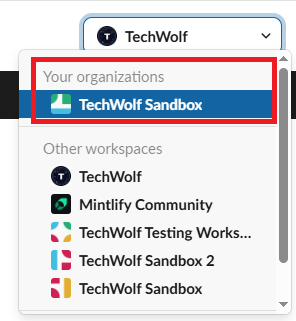
If you are using Enterprise Grid, you need to install the Skill Assistant app for your organization.
Make sure to select your organization and not your workspace when using Enterprise Grid.
Only when you are not using Enterprise Grid, you can install the app for a single workspace.
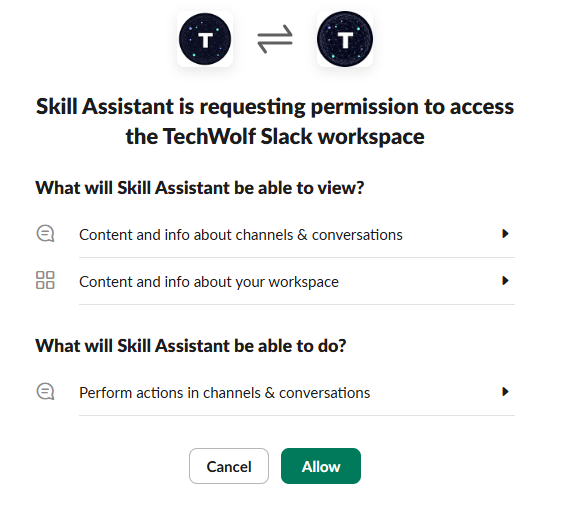
 Allow the app to access your Slack environment.
The Skill Assistant app is currently not available in the Slack Marketplace.
Slack will display a warning that shows this.
Allow the app to access your Slack environment.
The Skill Assistant app is currently not available in the Slack Marketplace.
Slack will display a warning that shows this.
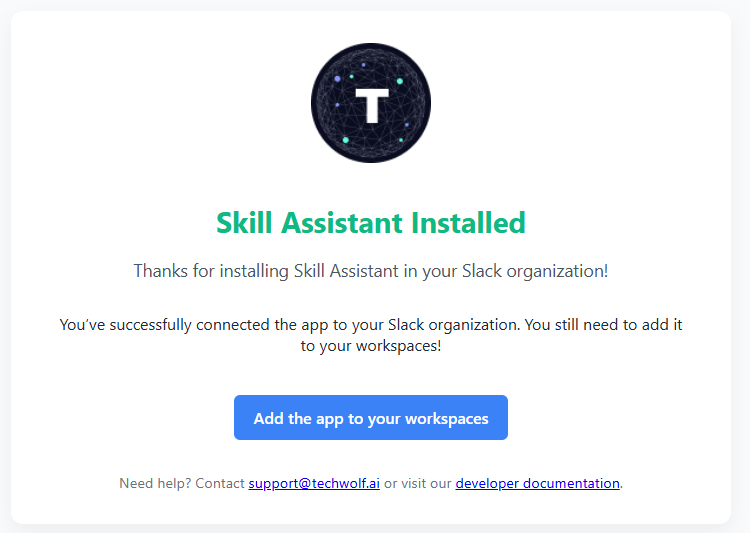
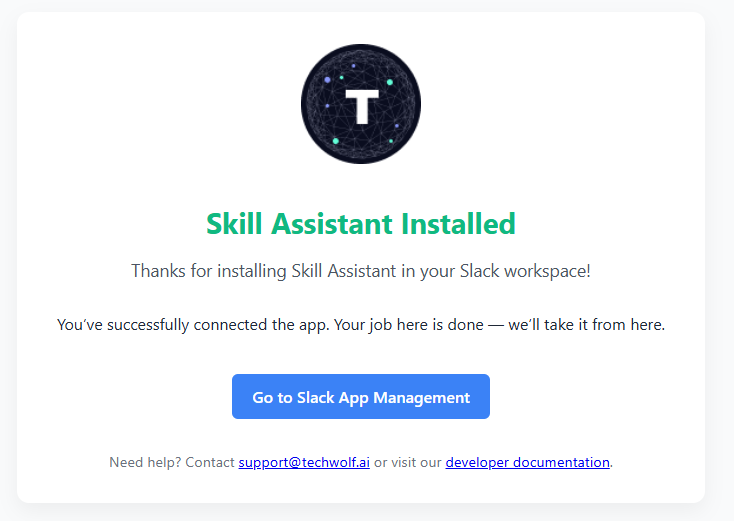
 If the installation is successful, you will see the following message.
 ### Enable the Skill Assistant for your workspaces
This step is only required if you are using a Slack Enterprise Grid.
If you are using a Slack Enterprise Grid, you need to enable the Skill Assistant
for your workspaces. Follow the following steps:
If the installation was successful, you will see a button named "Add the
app to your workspaces". This will bring you to the page where you can
add the app to your workspaces.
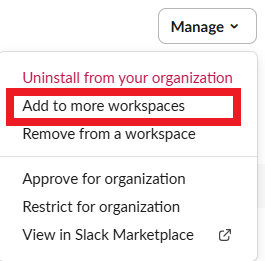
At the right top corner of the page, you will see a dropdown named "Manage". Click it and select "Add to more workspaces".
### Enable the Skill Assistant for your workspaces
This step is only required if you are using a Slack Enterprise Grid.
If you are using a Slack Enterprise Grid, you need to enable the Skill Assistant
for your workspaces. Follow the following steps:
If the installation was successful, you will see a button named "Add the
app to your workspaces". This will bring you to the page where you can
add the app to your workspaces.
At the right top corner of the page, you will see a dropdown named "Manage". Click it and select "Add to more workspaces".
 Select the workspaces you want to add the app to and click on "Next".
Review the permissions and click on "Next".
Select the checkbox "I'm ready to add this app" and click the button "Add App".
Select the workspaces you want to add the app to and click on "Next".
Review the permissions and click on "Next".
Select the checkbox "I'm ready to add this app" and click the button "Add App".