> ## Documentation Index
> Fetch the complete documentation index at: https://developers.techwolf.ai/llms.txt
> Use this file to discover all available pages before exploring further.
# How To: Find the SAP SuccessFactors Company ID and API URL
This guide walks through locating the Company ID and API URL of your SAP
SuccessFactors environment. You will need both values when sharing credentials
with TechWolf to configure the integration.
### 1. Find out the correct SAP SuccessFactors Company ID
* As an SAP administrator, log into the SAP SuccessFactors environment you want
to configure the integration for.
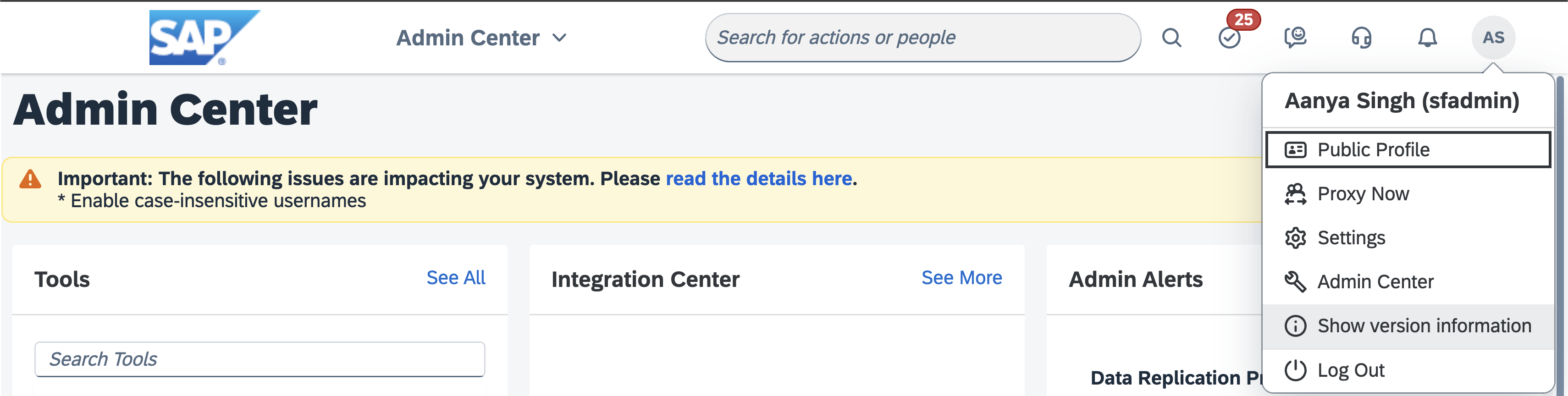
* Click on your profile icon in the top right corner and select "Show version
information".
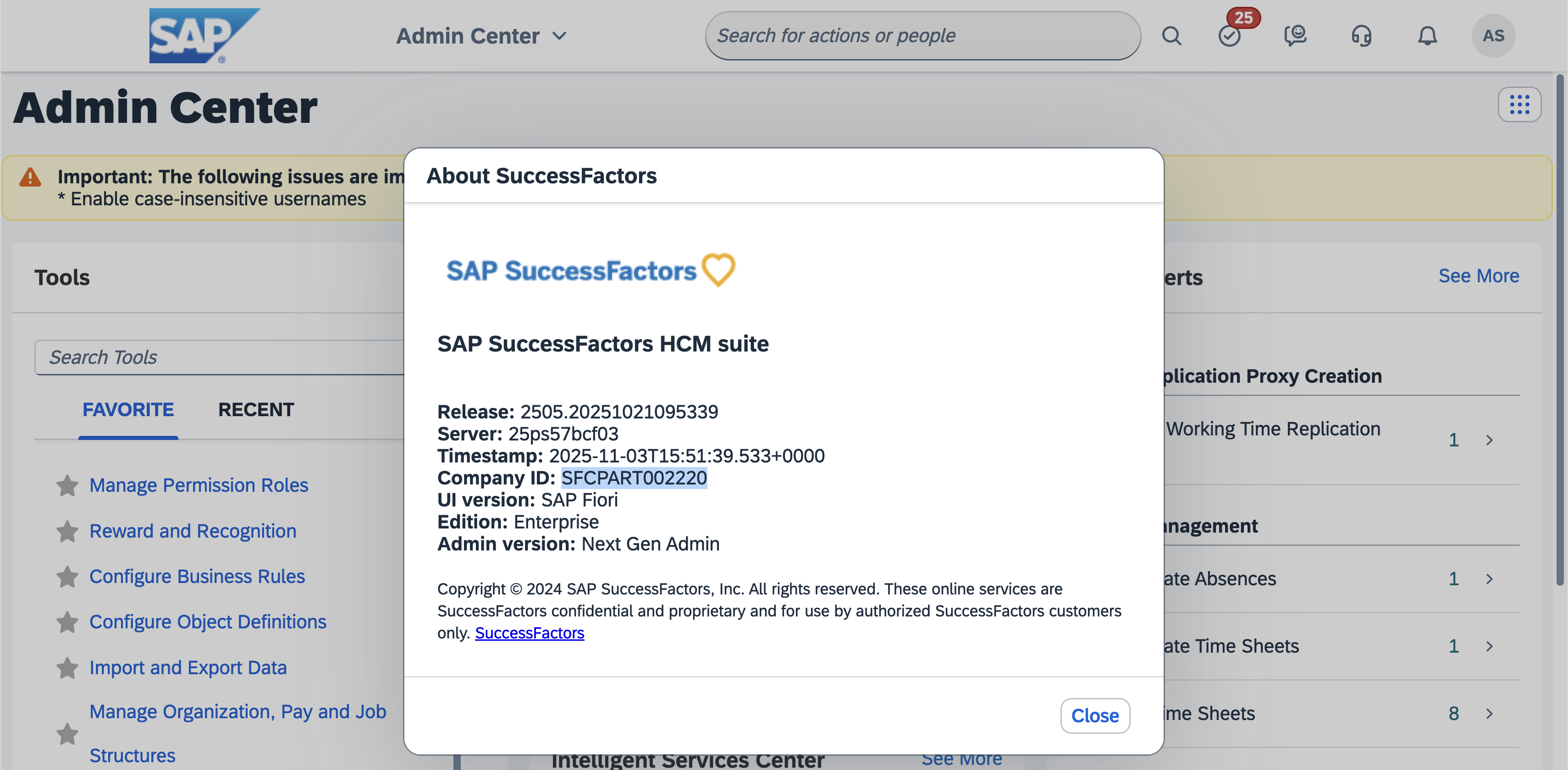
 * The Company ID will be shown in the resulting window.
 ### 2. Find out the correct SAP SuccessFactors API URL
* As an SAP administrator, go to
[SAP for Me ](https://me.sap.com/systemsprovisioning/systems)
(if you have multiple credentials, sign in with your S-User credentials).
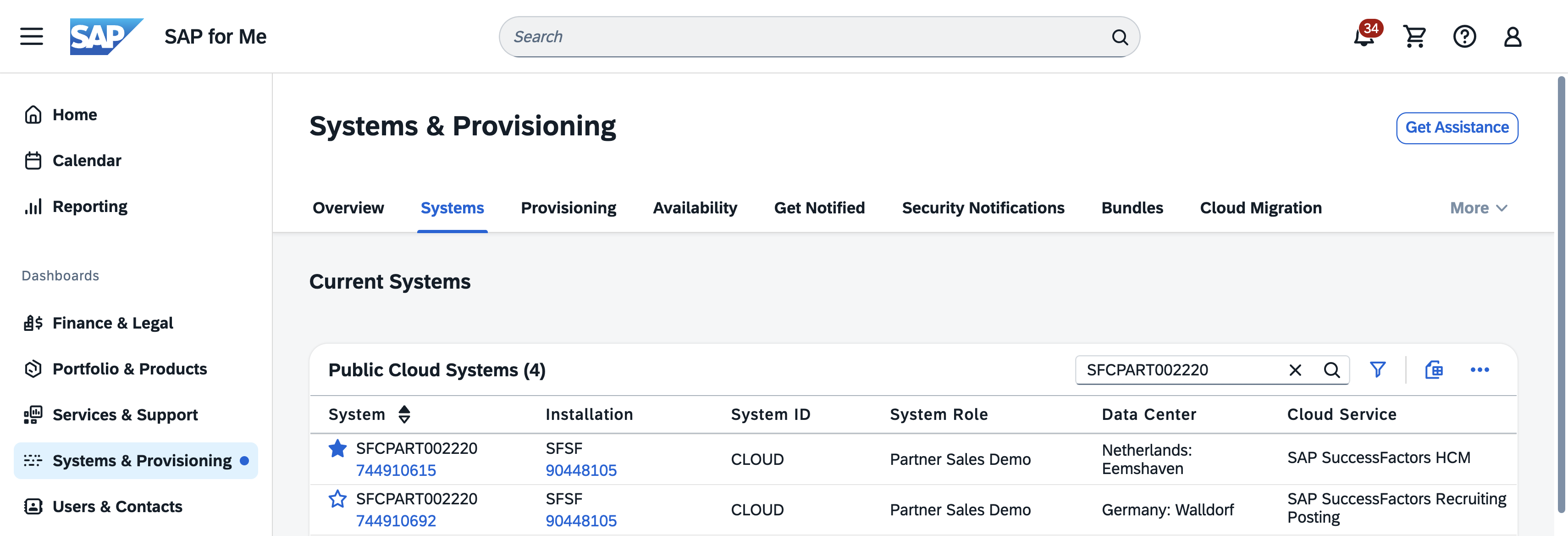
* In the *Public Cloud Systems* table, find the system you want to configure the
integration for.
* This system should have the value "SAP SuccessFactors HCM" in the
`Cloud Service` column.
* The `Data Center` column will show the location of the data center of the
system, e.g. "Netherlands: Eemshaven".
### 2. Find out the correct SAP SuccessFactors API URL
* As an SAP administrator, go to
[SAP for Me ](https://me.sap.com/systemsprovisioning/systems)
(if you have multiple credentials, sign in with your S-User credentials).
* In the *Public Cloud Systems* table, find the system you want to configure the
integration for.
* This system should have the value "SAP SuccessFactors HCM" in the
`Cloud Service` column.
* The `Data Center` column will show the location of the data center of the
system, e.g. "Netherlands: Eemshaven".
 * Go to the
[List of SAP SuccessFactors API Servers ](https://help.sap.com/docs/successfactors-platform/it-landscape-requirements-for-sap-successfactors/list-of-sap-successfactors-api-servers)
* In the *API Servers* table, find your Data Center.
* This Data Center should have the previously determined data center location
as the value of the `Location` column. Note that the location name might
differ in format from the location name in the previous step, e.g.
"Eemshaven, The Netherlands" vs "Netherlands: Eemshaven". Among all rows
with this location, find the row with the appropriate value for the
`Environment` column.
* The `API Server` column will show the API URL for the API Server.
* Go to the
[List of SAP SuccessFactors API Servers ](https://help.sap.com/docs/successfactors-platform/it-landscape-requirements-for-sap-successfactors/list-of-sap-successfactors-api-servers)
* In the *API Servers* table, find your Data Center.
* This Data Center should have the previously determined data center location
as the value of the `Location` column. Note that the location name might
differ in format from the location name in the previous step, e.g.
"Eemshaven, The Netherlands" vs "Netherlands: Eemshaven". Among all rows
with this location, find the row with the appropriate value for the
`Environment` column.
* The `API Server` column will show the API URL for the API Server.
