> ## Documentation Index
> Fetch the complete documentation index at: https://developers.techwolf.ai/llms.txt
> Use this file to discover all available pages before exploring further.
# Self-service SFTP setup
This guide walks through configuring a customer-hosted SFTP server as an input
integration from the Console. It applies to customers, implementation
partners, and TechWolf Professional Services.
For the trust model and the role of each key, see
[How SFTP works](/integrations/reference/sftp/how-sftp-works) and [Security](/integrations/reference/sftp/security).
# Prerequisites
* A customer-hosted SFTP server that is reachable from TechWolf's egress IP
addresses.
TechWolf's egress IP addresses are available on request from your
TechWolf contact.
* Admin access to install an SSH public key on the SFTP server (or, for legacy
servers, a service-account password).
* The remote folder path(s) that TechWolf should pull files from.
# Steps
In the Console, go to **Integrations → SFTP Configuration**
(`/integrations/sftp-config`).
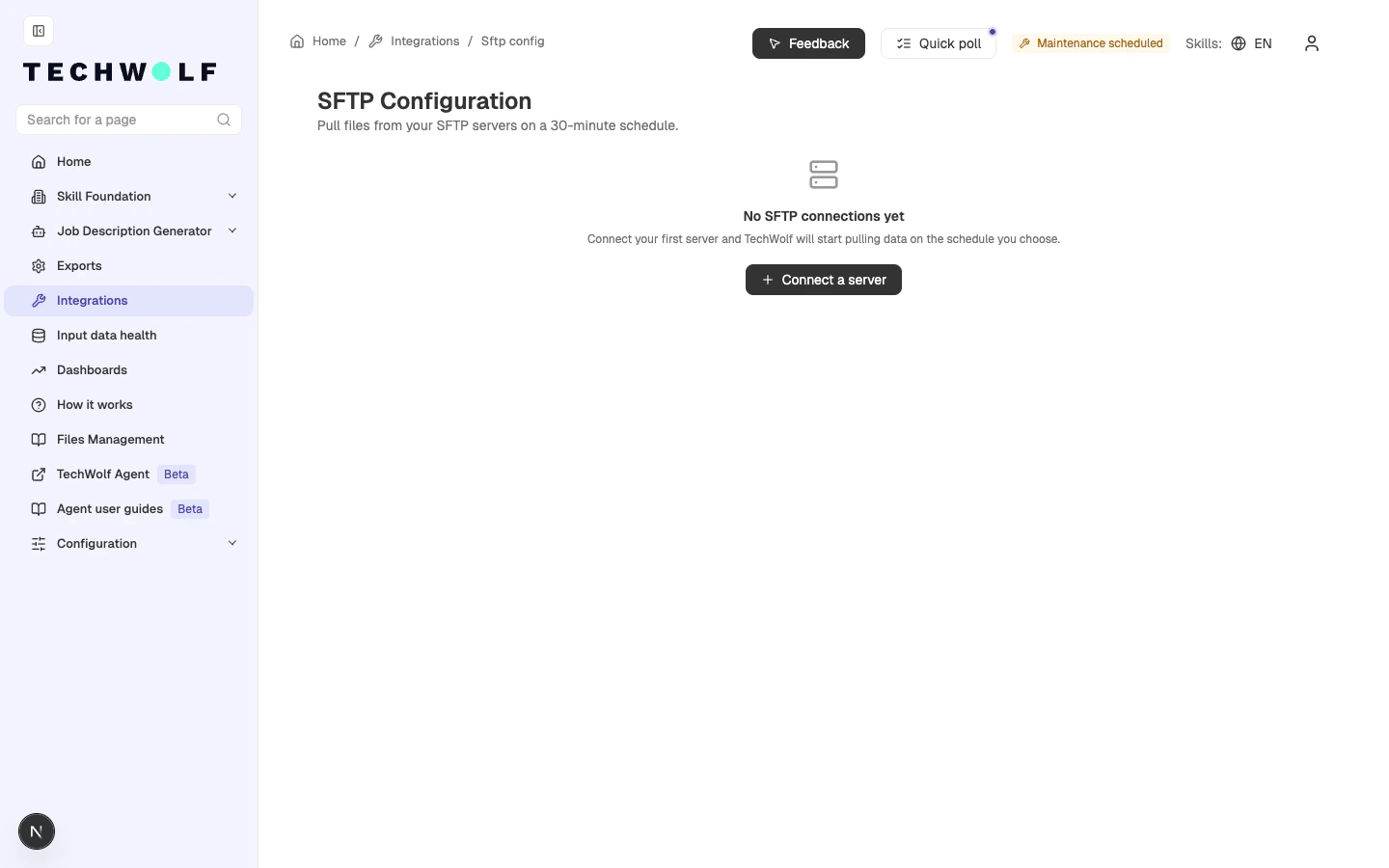 Click **Connect a server**. A drawer opens on the **Setup** tab.
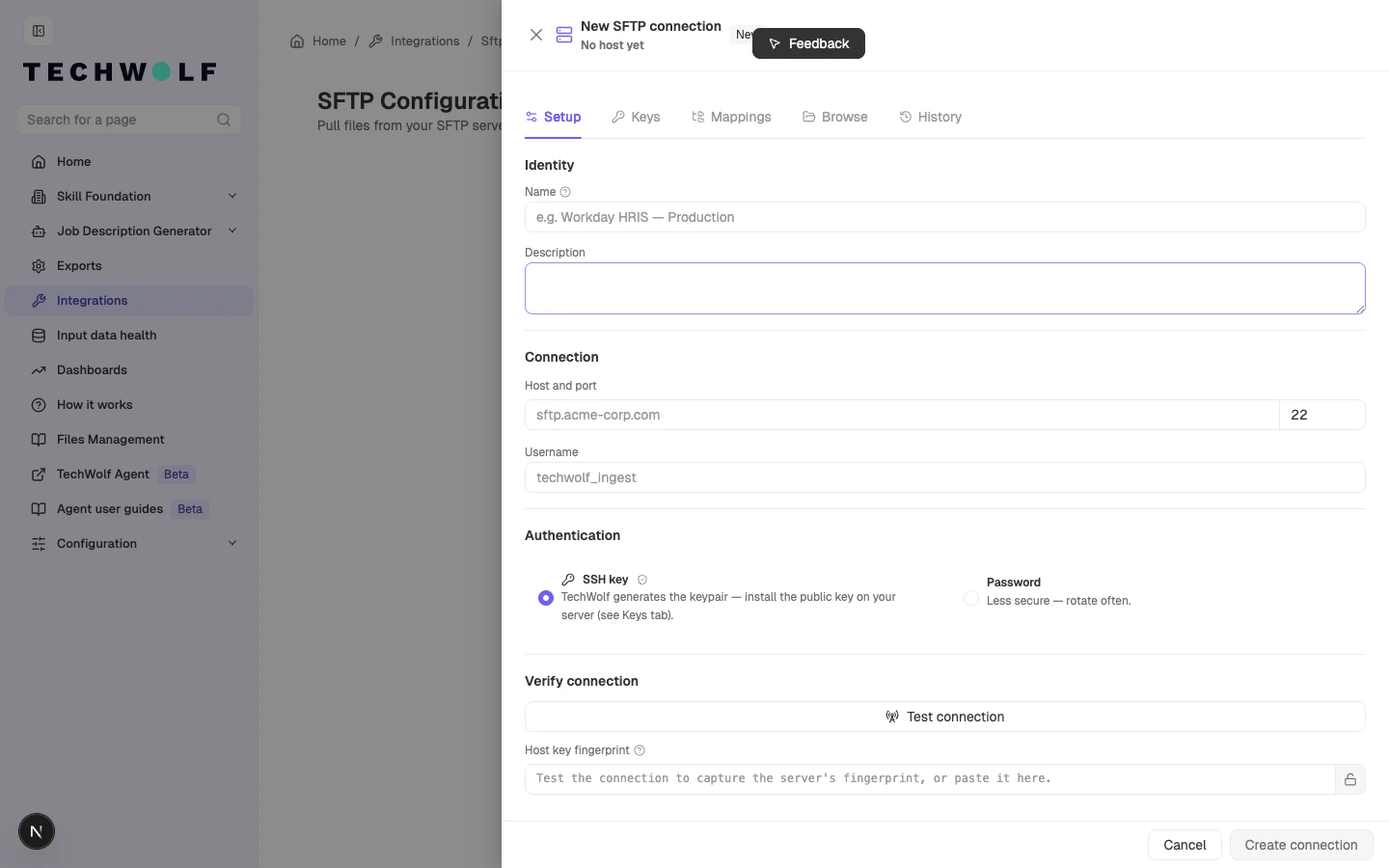 Provide a **Name**, an optional **Description**, the **Host** and
**Port** (default `22`), and the SFTP **Username** that TechWolf will
log in as.
Provide a **Name**, an optional **Description**, the **Host** and
**Port** (default `22`), and the SFTP **Username** that TechWolf will
log in as.
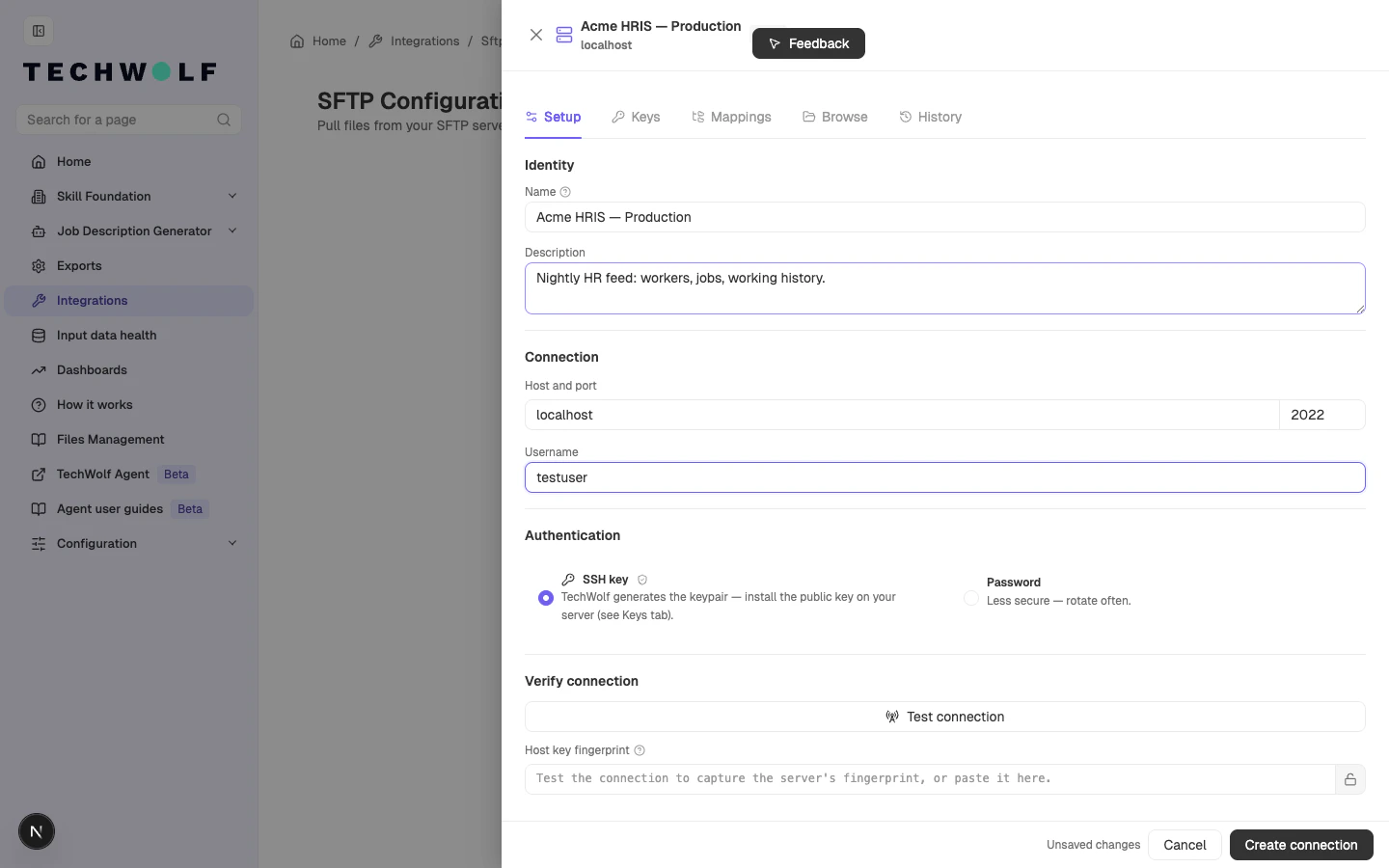 Select **SSH key** (strongly recommended). TechWolf generates the
keypair on the **Keys** tab. The private key never leaves TechWolf.
See [How SFTP works: keys](/integrations/reference/sftp/how-sftp-works#keys-who-holds-what) for the
keypair model.
Password authentication is significantly less secure than SSH-key
authentication. The password is transmitted on every connection,
must be rotated frequently, and offers no protection against
credential reuse or leaks. Choose **Password** only if the SFTP
server cannot accept public keys. See
[Security: SSH key preferred over password](/integrations/reference/sftp/security#ssh-key-preferred-over-password).
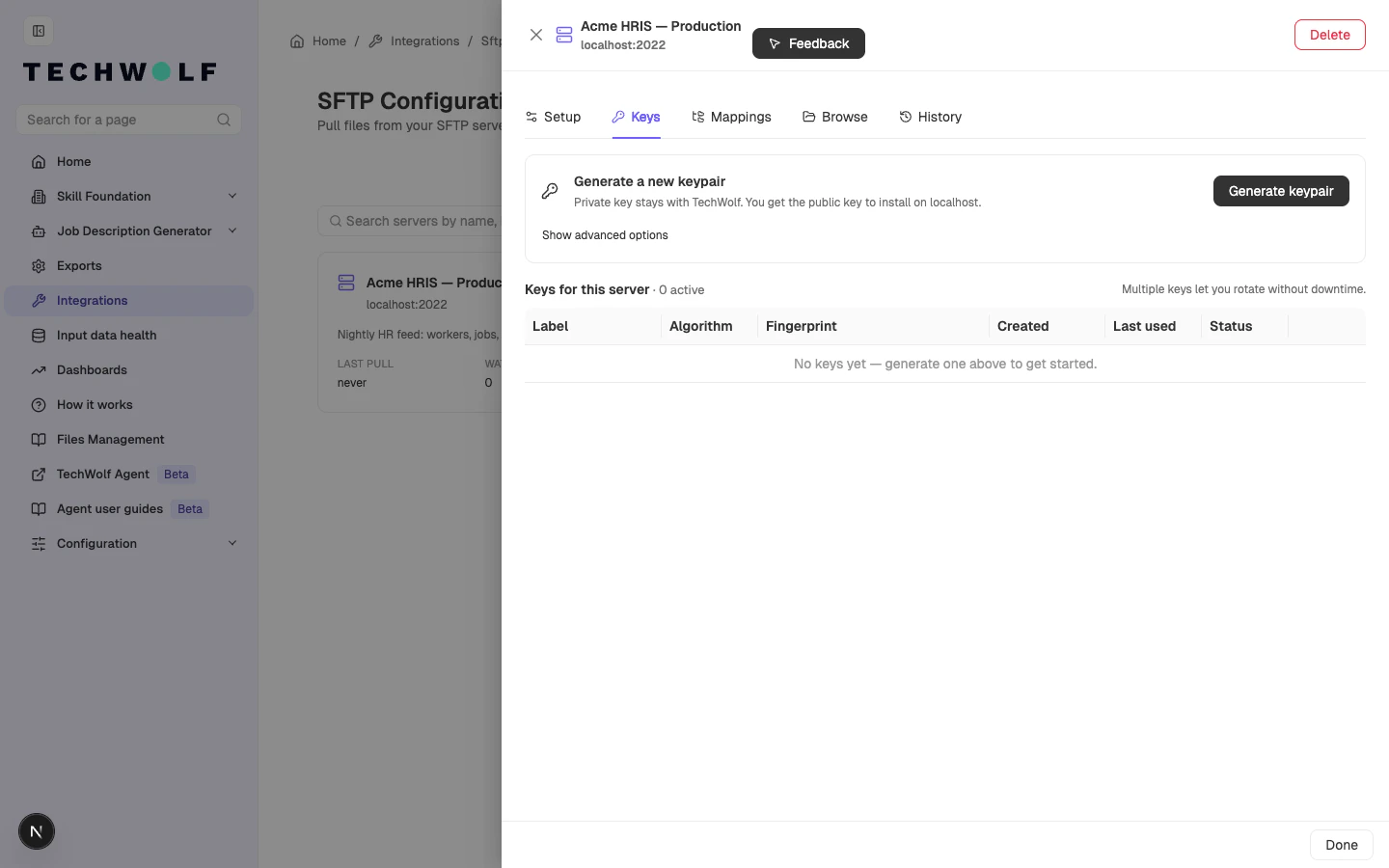
Click **Create connection**. The drawer flips to the **Keys** tab.
Select **SSH key** (strongly recommended). TechWolf generates the
keypair on the **Keys** tab. The private key never leaves TechWolf.
See [How SFTP works: keys](/integrations/reference/sftp/how-sftp-works#keys-who-holds-what) for the
keypair model.
Password authentication is significantly less secure than SSH-key
authentication. The password is transmitted on every connection,
must be rotated frequently, and offers no protection against
credential reuse or leaks. Choose **Password** only if the SFTP
server cannot accept public keys. See
[Security: SSH key preferred over password](/integrations/reference/sftp/security#ssh-key-preferred-over-password).
Click **Create connection**. The drawer flips to the **Keys** tab.
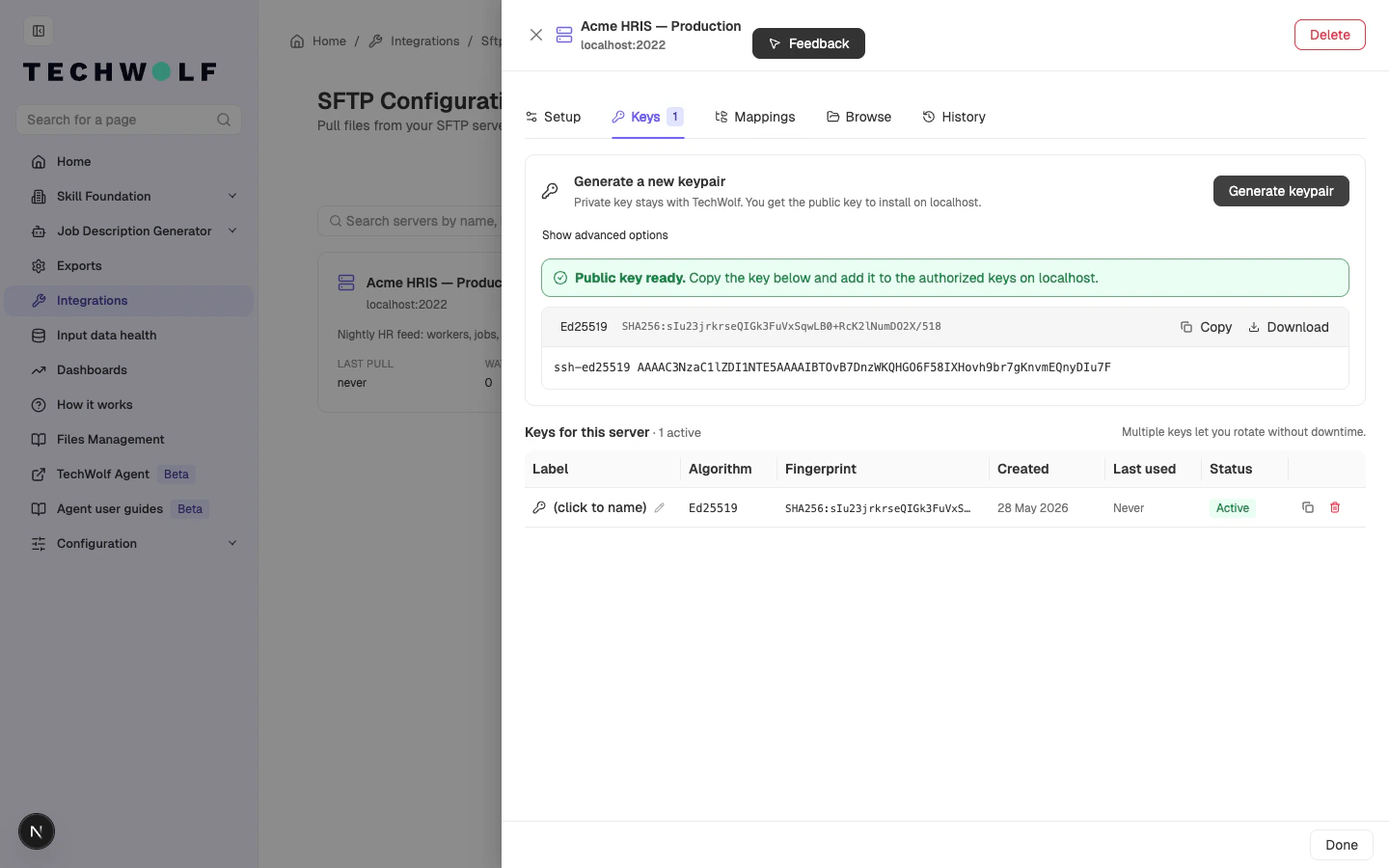
 Click **Generate keypair**. The public key is revealed once: copy it
or click **Download**. Install it in the `authorized_keys` file of
the configured user on the SFTP server.
Multiple active keys per server are supported, which enables
[key rotation without downtime](/integrations/reference/sftp/security#key-rotation-without-downtime).
For background on what is actually being exchanged on each
connection, see
[How SFTP works: keys](/integrations/reference/sftp/how-sftp-works#keys-who-holds-what).
Click **Generate keypair**. The public key is revealed once: copy it
or click **Download**. Install it in the `authorized_keys` file of
the configured user on the SFTP server.
Multiple active keys per server are supported, which enables
[key rotation without downtime](/integrations/reference/sftp/security#key-rotation-without-downtime).
For background on what is actually being exchanged on each
connection, see
[How SFTP works: keys](/integrations/reference/sftp/how-sftp-works#keys-who-holds-what).
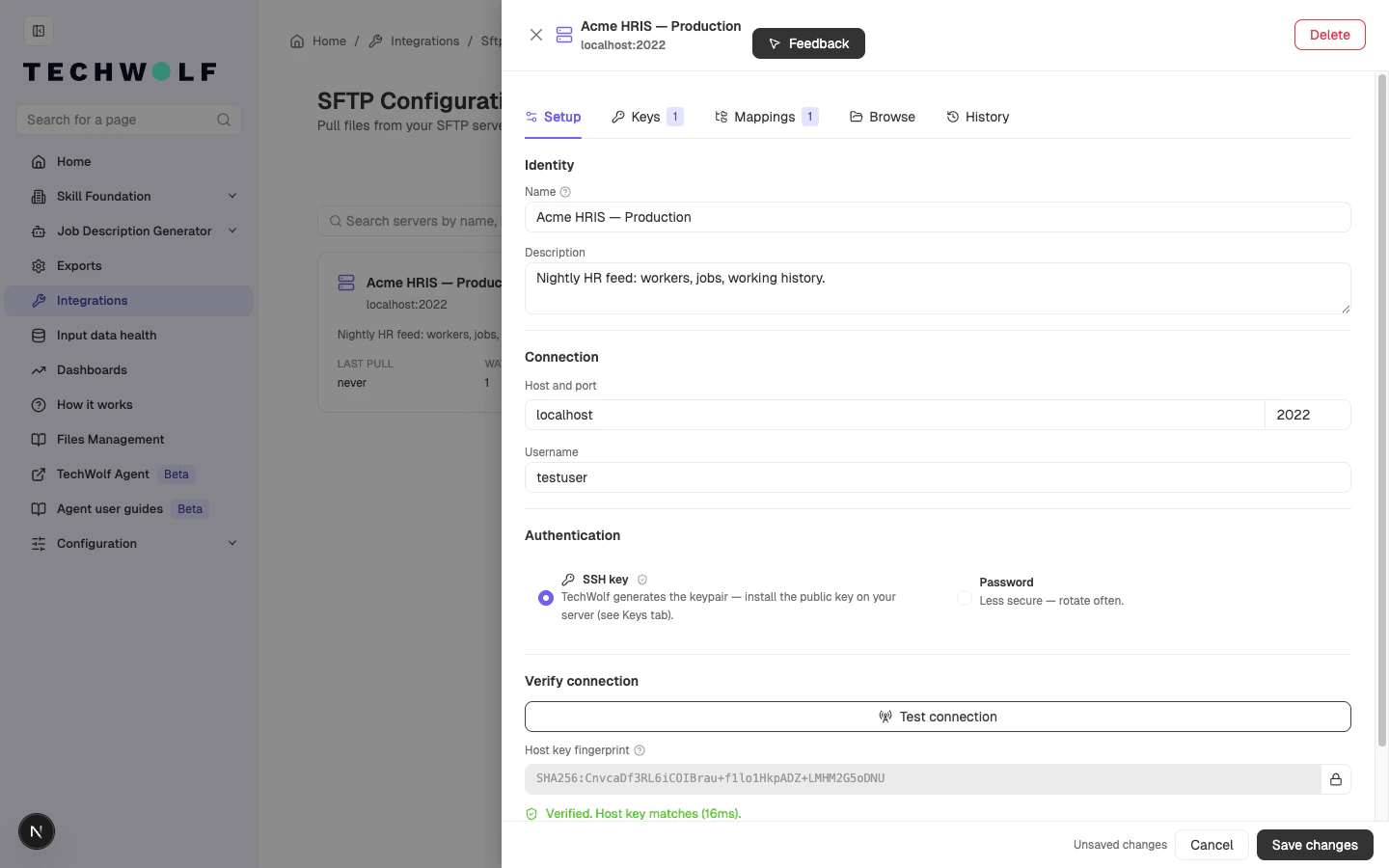
 Return to the **Setup** tab and click **Test connection**. On
success, the server's SHA256 host-key fingerprint is captured and
locked automatically. Every later connection must match it.
Return to the **Setup** tab and click **Test connection**. On
success, the server's SHA256 host-key fingerprint is captured and
locked automatically. Every later connection must match it.
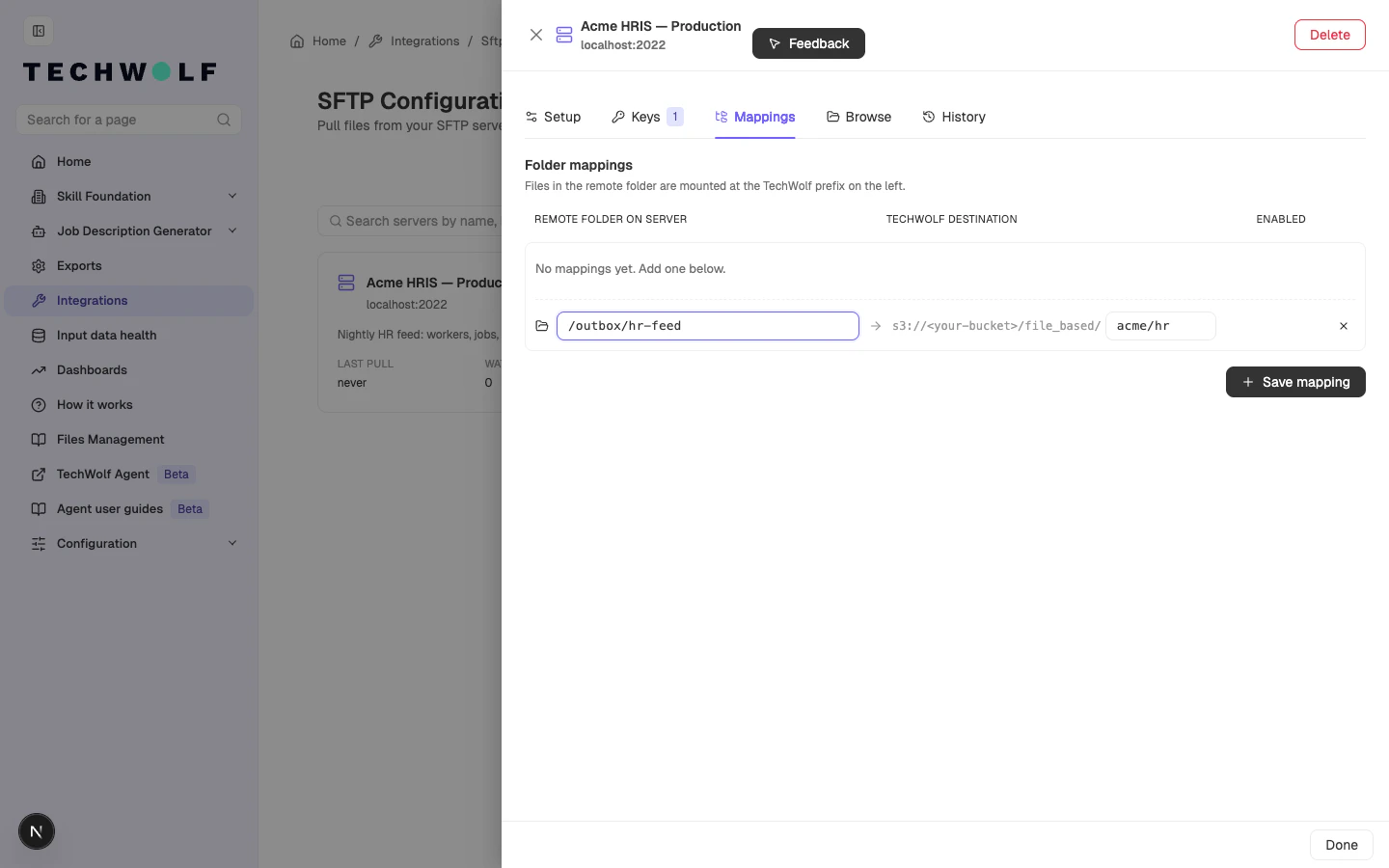
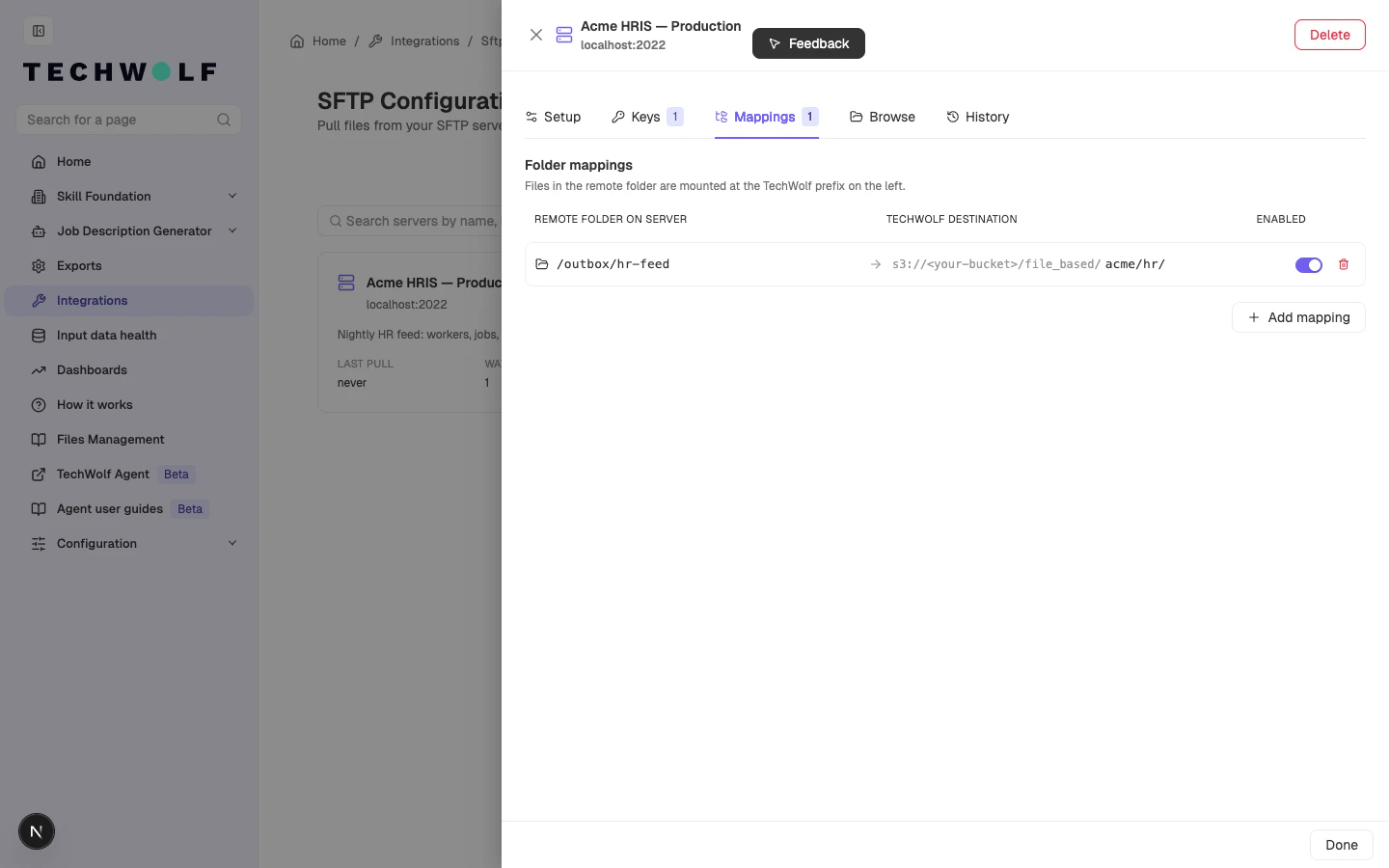
 Open the **Mappings** tab and click **Add mapping**.
* **Remote folder on server**: the absolute path on the SFTP server,
for example `/outbox/hr-feed`.
* **TechWolf destination**: the subpath under TechWolf's file-based
ingest prefix. File-based input integrations read from here.
Each mapping can be toggled on or off independently.
Open the **Mappings** tab and click **Add mapping**.
* **Remote folder on server**: the absolute path on the SFTP server,
for example `/outbox/hr-feed`.
* **TechWolf destination**: the subpath under TechWolf's file-based
ingest prefix. File-based input integrations read from here.
Each mapping can be toggled on or off independently.
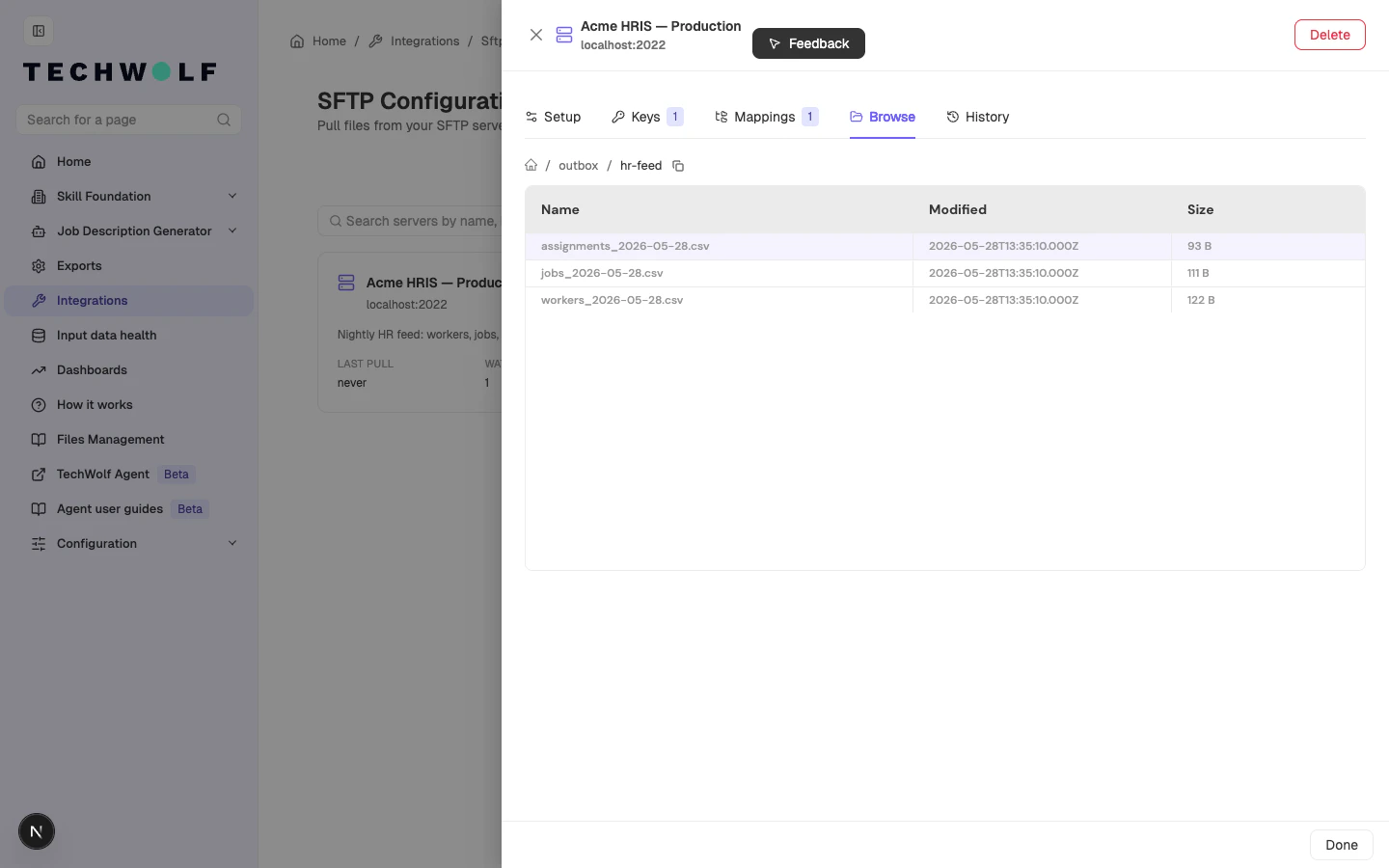
 The **Browse** tab opens a live, read-only view of the SFTP server
using the configured credentials. Useful for verifying a remote path
before adding a mapping. Browsing never marks files as pulled.
The **Browse** tab opens a live, read-only view of the SFTP server
using the configured credentials. Useful for verifying a remote path
before adding a mapping. Browsing never marks files as pulled.
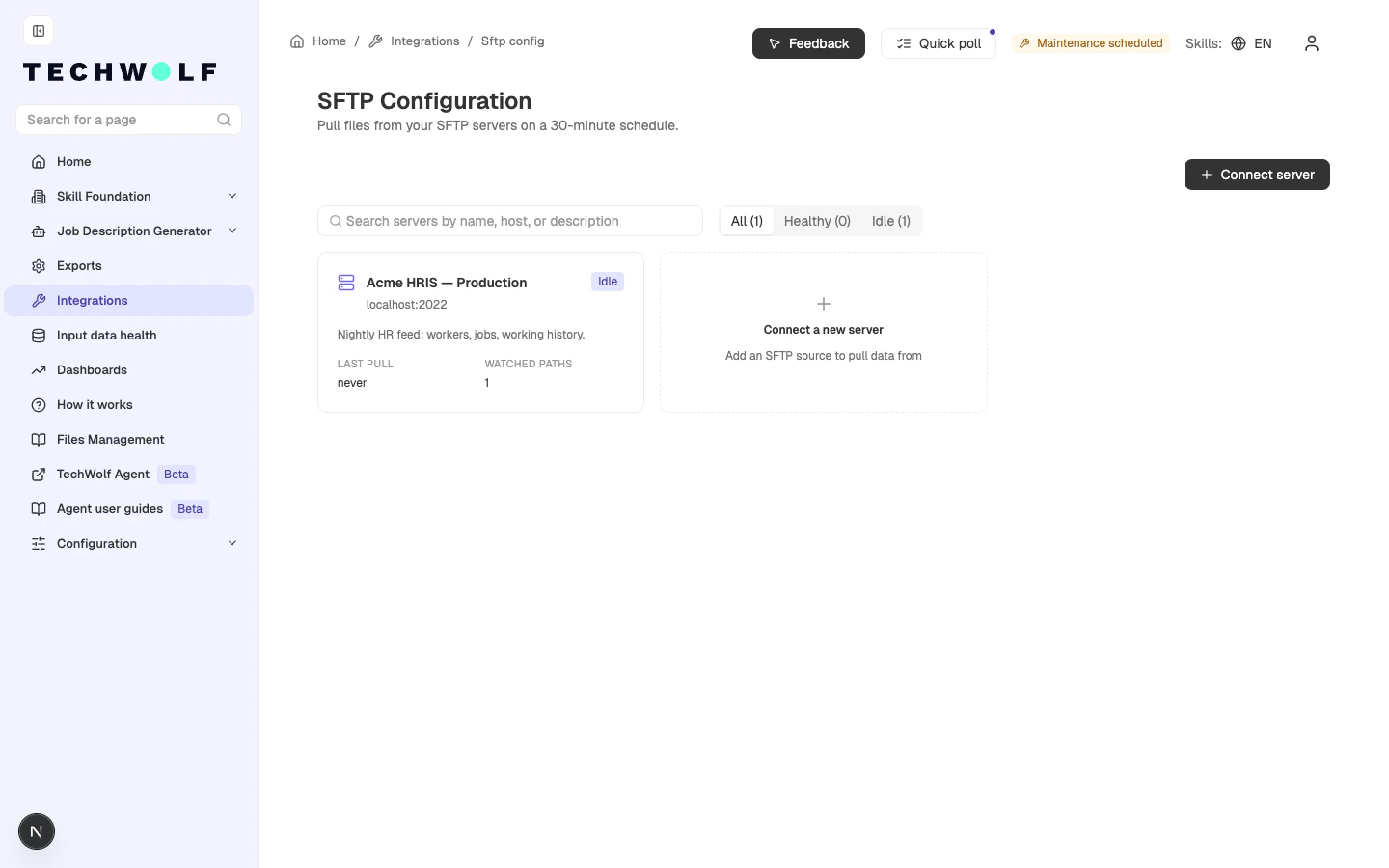
 Close the drawer. The card on the overview shows the last pull time,
the watched-paths count, and a health tag (Healthy, Idle, No keys,
or Disabled).
Close the drawer. The card on the overview shows the last pull time,
the watched-paths count, and a health tag (Healthy, Idle, No keys,
or Disabled).