> ## Documentation Index
> Fetch the complete documentation index at: https://developers.techwolf.ai/llms.txt
> Use this file to discover all available pages before exploring further.
# Installation
This page walks through installing the SAP SuccessFactors via BTP Data Source
Connector in your SAP BTP tenant, from importing the BTP package and setting up
SuccessFactors authentication through to deploying the iFlows.
## Prerequisites
* An active **TechWolf contract** with SkillEngine API credentials.
* A working **SAP SuccessFactors** tenant.
* An SAP SuccessFactors administrator user with permissions:
* **Manage Permission Roles**
* **Manage Permission Groups**
* **Manage OAuth 2 Client Applications**.
* A working **SAP BTP** tenant with:
* **SAP Integration Suite** provisioned including the *Build Integration Scenarios* capability.
* Your user must have the following roles:
* `PI_Administrator`
* `PI_Integration_Developer`
* The **Content Package** for this connector, which can be found below.
* The **Integration User Definition** file for setting up an API user in SAP
SF.
For more information on setting up Integration Suite, refer to
[the SAP community guide ](https://community.sap.com/t5/technology-blog-posts-by-members/step-by-step-guide-create-trial-account-for-sap-integration-suite-2025-amp/ba-p/14002055).
Content Package for the SAP BTP Datasource Integration
Integration user definition for import
{/* */}
{/* Connector. Currently a placeholder; will be replaced with the released */}
{/* package. */} {/* */}
## Install the BTP package
These steps import the connector's Content Package into your BTP tenant and
create the inbound authentication TechWolf uses to call the iFlow.
In SAP Integration Suite, go to **Monitor > Integrations and APIs > Manage
Security > User Roles**, then click **Add**. Enter a **Name** that you will
remember in the next step and when configuring the iFlows later (e.g.
`TechWolfBTPIntegration.send`) and click **Add**.
In SAP BTP Cockpit, create a new instance of the **Process Integration Runtime**
service with the `integration-flow` plan.
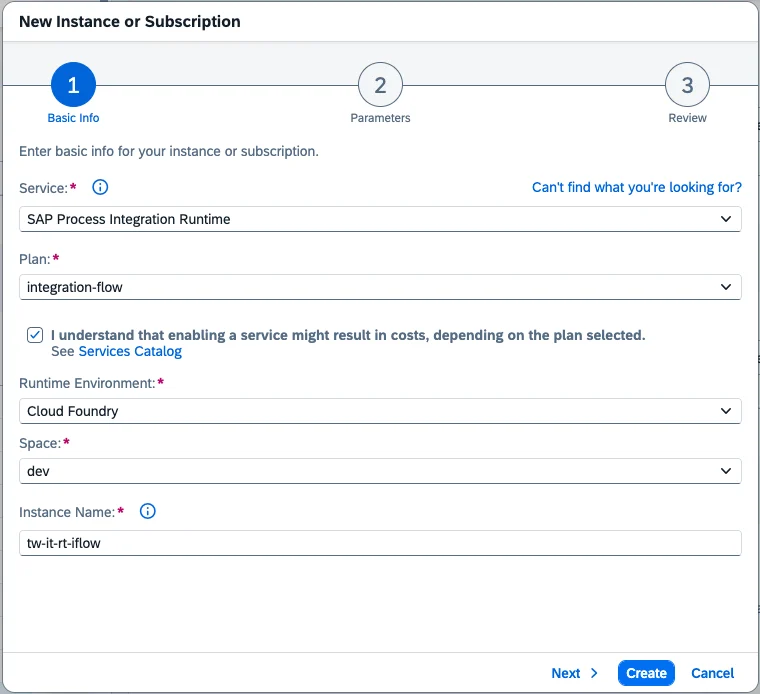 * Check *"I understand that enabling a service might result in costs, depending
on the plan selected."*
* **Runtime Environment**: Cloud Foundry.
* **Space**: the Cloud Foundry space you're deploying in.
* **Instance Name**: a CLI-friendly name (e.g. `tw-it-rt-iflow`).
* Click **Next** to continue to the Parameters step.
* In **Parameters**, set the role to the one created in the previous step (e.g.
`TechWolfBTPIntegration.send`).
* **Grant-types**: `Client Credentials`.
* Leave all other fields on their default values.
Click **Create**.
For SAP's reference on creating the service instance and service key, see
[Creating Service Instance and Service Key for Inbound Authentication ](https://help.sap.com/docs/integration-suite/sap-integration-suite/creating-service-instance-and-service-key-for-inbound-authentication).
Find the newly created Process Integration Runtime instance. Click the three
dots on the right, then click **Create Service Key**.
* **Service Key Name**: any value (e.g. `TechWolfBTPDatasourceIntegration`).
* **Key Type**: `ClientId/Secret`.
* Leave all other fields on their default values.
Click **Create**. On the instance, go to **Service Keys** and wait for the key
to be created, then click the service key and click **Download**. Keep the
**service key file** available, as you will share it with your TechWolf
representative at the end of this guide.
The service key file contains credentials that grant access to invoke your
iFlows. Store it securely. Share it with your TechWolf representative
through a secure channel agreed with them. **Never share it over plain email
or chat.**
For SAP's reference on creating the service instance and service key, see
[Creating Service Instance and Service Key for Inbound Authentication ](https://help.sap.com/docs/integration-suite/sap-integration-suite/creating-service-instance-and-service-key-for-inbound-authentication).
In SAP Integration Suite, go to **Design > Integrations and APIs** and click
**Import**.
In the file picker, select the Content Package zip file provided by your
TechWolf representative.
Additionally, Under **Discover > Integrations**, search for
`Amazon Web Services Adapter for SAP Integration Suite`. Press **Copy** to add
the adapter to your Integration Suite integrations.
After import, the package and its iFlows are available under **Design >
Integrations and APIs**, but are not yet deployed. The iFlows are configured and
deployed later in this guide.
## Set up BTP ↔ SuccessFactors authentication
These steps let the Worker iFlow call SuccessFactors on TechWolf's behalf. The
authentication uses an **OAuth 2 SAML Bearer Assertion** flow, backed by a
customer-managed X.509 certificate in the BTP Keystore. The same certificate's
Common Name is used in three places: the certificate itself, the SuccessFactors
technical user, and the SuccessFactors OAuth 2 Client Application. The flow only
succeeds if all three values match exactly.
If you choose a different name than `TechWolf_BTP_Datasource`, be sure to update
it in all the locations it is used, especially the user import definition.
* In SAP Integration Suite, go to **Monitor > Integrations and APIs > Manage
Security > Keystore**, then click **Create > Key Pair**.
* Set **Alias** to a value you will remember when configuring the SAML Bearer
credential later (e.g. `techwolf_btp_datasource_successfactors`).
* Set **Common Name** to `TechWolf_BTP_Datasource` (or a different choice).
* Set **Country** to the two-letter ISO 3166-1 alpha-2 code for your country
(e.g. `BE` for Belgium, `US` for the United States).
[List of ISO 3166-1 alpha-2 codes ](https://en.wikipedia.org/wiki/ISO_3166-1_alpha-2#Officially_assigned_code_elements).
* (Optional) Change **Valid Until** to a date of your choice.
* Leave all other fields on their default values.
* Click **Create**. The new key pair appears in the Keystore overview.
* Click the new key pair, then click **Download > Certificate**. Keep the
downloaded certificate file available; you will paste its contents into
SuccessFactors when registering the OAuth 2 Client Application below.
For SAP's reference on creating the key pair, see
[Creating a Key Pair/SSH Key Pair ](https://help.sap.com/docs/integration-suite/sap-integration-suite/creating-key-pair-ssh-key-pair).
In SuccessFactors, create a technical user with **User ID**
`TechWolf_BTP_Datasource` (matching the Common Name set in the key pair step) by
importing the provided Integration user definition CSV via **Admin Center >
Import Employee Data**. Use **Basic Import** under `Select an entity`. Assign
the user to a Permission Group that holds the permissions listed in
[Grant SuccessFactors permissions](#grant-successfactors-permissions) below.
For SAP's reference on importing a user definition, see
[Managing Basic User Data by Using a Data File ](https://help.sap.com/docs/successfactors-platform/managing-user-information/managing-basic-user-data-by-using-data-file).
* In SuccessFactors, in the search bar at the top right, enter
`Manage OAuth 2 Client Applications` and press enter.
* Click **Register Client Application**.
* Fill in the following fields:
* **Application Name**: any value (e.g. `techwolf_btp_datasource`).
* **Application URL**: any valid URL (e.g. `https://www.techwolf.ai`).
* **Bind to Users**: check the checkbox.
* **User IDs**: `TechWolf_BTP_Datasource` (matching the Common Name and
technical user ID from the previous steps).
* **X.509 Certificate**: paste the contents of the certificate downloaded in
the key pair step. Remove the `-----BEGIN CERTIFICATE-----` and
`-----END CERTIFICATE-----` guards if present, and strip any line breaks
so the value is a single continuous string.
* Click **Register**. The Client Application appears in the overview.
* Click **View** on the new Client Application and copy the **API Key**. You
will need it in the next step.
* In SAP Integration Suite, go to **Monitor > Integrations and APIs > Manage
Security > Security Material** and click **Create > OAuth 2 SAML Bearer
Assertion**.
* Set **Name** to a value you will remember when configuring the Worker iFlow's
`SF_credential_name` later (e.g. `techwolf_btp_datasource_assertion`).
* Set **Audience** to `www.successfactors.com`.
* Set **Client Key** to the API Key copied in the previous step.
* Set **Token Service URL** to your SuccessFactors **API URL** with
`/oauth/token` appended. See
[How to find the SAP SuccessFactors Company ID and API URL](/integrations/sap-btp-skill-sync/how-to-find-company-id-and-api-url)
to locate both values.
* Set **User ID** to **Key pair Common Name (CN)**.
* Set **Key Pair Alias** to the alias of the key pair created earlier (see
**Create a key pair in the BTP Keystore**).
* Click **Deploy**.
## Grant SuccessFactors permissions
The SuccessFactors technical user created during authentication setup needs
permission to read the OData V2 EntitySets used by this connector. Grant a
Permission Role to the technical user through a Permission Group that includes
the View permissions below. Every **employee** data type also needs **Manage
User > Employee Export**; only enable the data types you plan to use. The
**job-architecture** data types (Job Families, Job Roles, Job Profiles) are
organization-wide Job Profile Builder objects — they need only the grants shown
below, with no **Employee Export** and no **Target Population**.
Expand a data type to see the exact permission path to grant in **Manage
Permission Roles**.
OData V2 EntitySet: `UserAccount`
OData V2 EntitySet: `Background_Certificates`
OData V2 EntitySet: `Background_Courses`
OData V2 EntitySet: `Background_Education`
OData V2 EntitySet: `Background_OutsideWorkExperience`
OData V2 EntitySet: `EmpJob`
OData V2 EntitySet: `FamilyEntity`
If `Family` is not visible under **Manage Job & Skill Profile
Visibility**, enable separate security permissions for the `FamilyEntity`
object definition:
* In the search bar at the top, enter `Configure Object Definitions` and
open it.
* Search for `Object Definition` → `Family`.
* Use `Take Action` → `Make Correction`.
* In the `Security` section, click the `+` button if the fields are
missing, then set:
* `Secured`: `Yes`
* `Permission Category`: `Manage Job & Skill Profile Visibility`
* `RBP Subject User Field`: leave blank
* `CREATE Respects Target Criteria`: `No`
* `Base Date Field For Blocking`: leave blank
* Scroll to the bottom of the page and click `Save`.
* Return to **Manage Permission Roles** and grant `Family: View`.
OData V2 EntitySet: `RoleEntity`
This single grant also covers the role's job-code mappings, from which
the canonical `job_code` is resolved.
OData V2 EntitySet: `JobProfile`
This grant covers the profile and its section content (header, footer,
long and short description) reached via the profile's localized data.
For employee data types, set the Permission Role's **Target Population** to the
population of Employees you want the connector to read. This is typically *All*
for a full deployment, or a constrained group during a pilot.
Exact label paths can vary slightly between SuccessFactors releases. If a
permission is not found at the path above, search for the permission name
itself in **Manage Permission Roles**.
For SAP's reference on how role-based permissions work and how to set up
permission groups and roles, see
[SAP - Implementing Role-Based Permissions ](https://help.sap.com/docs/successfactors-platform/implementing-role-based-permissions/introduction-to-implementing-rbp)
for an overview. To create Permission Groups, see
[SAP - Creating Dynamic Permission Groups ](https://help.sap.com/docs/successfactors-platform/implementing-role-based-permissions/creating-dynamic-permission-groups).
To create Permission Roles, see
[SAP -Creating a Permission Role ](https://help.sap.com/docs/successfactors-platform/implementing-role-based-permissions/creating-permission-role).
To assign Permission Roles to permission groups, see
[SAP - Assigning a Permission Role ](https://help.sap.com/docs/successfactors-platform/implementing-role-based-permissions/assigning-permission-role).
## Configure and deploy the iFlows
Each iFlow is configured through its own **Configure** dialog. The
SuccessFactors connection, the S3 destination, and the inbound settings are set
as externalized parameters on the `SF_Worker` and `SF_Frontend` iFlows.
Both iFlows reach the TechWolf-managed S3 bucket with an access key and secret
key **provided by TechWolf**. Store each as a secure parameter first, then
reference their names when configuring the iFlows.
* In SAP Integration Suite, go to **Monitor > Integrations and APIs > Manage
Security > Security Material**, then click **Create > Secure Parameter**.
* Create the **access key** parameter:
* **Name**: a value you will remember (e.g. `techwolf_s3_access_key`). This
is the `S3_access_key_alias` you enter when configuring the iFlows.
* **Secure Parameter**: the S3 **access key** provided by TechWolf.
* Click **Deploy**.
* Click **Create > Secure Parameter** again for the **secret key**:
* **Name**: a value you will remember (e.g. `techwolf_s3_secret_key`). This
is the `S3_secret_key_alias` you enter when configuring the iFlows.
* **Secure Parameter**: the S3 **secret key** provided by TechWolf.
* Click **Deploy**.
Both now appear under **Security Material** with type **Secure Parameter**. Use
the same two names on both the Worker and Frontend iFlows.
Open the imported package in **Design > Integrations and APIs** and go to
**Artifacts**. Locate the **SF\_Worker** iFlow, click the three dots, and select
**Configure**. Set the values provided by TechWolf and the SAML Bearer
credential name created during the BTP ↔ SuccessFactors authentication setup.
On the **`SuccessFactors`** receiver, set:
| Field | Value |
| ----------------- | --------------------------------------------------------------------------------------------------------- |
| `Address` | Base URL of your SuccessFactors data center (e.g. `https://api.successfactors.eu`). |
| `Credential Name` | The SAML Bearer credential name from the authentication setup (e.g. `techwolf_btp_datasource_assertion`). |
The **Receiver** dropdown defaults to `SuccessFactors`; switch it to
**`AWS_S3`** to reach the S3 fields, then set:
| Field | Value |
| ------------------ | ------------------------------------------------------------------------------------------------------------------------------------------------ |
| `Region Name` | AWS region of the TechWolf-managed S3 bucket (provided by TechWolf). Common values: `eu-west-3`, `us-east-1`, `ca-central-1` |
| `Bucket Name` | TechWolf-managed S3 bucket name (provided by TechWolf). `data-integrator-production-`, where region code is eu, us, or ca. |
| `Access Key Alias` | The name of the S3 access-key secure parameter you created in the first step (e.g. `techwolf_s3_access_key`). |
| `Secret Key Alias` | The name of the S3 secret-key secure parameter you created in the first step (e.g. `techwolf_s3_secret_key`). |
| `S3_base_path` | Base path inside the bucket. Set to: `/tenants/-/connector_temp/sap_btp`; provided by TechWolf |
The TechWolf-managed S3 bucket is provisioned and owned by TechWolf; the access
key and secret key are provided by TechWolf and stored in your BTP Security
Material as secure parameters under the aliases above.
Click **Save**, then **Deploy**.
In the package's **Artifacts** tab, locate the **SF\_Frontend** iFlow. Click the
three dots and select **Configure**.
On the S3 receiver, set the **same** S3 variable values you used on the Worker
(they must be identical to the Worker's), then set:
| Field | Value |
| ----------- | ------------------------------------------------------------------------------------------ |
| `User Role` | The User Role created during the BTP package install (e.g. `TechWolfBTPIntegration.send`). |
Leave `Address` and `Body Size (in MB)` at their defaults (`/techwolf/v3/sf/*`
and `40`).
Click **Save**, then **Deploy**.
## Share with TechWolf
Once the configuration is complete, share the following with your TechWolf
representative through a secure channel agreed with them:
| Value | Source |
| ----------------------- | ----------------------------------------------------------- |
| Service key file | The service key downloaded during the BTP package install. |
| SuccessFactors base URL | The `Address` value used when configuring the Worker iFlow. |
| Enabled data types | The list of data types you granted permissions for. |
TechWolf will validate the end-to-end connection and configure the ingestion
side. No further action is required from your side unless permission or
connectivity issues are reported.
* Check *"I understand that enabling a service might result in costs, depending
on the plan selected."*
* **Runtime Environment**: Cloud Foundry.
* **Space**: the Cloud Foundry space you're deploying in.
* **Instance Name**: a CLI-friendly name (e.g. `tw-it-rt-iflow`).
* Click **Next** to continue to the Parameters step.
* In **Parameters**, set the role to the one created in the previous step (e.g.
`TechWolfBTPIntegration.send`).
* **Grant-types**: `Client Credentials`.
* Leave all other fields on their default values.
Click **Create**.
For SAP's reference on creating the service instance and service key, see
[Creating Service Instance and Service Key for Inbound Authentication ](https://help.sap.com/docs/integration-suite/sap-integration-suite/creating-service-instance-and-service-key-for-inbound-authentication).
Find the newly created Process Integration Runtime instance. Click the three
dots on the right, then click **Create Service Key**.
* **Service Key Name**: any value (e.g. `TechWolfBTPDatasourceIntegration`).
* **Key Type**: `ClientId/Secret`.
* Leave all other fields on their default values.
Click **Create**. On the instance, go to **Service Keys** and wait for the key
to be created, then click the service key and click **Download**. Keep the
**service key file** available, as you will share it with your TechWolf
representative at the end of this guide.
The service key file contains credentials that grant access to invoke your
iFlows. Store it securely. Share it with your TechWolf representative
through a secure channel agreed with them. **Never share it over plain email
or chat.**
For SAP's reference on creating the service instance and service key, see
[Creating Service Instance and Service Key for Inbound Authentication ](https://help.sap.com/docs/integration-suite/sap-integration-suite/creating-service-instance-and-service-key-for-inbound-authentication).
In SAP Integration Suite, go to **Design > Integrations and APIs** and click
**Import**.
In the file picker, select the Content Package zip file provided by your
TechWolf representative.
Additionally, Under **Discover > Integrations**, search for
`Amazon Web Services Adapter for SAP Integration Suite`. Press **Copy** to add
the adapter to your Integration Suite integrations.
After import, the package and its iFlows are available under **Design >
Integrations and APIs**, but are not yet deployed. The iFlows are configured and
deployed later in this guide.
## Set up BTP ↔ SuccessFactors authentication
These steps let the Worker iFlow call SuccessFactors on TechWolf's behalf. The
authentication uses an **OAuth 2 SAML Bearer Assertion** flow, backed by a
customer-managed X.509 certificate in the BTP Keystore. The same certificate's
Common Name is used in three places: the certificate itself, the SuccessFactors
technical user, and the SuccessFactors OAuth 2 Client Application. The flow only
succeeds if all three values match exactly.
If you choose a different name than `TechWolf_BTP_Datasource`, be sure to update
it in all the locations it is used, especially the user import definition.
* In SAP Integration Suite, go to **Monitor > Integrations and APIs > Manage
Security > Keystore**, then click **Create > Key Pair**.
* Set **Alias** to a value you will remember when configuring the SAML Bearer
credential later (e.g. `techwolf_btp_datasource_successfactors`).
* Set **Common Name** to `TechWolf_BTP_Datasource` (or a different choice).
* Set **Country** to the two-letter ISO 3166-1 alpha-2 code for your country
(e.g. `BE` for Belgium, `US` for the United States).
[List of ISO 3166-1 alpha-2 codes ](https://en.wikipedia.org/wiki/ISO_3166-1_alpha-2#Officially_assigned_code_elements).
* (Optional) Change **Valid Until** to a date of your choice.
* Leave all other fields on their default values.
* Click **Create**. The new key pair appears in the Keystore overview.
* Click the new key pair, then click **Download > Certificate**. Keep the
downloaded certificate file available; you will paste its contents into
SuccessFactors when registering the OAuth 2 Client Application below.
For SAP's reference on creating the key pair, see
[Creating a Key Pair/SSH Key Pair ](https://help.sap.com/docs/integration-suite/sap-integration-suite/creating-key-pair-ssh-key-pair).
In SuccessFactors, create a technical user with **User ID**
`TechWolf_BTP_Datasource` (matching the Common Name set in the key pair step) by
importing the provided Integration user definition CSV via **Admin Center >
Import Employee Data**. Use **Basic Import** under `Select an entity`. Assign
the user to a Permission Group that holds the permissions listed in
[Grant SuccessFactors permissions](#grant-successfactors-permissions) below.
For SAP's reference on importing a user definition, see
[Managing Basic User Data by Using a Data File ](https://help.sap.com/docs/successfactors-platform/managing-user-information/managing-basic-user-data-by-using-data-file).
* In SuccessFactors, in the search bar at the top right, enter
`Manage OAuth 2 Client Applications` and press enter.
* Click **Register Client Application**.
* Fill in the following fields:
* **Application Name**: any value (e.g. `techwolf_btp_datasource`).
* **Application URL**: any valid URL (e.g. `https://www.techwolf.ai`).
* **Bind to Users**: check the checkbox.
* **User IDs**: `TechWolf_BTP_Datasource` (matching the Common Name and
technical user ID from the previous steps).
* **X.509 Certificate**: paste the contents of the certificate downloaded in
the key pair step. Remove the `-----BEGIN CERTIFICATE-----` and
`-----END CERTIFICATE-----` guards if present, and strip any line breaks
so the value is a single continuous string.
* Click **Register**. The Client Application appears in the overview.
* Click **View** on the new Client Application and copy the **API Key**. You
will need it in the next step.
* In SAP Integration Suite, go to **Monitor > Integrations and APIs > Manage
Security > Security Material** and click **Create > OAuth 2 SAML Bearer
Assertion**.
* Set **Name** to a value you will remember when configuring the Worker iFlow's
`SF_credential_name` later (e.g. `techwolf_btp_datasource_assertion`).
* Set **Audience** to `www.successfactors.com`.
* Set **Client Key** to the API Key copied in the previous step.
* Set **Token Service URL** to your SuccessFactors **API URL** with
`/oauth/token` appended. See
[How to find the SAP SuccessFactors Company ID and API URL](/integrations/sap-btp-skill-sync/how-to-find-company-id-and-api-url)
to locate both values.
* Set **User ID** to **Key pair Common Name (CN)**.
* Set **Key Pair Alias** to the alias of the key pair created earlier (see
**Create a key pair in the BTP Keystore**).
* Click **Deploy**.
## Grant SuccessFactors permissions
The SuccessFactors technical user created during authentication setup needs
permission to read the OData V2 EntitySets used by this connector. Grant a
Permission Role to the technical user through a Permission Group that includes
the View permissions below. Every **employee** data type also needs **Manage
User > Employee Export**; only enable the data types you plan to use. The
**job-architecture** data types (Job Families, Job Roles, Job Profiles) are
organization-wide Job Profile Builder objects — they need only the grants shown
below, with no **Employee Export** and no **Target Population**.
Expand a data type to see the exact permission path to grant in **Manage
Permission Roles**.
OData V2 EntitySet: `UserAccount`
OData V2 EntitySet: `Background_Certificates`
OData V2 EntitySet: `Background_Courses`
OData V2 EntitySet: `Background_Education`
OData V2 EntitySet: `Background_OutsideWorkExperience`
OData V2 EntitySet: `EmpJob`
OData V2 EntitySet: `FamilyEntity`
If `Family` is not visible under **Manage Job & Skill Profile
Visibility**, enable separate security permissions for the `FamilyEntity`
object definition:
* In the search bar at the top, enter `Configure Object Definitions` and
open it.
* Search for `Object Definition` → `Family`.
* Use `Take Action` → `Make Correction`.
* In the `Security` section, click the `+` button if the fields are
missing, then set:
* `Secured`: `Yes`
* `Permission Category`: `Manage Job & Skill Profile Visibility`
* `RBP Subject User Field`: leave blank
* `CREATE Respects Target Criteria`: `No`
* `Base Date Field For Blocking`: leave blank
* Scroll to the bottom of the page and click `Save`.
* Return to **Manage Permission Roles** and grant `Family: View`.
OData V2 EntitySet: `RoleEntity`
This single grant also covers the role's job-code mappings, from which
the canonical `job_code` is resolved.
OData V2 EntitySet: `JobProfile`
This grant covers the profile and its section content (header, footer,
long and short description) reached via the profile's localized data.
For employee data types, set the Permission Role's **Target Population** to the
population of Employees you want the connector to read. This is typically *All*
for a full deployment, or a constrained group during a pilot.
Exact label paths can vary slightly between SuccessFactors releases. If a
permission is not found at the path above, search for the permission name
itself in **Manage Permission Roles**.
For SAP's reference on how role-based permissions work and how to set up
permission groups and roles, see
[SAP - Implementing Role-Based Permissions ](https://help.sap.com/docs/successfactors-platform/implementing-role-based-permissions/introduction-to-implementing-rbp)
for an overview. To create Permission Groups, see
[SAP - Creating Dynamic Permission Groups ](https://help.sap.com/docs/successfactors-platform/implementing-role-based-permissions/creating-dynamic-permission-groups).
To create Permission Roles, see
[SAP -Creating a Permission Role ](https://help.sap.com/docs/successfactors-platform/implementing-role-based-permissions/creating-permission-role).
To assign Permission Roles to permission groups, see
[SAP - Assigning a Permission Role ](https://help.sap.com/docs/successfactors-platform/implementing-role-based-permissions/assigning-permission-role).
## Configure and deploy the iFlows
Each iFlow is configured through its own **Configure** dialog. The
SuccessFactors connection, the S3 destination, and the inbound settings are set
as externalized parameters on the `SF_Worker` and `SF_Frontend` iFlows.
Both iFlows reach the TechWolf-managed S3 bucket with an access key and secret
key **provided by TechWolf**. Store each as a secure parameter first, then
reference their names when configuring the iFlows.
* In SAP Integration Suite, go to **Monitor > Integrations and APIs > Manage
Security > Security Material**, then click **Create > Secure Parameter**.
* Create the **access key** parameter:
* **Name**: a value you will remember (e.g. `techwolf_s3_access_key`). This
is the `S3_access_key_alias` you enter when configuring the iFlows.
* **Secure Parameter**: the S3 **access key** provided by TechWolf.
* Click **Deploy**.
* Click **Create > Secure Parameter** again for the **secret key**:
* **Name**: a value you will remember (e.g. `techwolf_s3_secret_key`). This
is the `S3_secret_key_alias` you enter when configuring the iFlows.
* **Secure Parameter**: the S3 **secret key** provided by TechWolf.
* Click **Deploy**.
Both now appear under **Security Material** with type **Secure Parameter**. Use
the same two names on both the Worker and Frontend iFlows.
Open the imported package in **Design > Integrations and APIs** and go to
**Artifacts**. Locate the **SF\_Worker** iFlow, click the three dots, and select
**Configure**. Set the values provided by TechWolf and the SAML Bearer
credential name created during the BTP ↔ SuccessFactors authentication setup.
On the **`SuccessFactors`** receiver, set:
| Field | Value |
| ----------------- | --------------------------------------------------------------------------------------------------------- |
| `Address` | Base URL of your SuccessFactors data center (e.g. `https://api.successfactors.eu`). |
| `Credential Name` | The SAML Bearer credential name from the authentication setup (e.g. `techwolf_btp_datasource_assertion`). |
The **Receiver** dropdown defaults to `SuccessFactors`; switch it to
**`AWS_S3`** to reach the S3 fields, then set:
| Field | Value |
| ------------------ | ------------------------------------------------------------------------------------------------------------------------------------------------ |
| `Region Name` | AWS region of the TechWolf-managed S3 bucket (provided by TechWolf). Common values: `eu-west-3`, `us-east-1`, `ca-central-1` |
| `Bucket Name` | TechWolf-managed S3 bucket name (provided by TechWolf). `data-integrator-production-`, where region code is eu, us, or ca. |
| `Access Key Alias` | The name of the S3 access-key secure parameter you created in the first step (e.g. `techwolf_s3_access_key`). |
| `Secret Key Alias` | The name of the S3 secret-key secure parameter you created in the first step (e.g. `techwolf_s3_secret_key`). |
| `S3_base_path` | Base path inside the bucket. Set to: `/tenants/-/connector_temp/sap_btp`; provided by TechWolf |
The TechWolf-managed S3 bucket is provisioned and owned by TechWolf; the access
key and secret key are provided by TechWolf and stored in your BTP Security
Material as secure parameters under the aliases above.
Click **Save**, then **Deploy**.
In the package's **Artifacts** tab, locate the **SF\_Frontend** iFlow. Click the
three dots and select **Configure**.
On the S3 receiver, set the **same** S3 variable values you used on the Worker
(they must be identical to the Worker's), then set:
| Field | Value |
| ----------- | ------------------------------------------------------------------------------------------ |
| `User Role` | The User Role created during the BTP package install (e.g. `TechWolfBTPIntegration.send`). |
Leave `Address` and `Body Size (in MB)` at their defaults (`/techwolf/v3/sf/*`
and `40`).
Click **Save**, then **Deploy**.
## Share with TechWolf
Once the configuration is complete, share the following with your TechWolf
representative through a secure channel agreed with them:
| Value | Source |
| ----------------------- | ----------------------------------------------------------- |
| Service key file | The service key downloaded during the BTP package install. |
| SuccessFactors base URL | The `Address` value used when configuring the Worker iFlow. |
| Enabled data types | The list of data types you granted permissions for. |
TechWolf will validate the end-to-end connection and configure the ingestion
side. No further action is required from your side unless permission or
connectivity issues are reported.