> ## Documentation Index
> Fetch the complete documentation index at: https://developers.techwolf.ai/llms.txt
> Use this file to discover all available pages before exploring further.
# How It Looks
# The end-user experience
Once an administrator has [installed the agent](./installation) for a user, the
TechWolf Analyst Agent appears inside Microsoft 365 Copilot as one of the user's
agents. From there, using it is the same as any other Copilot agent: the user
opens it and asks a question in natural language.
This page walks through what an end user sees.
# Finding the agent
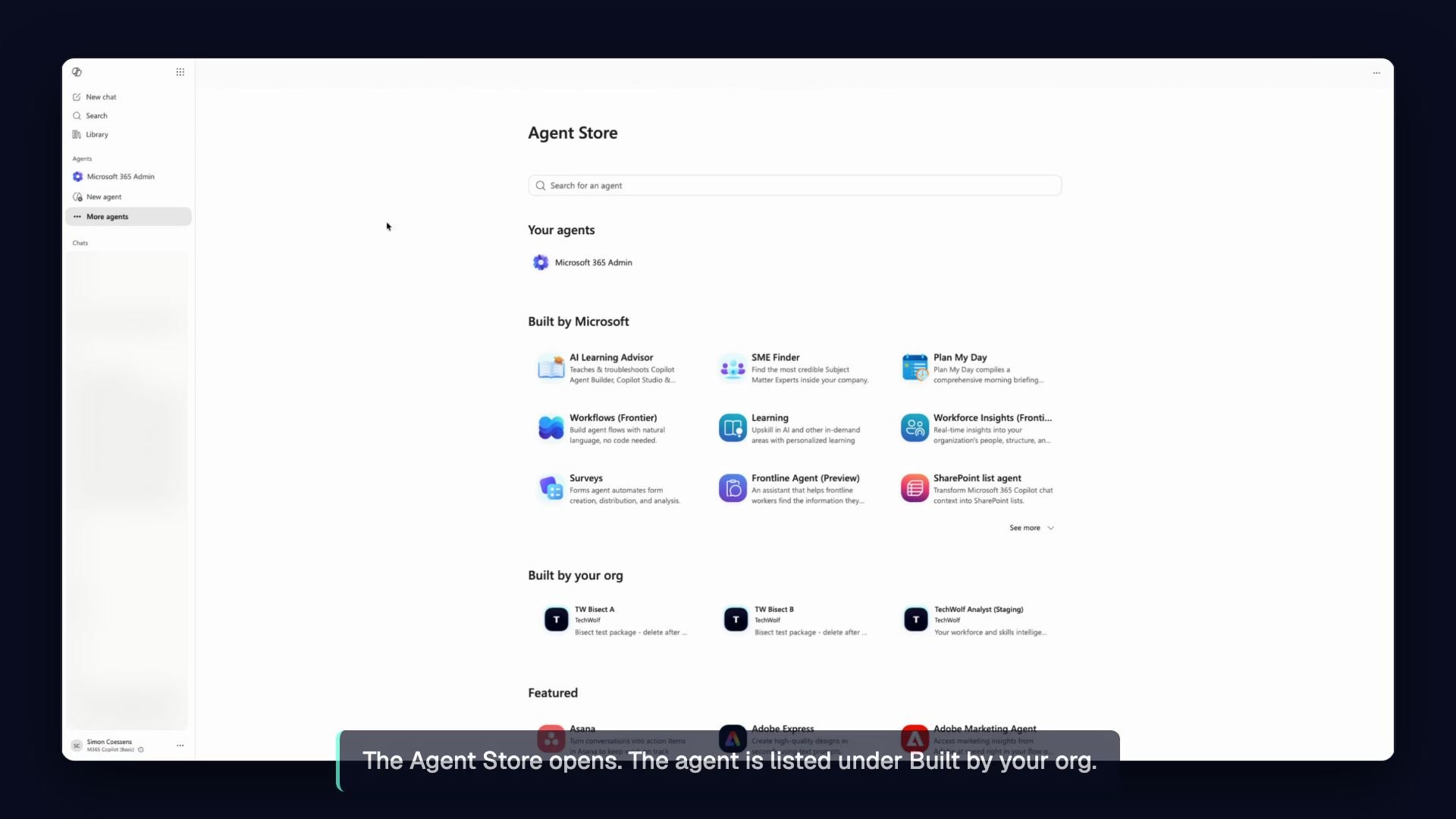
In Microsoft 365 Copilot, the user selects **More agents** in the sidebar to
open the Agent Store.
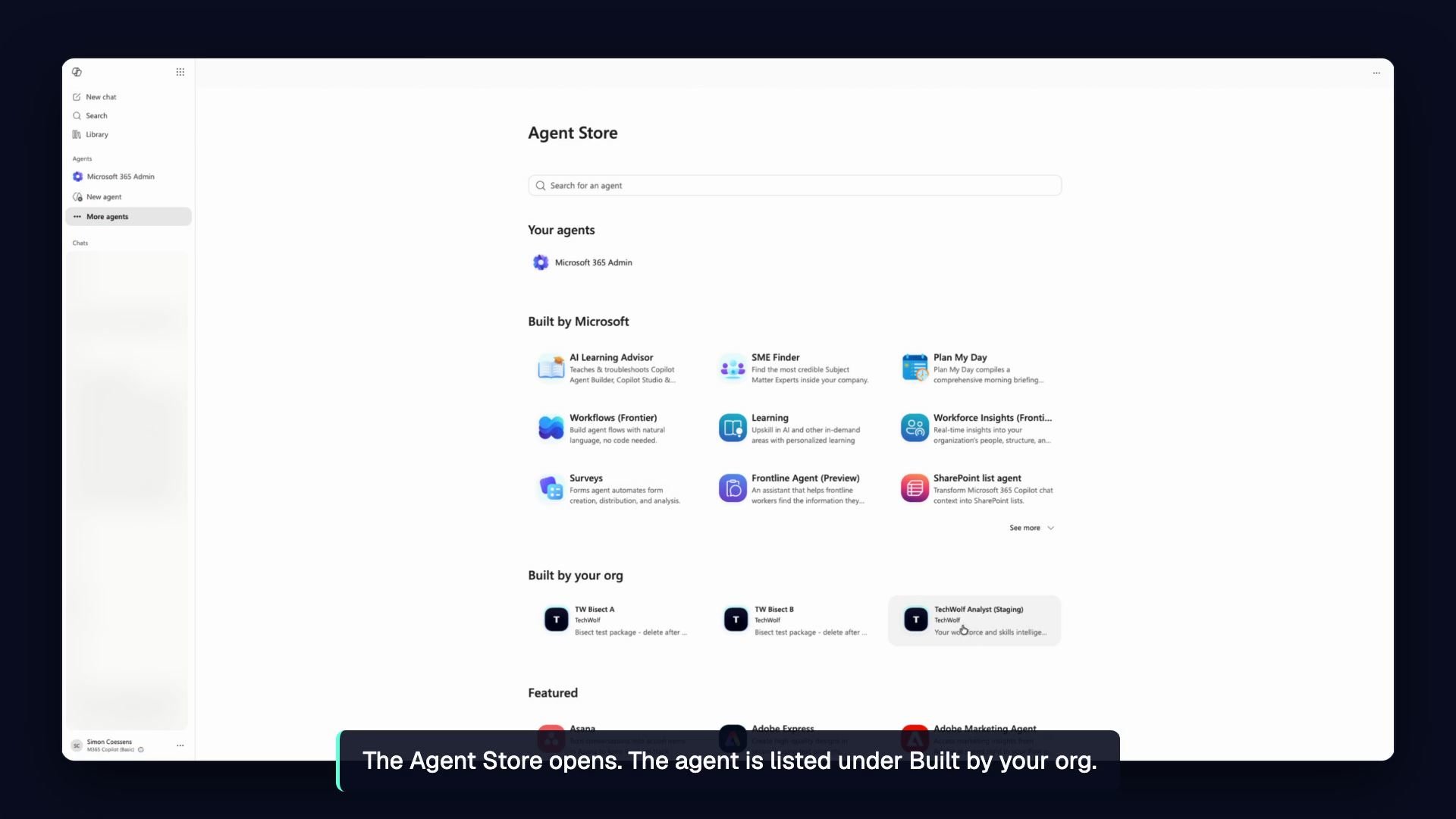
The TechWolf Analyst Agent is listed under **Built by your org**, because it was
added to the tenant by an administrator rather than installed from the public
marketplace.
 Selecting the agent shows what it does and the permissions it uses. Adding it is
the only step, and the agent is then pinned under **Agents** for next time.
Selecting the agent shows what it does and the permissions it uses. Adding it is
the only step, and the agent is then pinned under **Agents** for next time.
 # Asking a question
The user opens the agent and sends a message to get started, the same as any
other chat in Copilot.
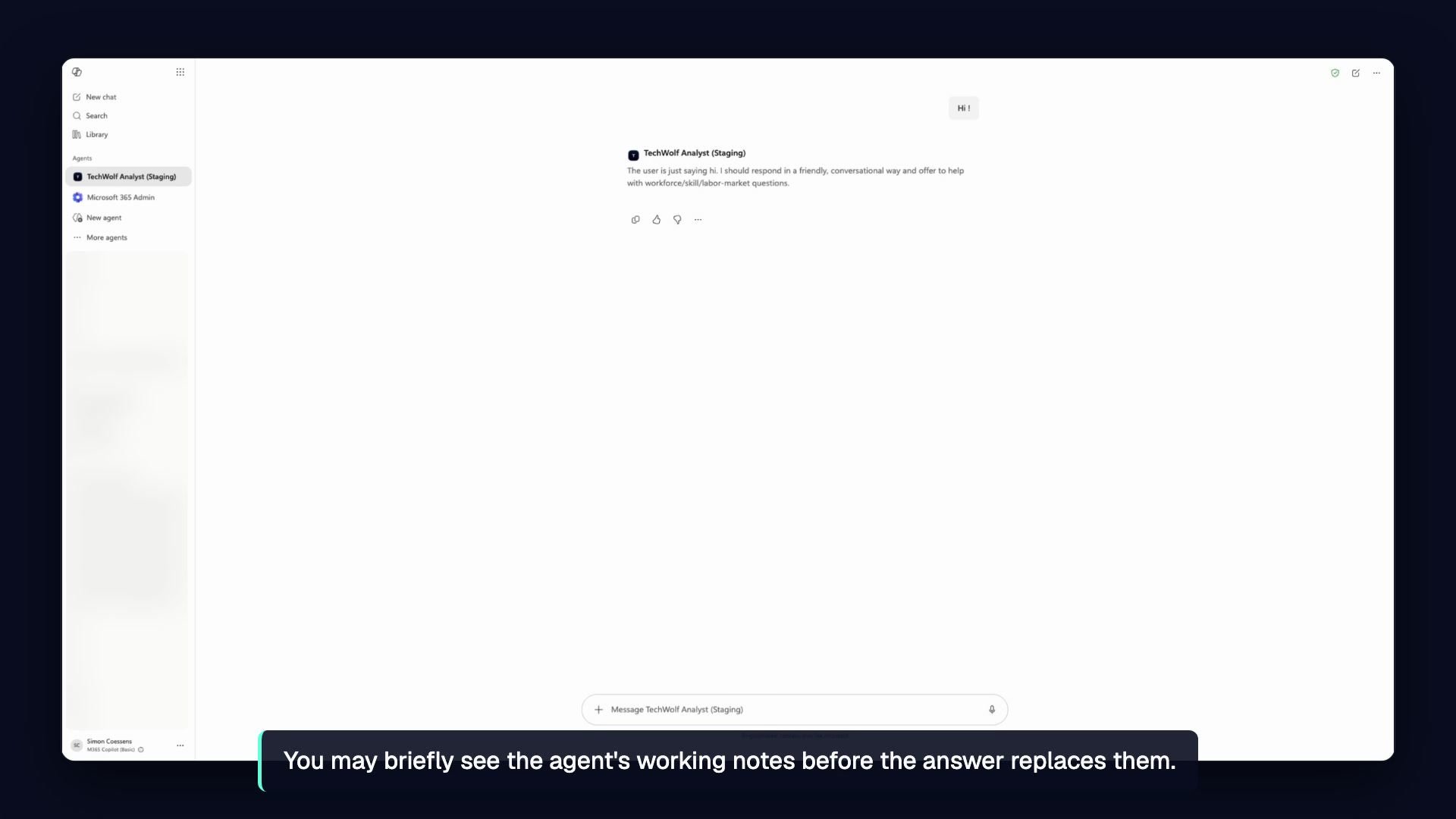
The first reply can take a moment while the agent gets to work. During that time
the user may briefly see the agent's working notes before the answer replaces
them.
# Asking a question
The user opens the agent and sends a message to get started, the same as any
other chat in Copilot.
The first reply can take a moment while the agent gets to work. During that time
the user may briefly see the agent's working notes before the answer replaces
them.
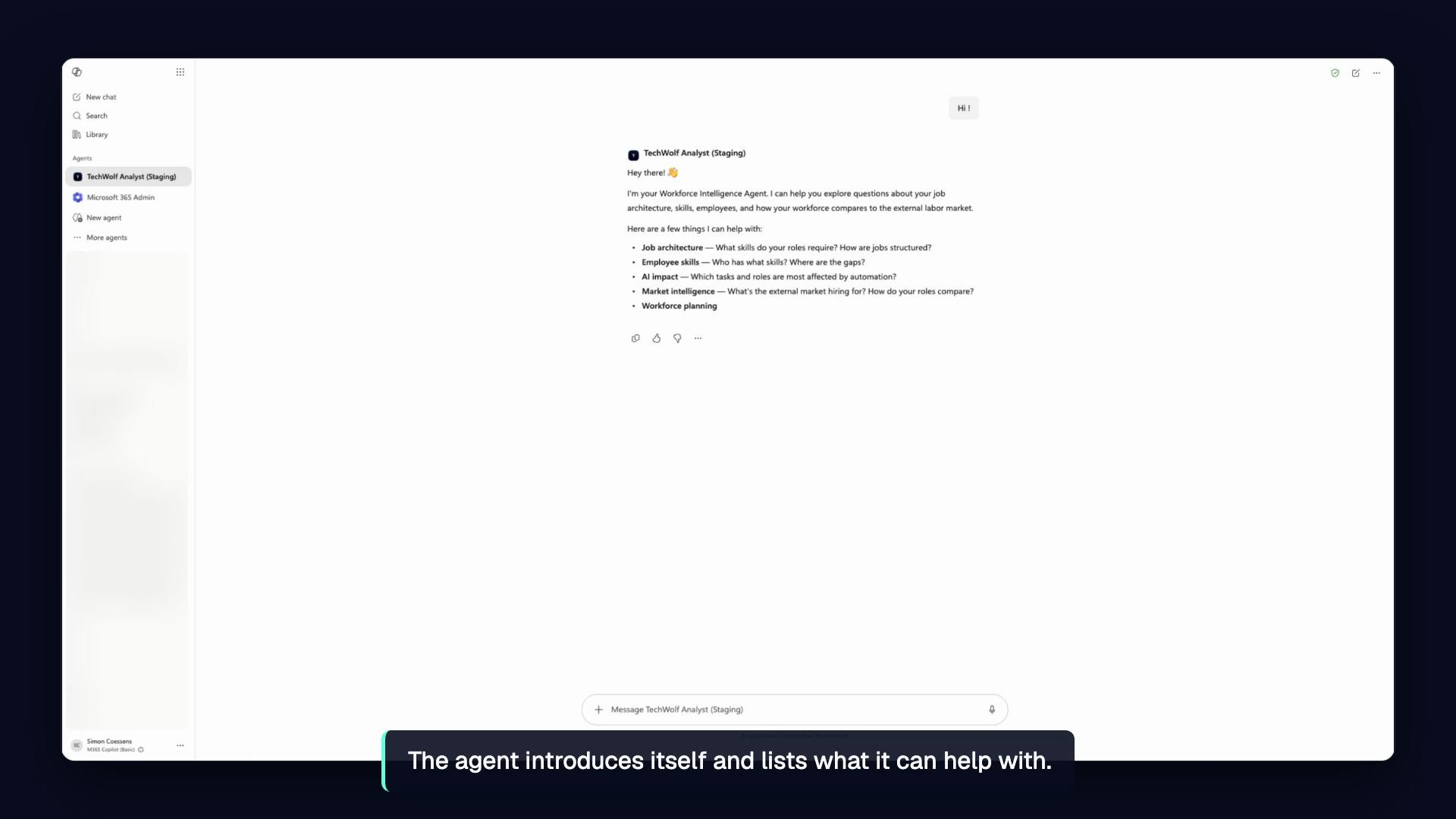
 On first contact the agent introduces itself and lists what it can help with,
such as job architecture, employee skills, AI impact, market intelligence, and
workforce planning. From there the conversation continues naturally.
On first contact the agent introduces itself and lists what it can help with,
such as job architecture, employee skills, AI impact, market intelligence, and
workforce planning. From there the conversation continues naturally.
 The answers, the data the agent reasons over, and the user's access scope
are unchanged by using Copilot; it grants no additional access. See
[How It Works](./how-it-works) for the identity and access model.
The answers, the data the agent reasons over, and the user's access scope
are unchanged by using Copilot; it grants no additional access. See
[How It Works](./how-it-works) for the identity and access model.